Revo Uninstaller

- Windows: 7, 8, 10, 11
- Version: 5.4
- Size: 17.13 MB
-
[Total: 1 Average: 5]
Windows has its own built-in tool to uninstall anything you have installed on the system, but it has been plagued with the same issue for ages. Oftentimes, there are leftovers after uninstallation. Sure, you can always hunt them down manually to remove them for good, but it takes time, and it’s usually a hassle that no one wants to deal with. That’s why many users prefer Revo Uninstaller.
As the name suggests, it is an uninstaller, but it’s better than the built-in tool in Windows due to its capability of tracing and removing the leftovers. On top of that, it comes with a number of tools like automatic backup, backup manager, history cleaner, junk files cleaner, autorun manager, and hunter mode.
Features and Highlights
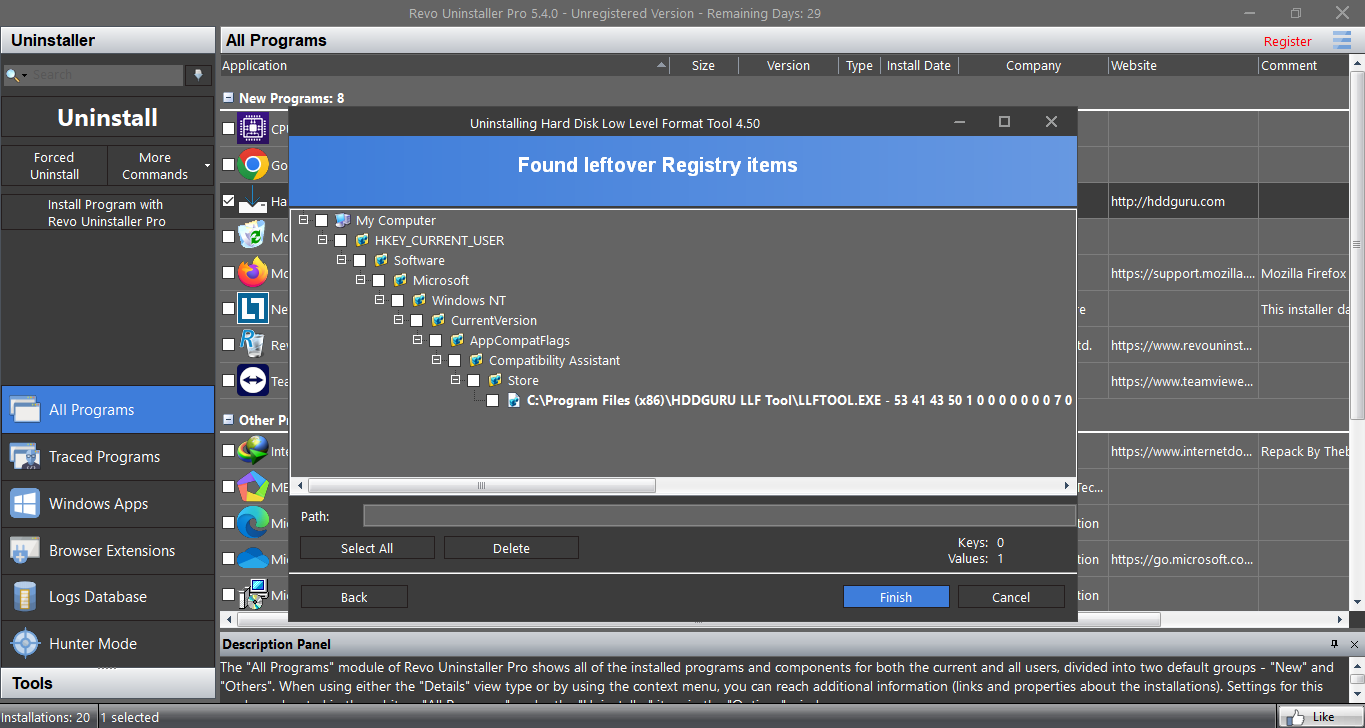
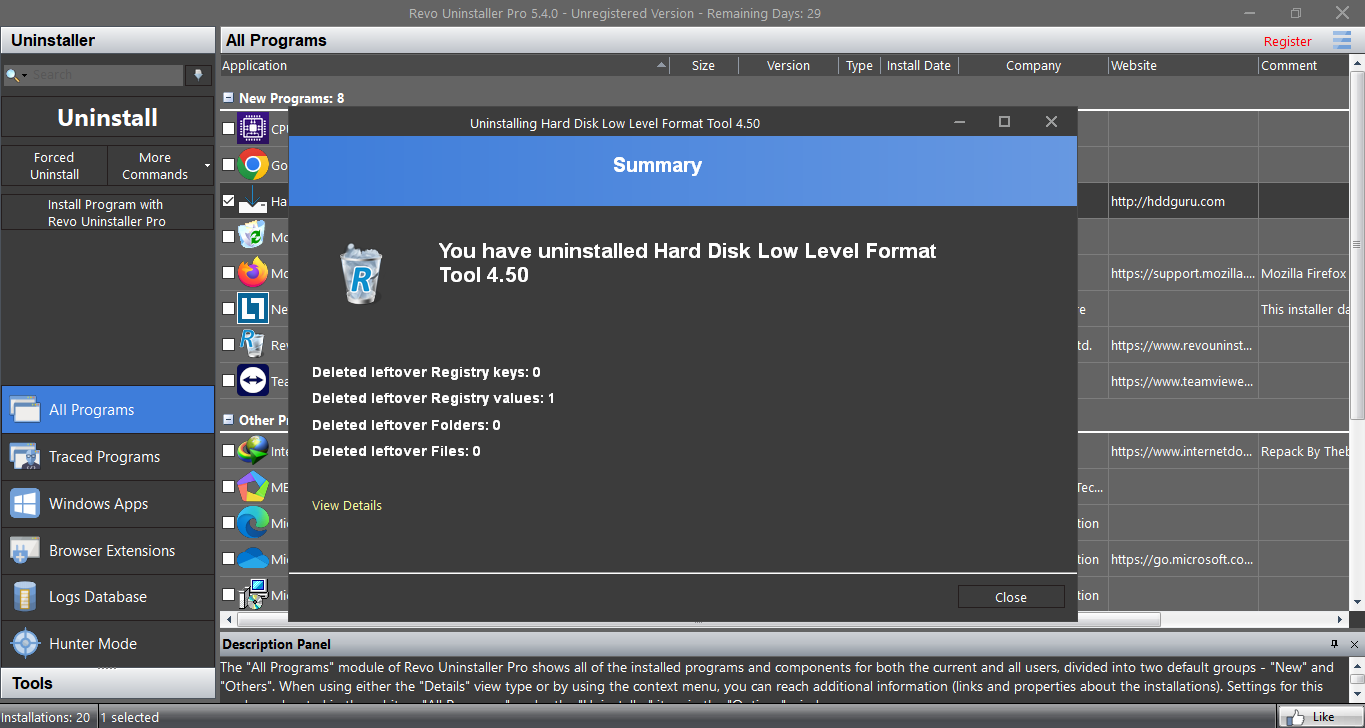
Revo Uninstaller offers three uninstallation options. You can choose Uninstall, Quick Uninstall, or Forced Uninstall. Uninstall is the standard uninstallation option that you can access either by double-clicking or right-clicking the name of an application you’d like to remove.
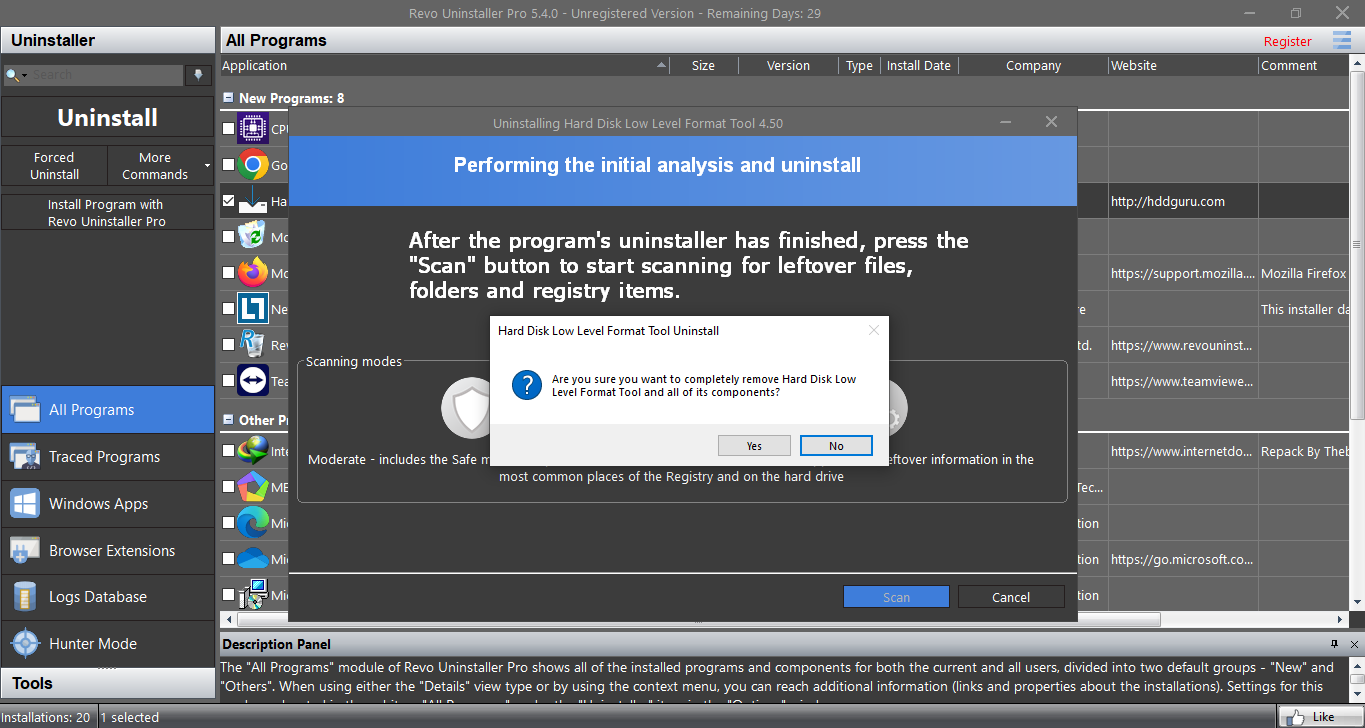
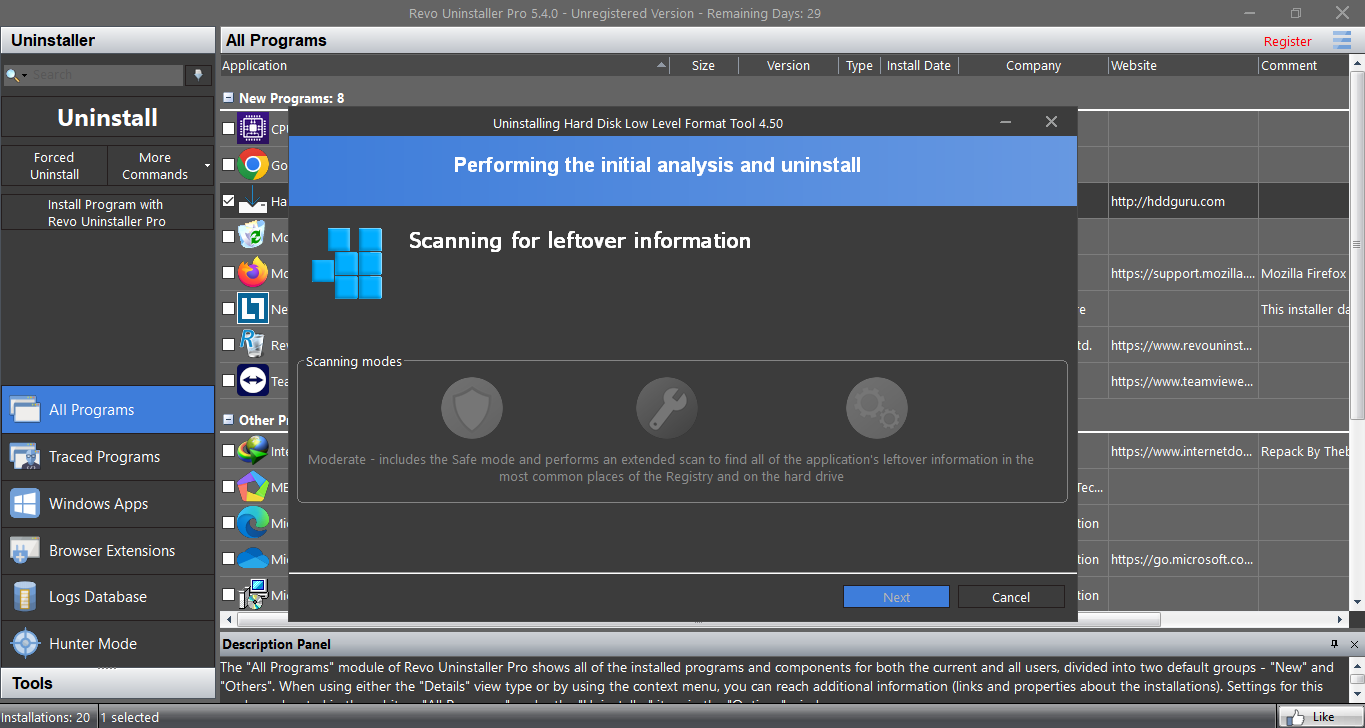
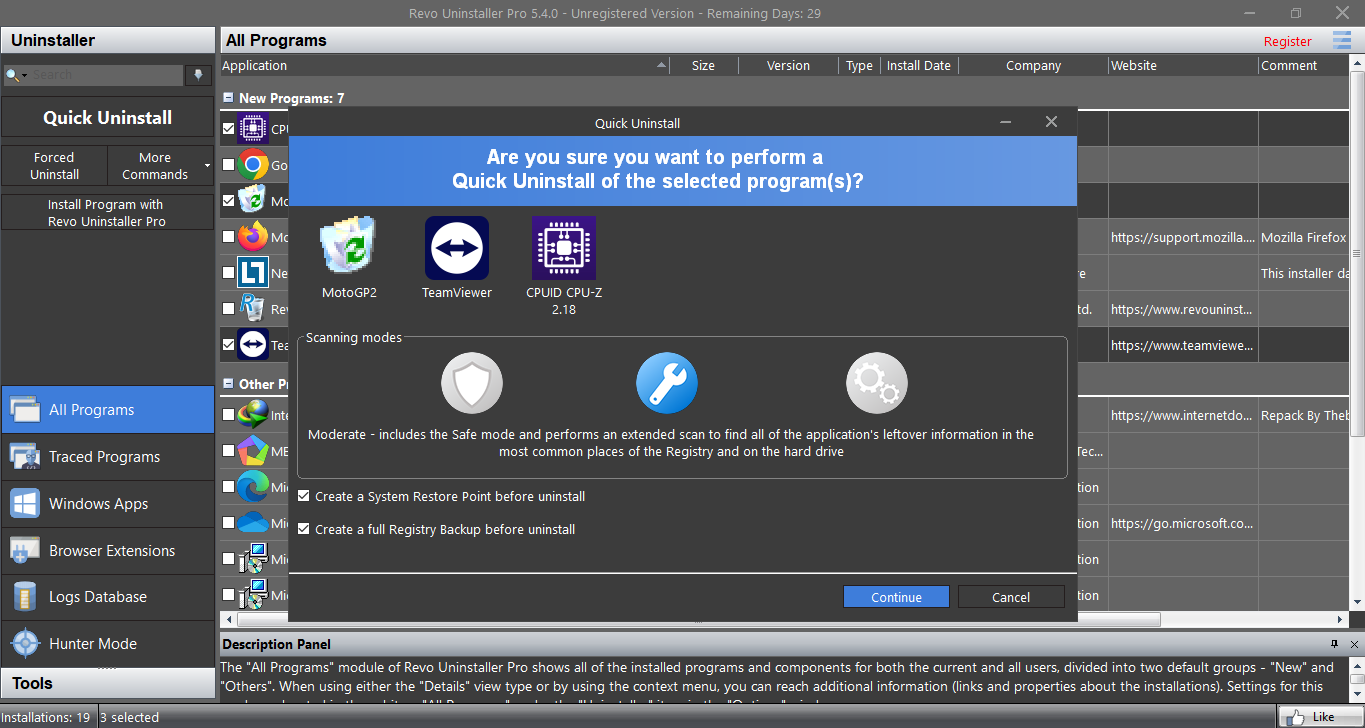
For leftovers of partially installed or uninstalled applications, you can remove them with the Forced Uninstall option. You get to choose the scanning option. By default, it is set to Moderate. The least risky option is Safe and the most aggressive one is Advanced, which performs a deeper scan to find more leftovers in places that aren’t accessible by the other two scanning options.
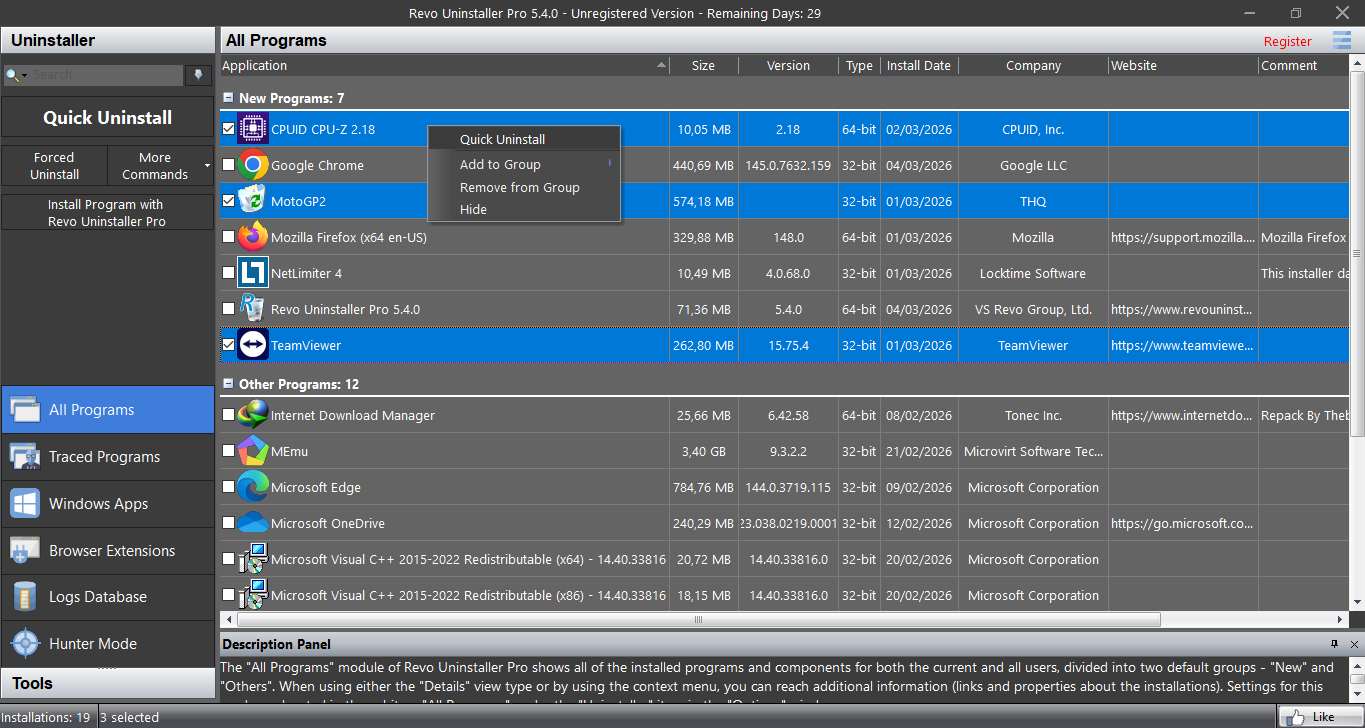
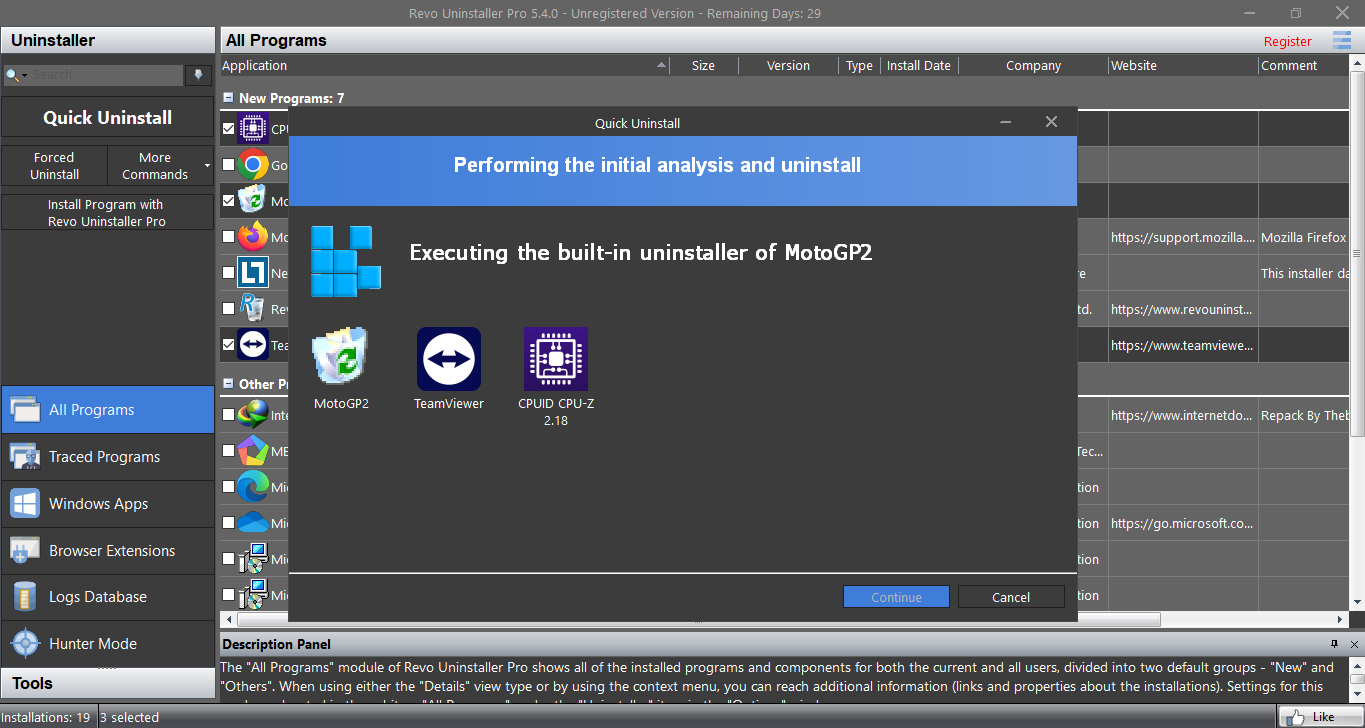
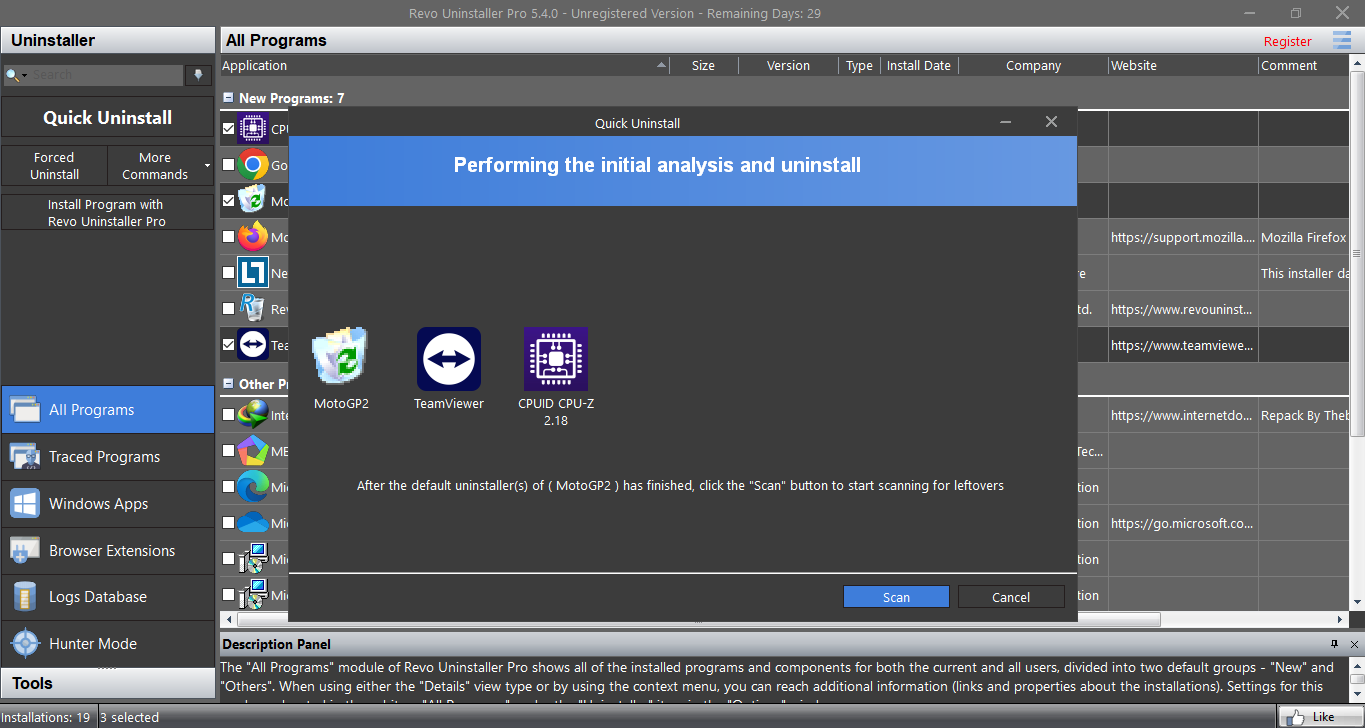
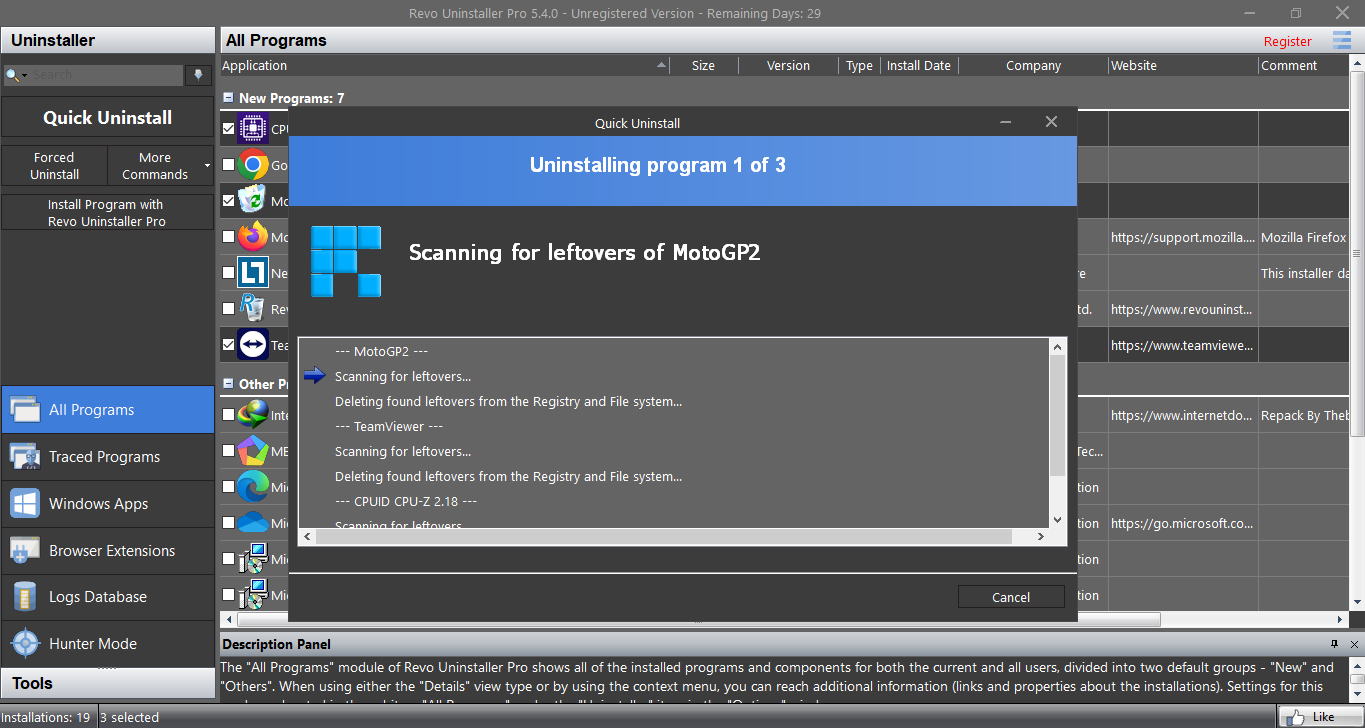
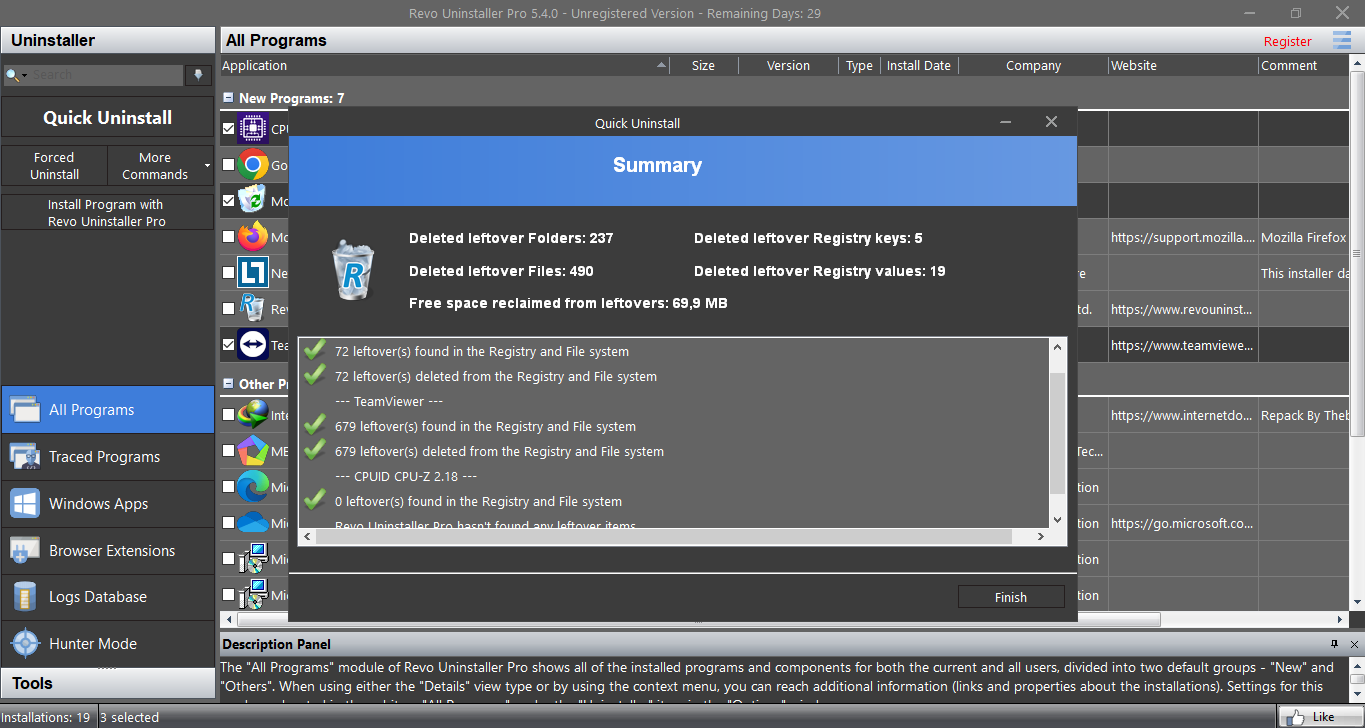
Revo Uninstaller allows you to uninstall multiple programs. When you select more than one and right-click any of them, the Quick Uninstall option shows up. If you proceed with the uninstallation, you’ll be presented with the same scanning option but Revo will attempt to install all of them silently, meaning the removal doesn’t require you to click some buttons like you would with standard uninstallation procedure.
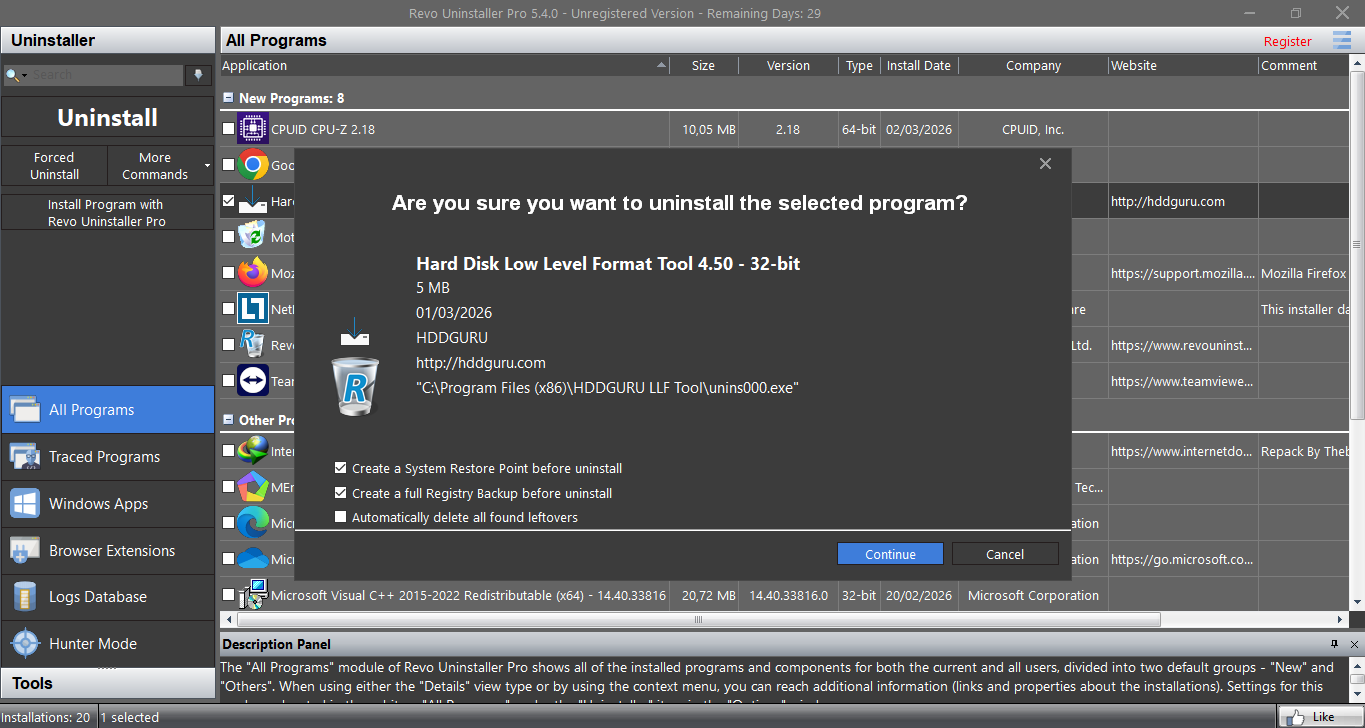
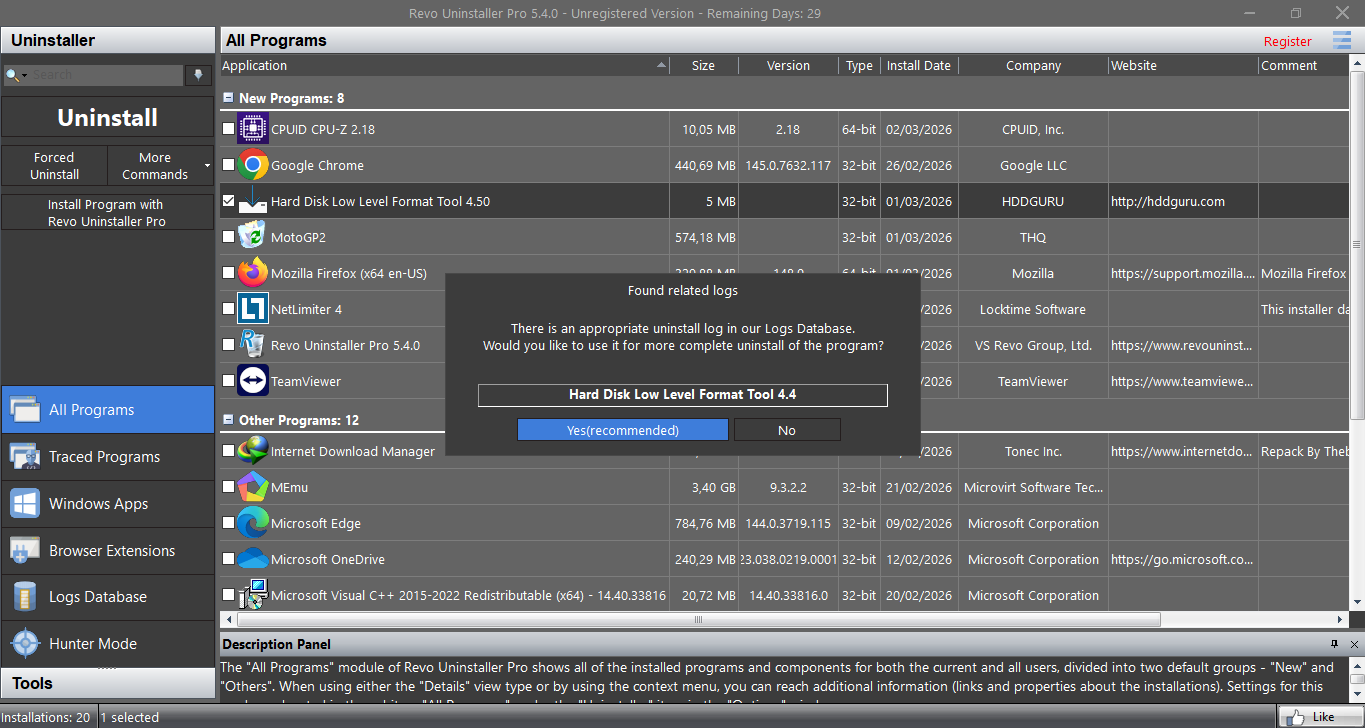
Every time you’re about to uninstall a program, a confirmation window will pop up. It offers to create a system restore point, a full registry backup, and automatically delete all found leftovers. If you want to manually delete the leftovers, leave the third option unchecked.
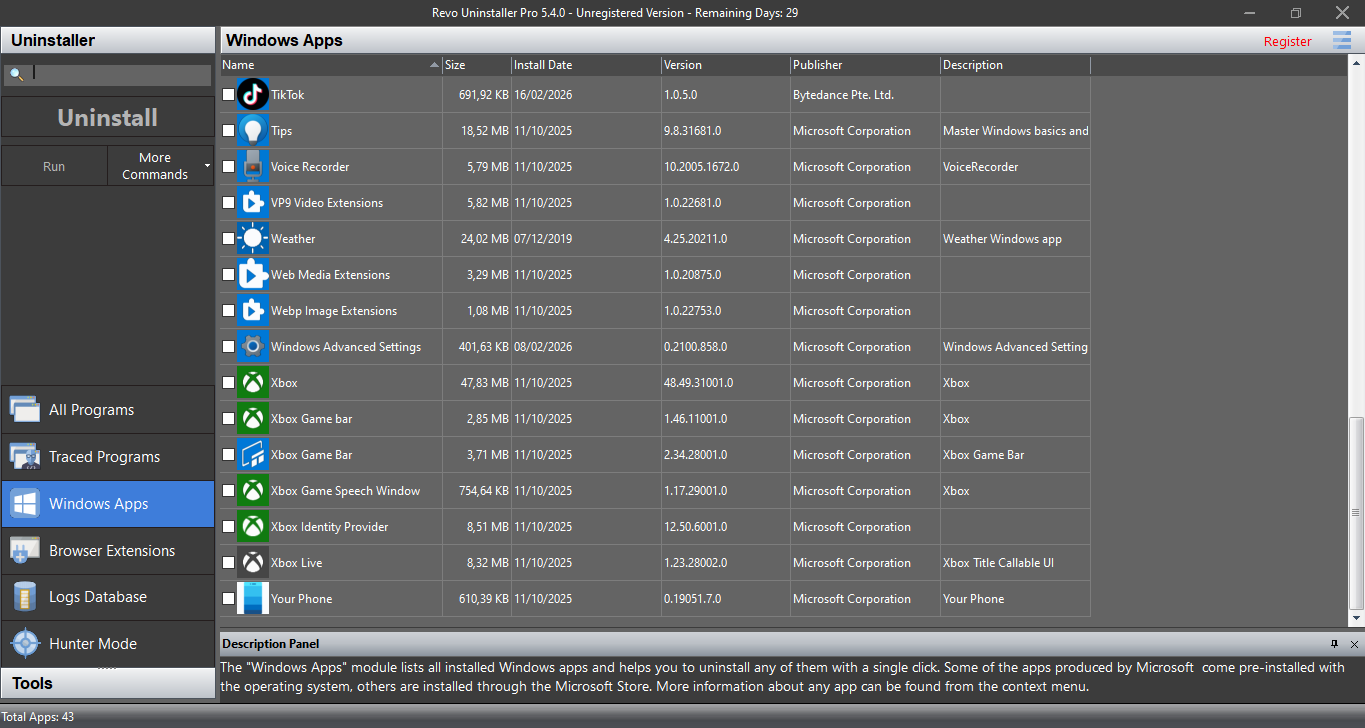
Revo Uninstaller also lets you uninstall Microsoft Store (UWP) apps and pre-installed Windows apps, including those that usually do not appear in the Programs and Features list. It can sort them out based on name, size, install date, version, or publisher. Just like when you uninstall a third-party program, Revo gives you the same set of options before you proceed with the uninstallation.
Pros
Cons
Revo Uninstaller Free Download for Windows
One of the featured tools in Revo Uninstaller is Hunter Mode. It’s a shortcut to uninstall a program, kill a process, stop a program from automatically starting on Windows startup, open the folder of a program, look up information on Google, and open the Properties window of the selected program.
As for the rest of the tools, even though some of them have nothing to do with uninstallation at all, they are just as useful. If you ever need to wipe the content of your hard drive so it cannot be recovered, Revo can perform the task as well. You can click the link below to download Revo Uninstaller for Windows:
This program is also available in
Similar to Revo Uninstaller
- App Name Revo Uninstaller
- License Freeware
- App Name Revo Uninstaller
- Publisher VS REVO GROUP
- Updated
- Version: 5.4