CPU-Z
- Windows: 7, 8, 10, 11
- Version: 2.18
- Size: 4.55 MB
-
[Total: 1 Average: 5]
CPU-Z is like Windows SysInfo but with more focus on the CPU. While the built-in tool provides basic information, the third-party program offers an in-depth overview, making it a better fit for PC enthusiasts and IT professionals. Everyday users who need to get detailed insights into their CPUs will also find it handy.
CPU-Z also shines when planning upgrades. By identifying your motherboard model, chipset, and memory specifications, it helps you to make sure that new components will fit and function properly so you won’t waste your money, time, and energy from buying the wrong ones.
Features and Highlights
CPU-Z is one of those apps that open quickly once you double-click its desktop icon. It’s definitely not as fast as Notepad but overall it just takes seconds for the graphical interface to pop up on your screen.
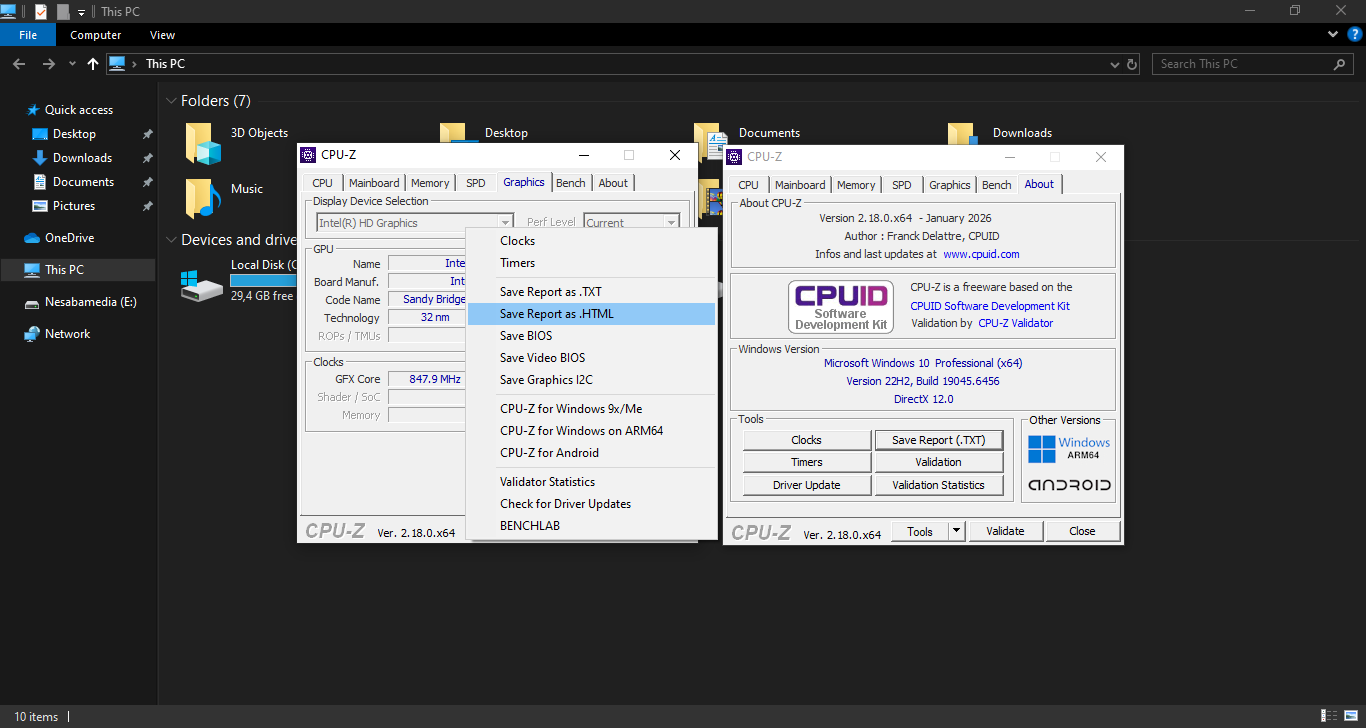
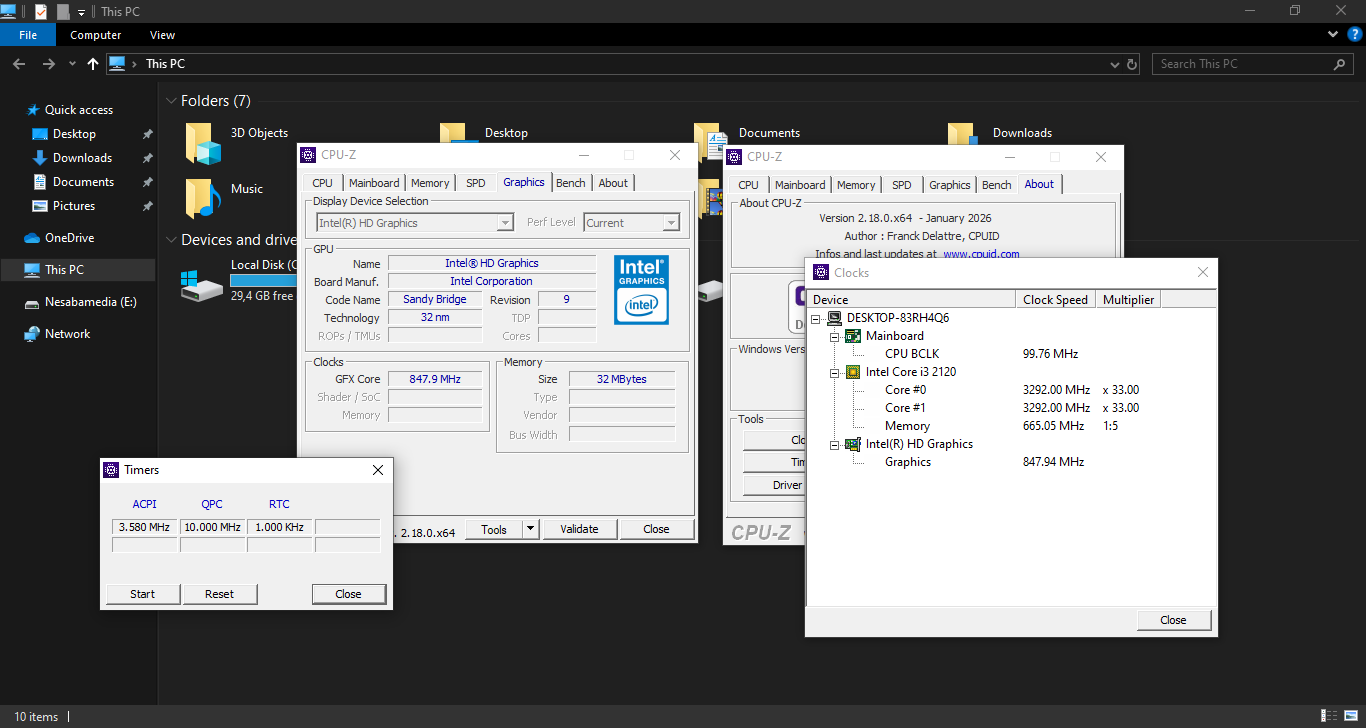
It displays a wealth of technical information grouped under different tabs: CPU, Mainboard, Memory, SPD, Graphics, Bench, and About.
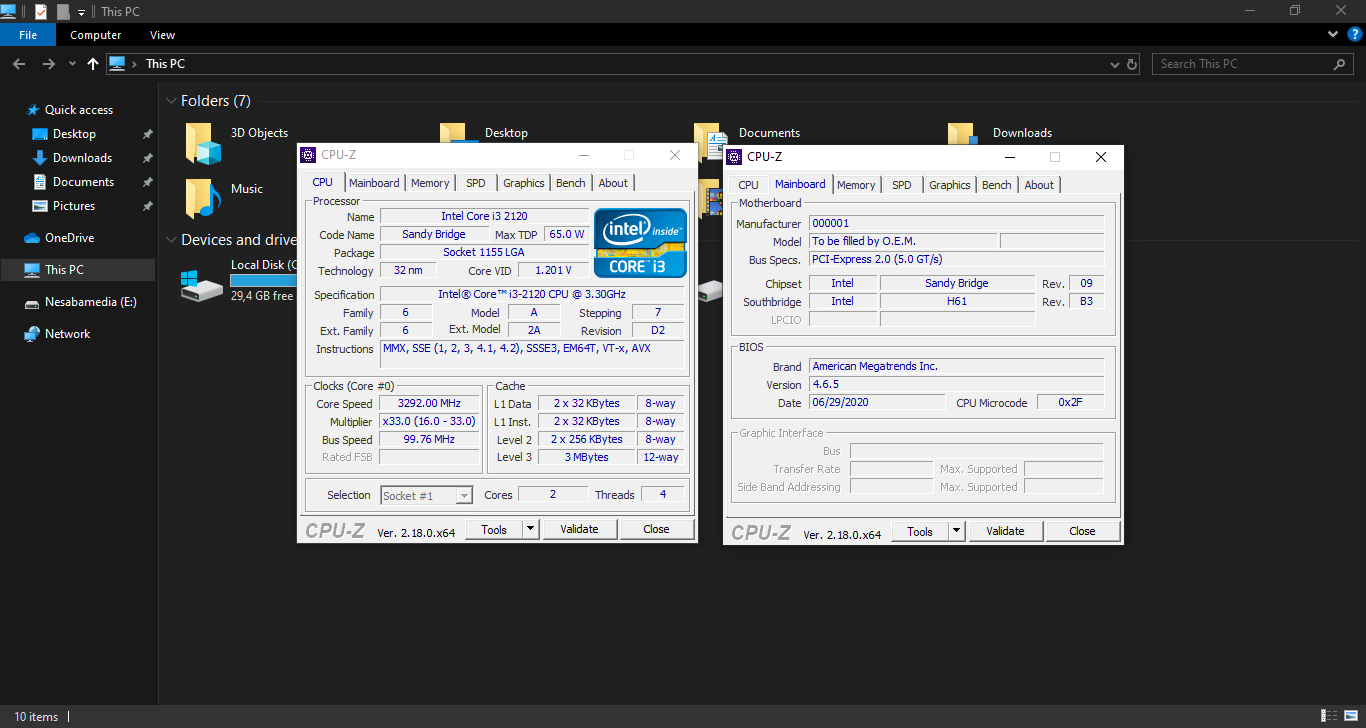
In the CPU tab, you can see the processor details that include name, number of cores, code name, maximum TDP, process technology, package, instructions, core speed, cache levels, multiplier, and bus speed.
The Mainboard tab in CPU-Z focuses on your motherboard and chipset details. It’s especially useful when you want to know what board you’re running, check BIOS versions, or confirm compatibility for upgrades.
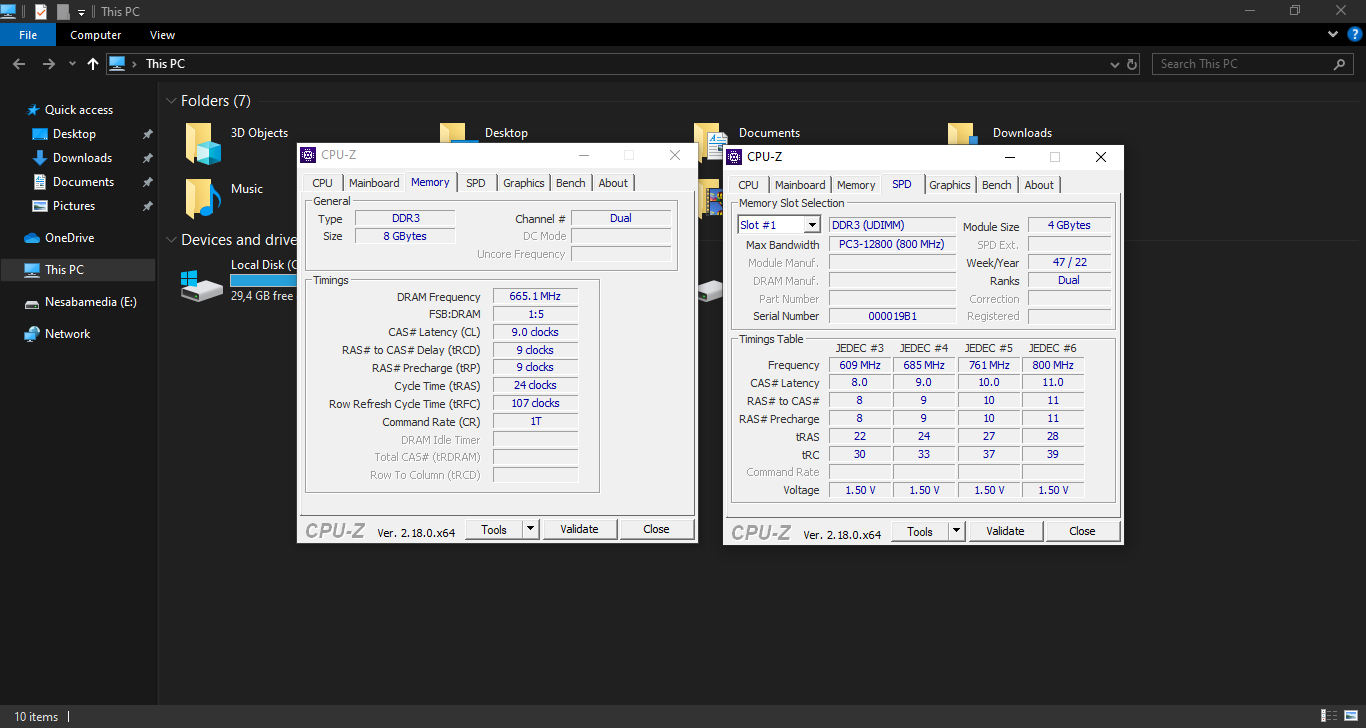
The Memory tab in CPU-Z provides the active operating state of your RAM as it is currently configured by the BIOS and motherboard, rather than static factory data. It identifies the generation of memory, such as DDR4 or DDR5. It shows the total amount of RAM currently recognized by the system, if your memory is running in Single, Dual, or Quad channel mode, and the actual operating frequency of your RAM, among others.
The SPD tab identifies the specific hardware information and factory-programmed profiles stored on each individual memory module. Unlike the Memory tab, which shows how your RAM is currently performing, the SPD tab shows what the RAM is physically capable of according to the manufacturer
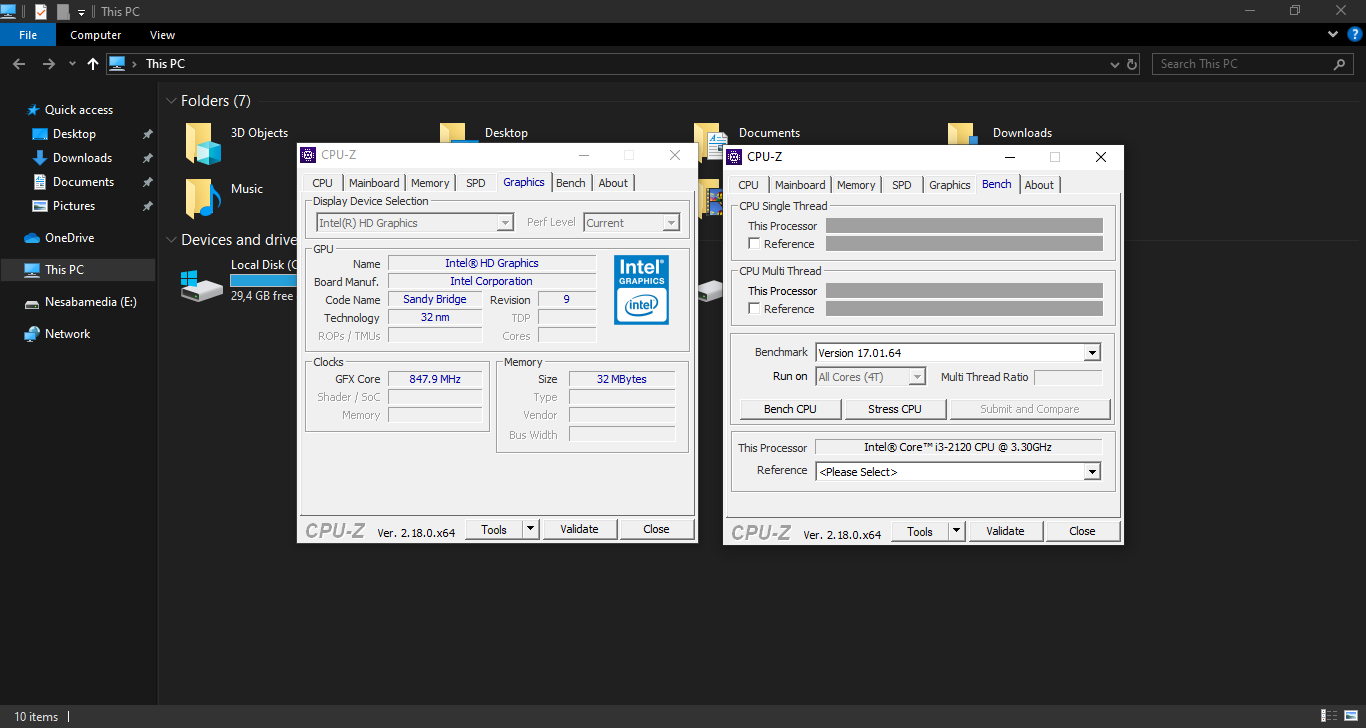
The Graphics tab identifies your active video controller by displaying the hardware name, such as Intel HD Graphics, along with the board manufacturer and internal code name.
The Bench tab provides a quick synthetic benchmark tool to test CPU performance. It runs two tests. The first one is a single-threaded test to assess individual core speed, and the other is a multi-threaded benchmark measuring overall CPU capacity.
Pros
Cons
CPU-Z Free Download for Windows
The CPU-Z has a simple interface with a clear navigation, but it looks crowded with all the data cramped together in such a small window. To make it worse, the font is relatively small and the window cannot be resized. While it provides a good amount of technical information, its usability needs to be improved.
However, overall it’s a good tool and useful in certain situations. The free license and small size adds to the list of reasons why every Windows PC should have it. You can click the link below to download CPU-Z for Windows:
This program is also available in
Similar to CPU-Z
- App Name CPU-Z
- License Freeware
- App Name CPU-Z
- Publisher CPUID
- Updated
- Version: 2.18