PixelLab
- Windows: 7, 8, 10, 11
- Version: 2.1.3
- Size: 24.73 MB
-
[Total: 1 Average: 5]
Taking photos is an easy way to capture moments in everyday life. Sometimes you just upload them to your social media account without editing anything, other times you might want to spice up some photos to give them a different feel, to emphasize the nostalgic aspect, or simply to add a stylish signature.
Meet PixelLab. It’s been circulating for years as a free image manipulation tool. Unlike the industry-standard Adobe Photoshop, which comes with a steep learning curve and demands a lot more system resources as it packs a tremendous amount of features, PixelLab is a much more streamlined tool, making it popular among casual users.
Features and Highlights
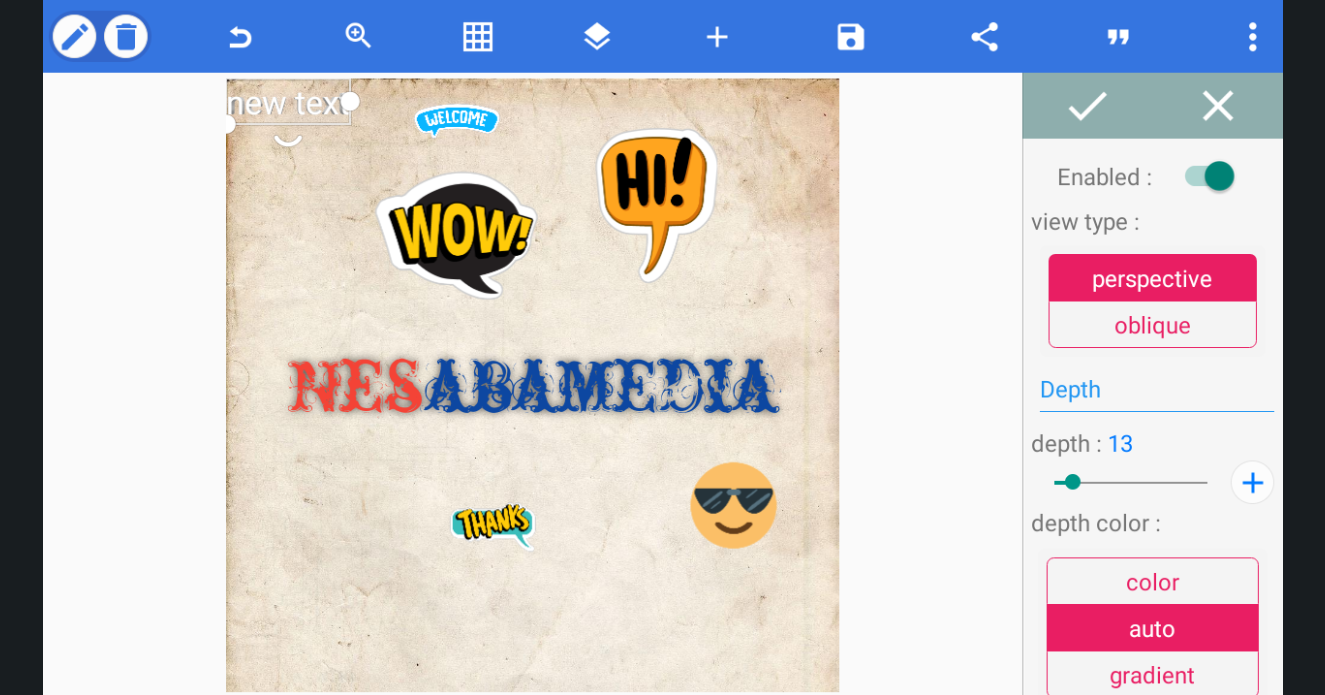
PixelLab isn’t a general-purpose photo editor like Photoshop or Snapseed. While it does have some basic image editing functions (cropping, rotating, changing backgrounds, adding stickers), those are secondary. Its main purpose is text-based design on images.
What PixelLab really focuses on:
- Text tools: Fonts, colors, gradients, shadows, outlines, textures, and even 3D text.
- Layering text over images: Perfect for quotes, memes, posters, and thumbnails.
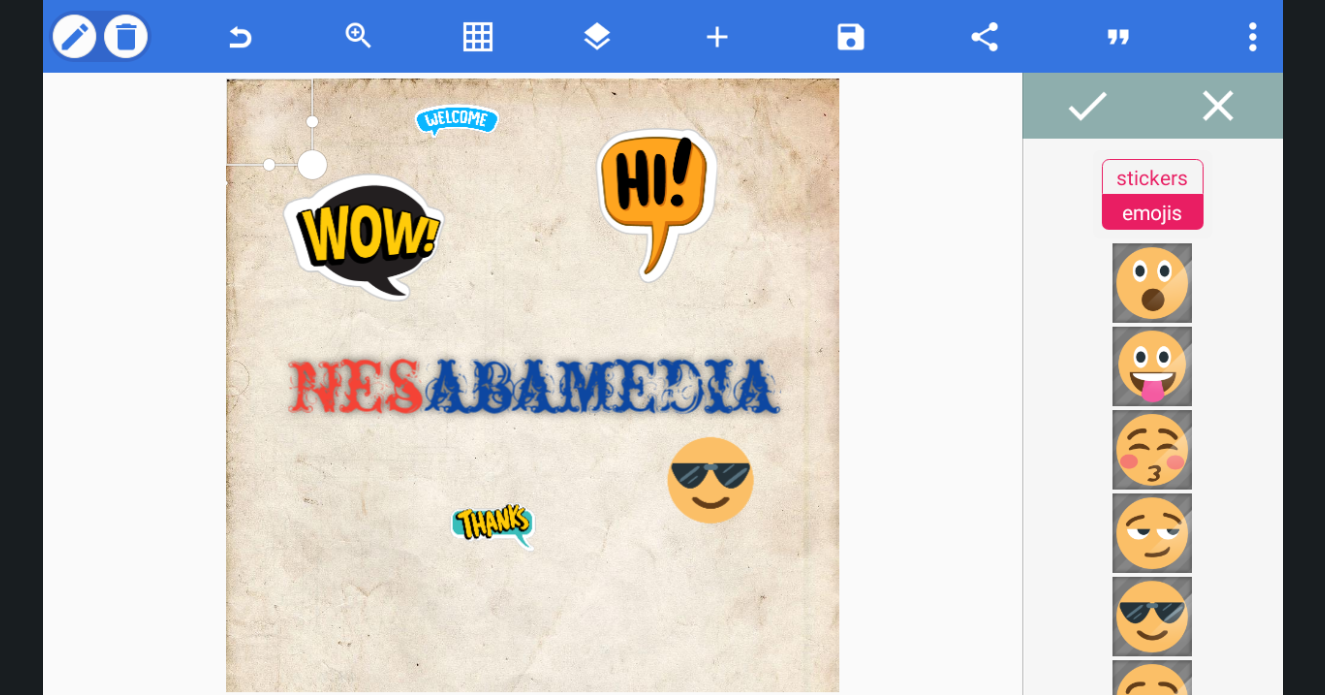
- Simple graphics: Stickers, shapes, and doodles to complement text.
- Background editing: Replace or remove backgrounds to make text stand out.
PixelLab has a pretty straightforward interface, but some users might find it a bit tricky to find the tools or features they need because most of them are hidden.
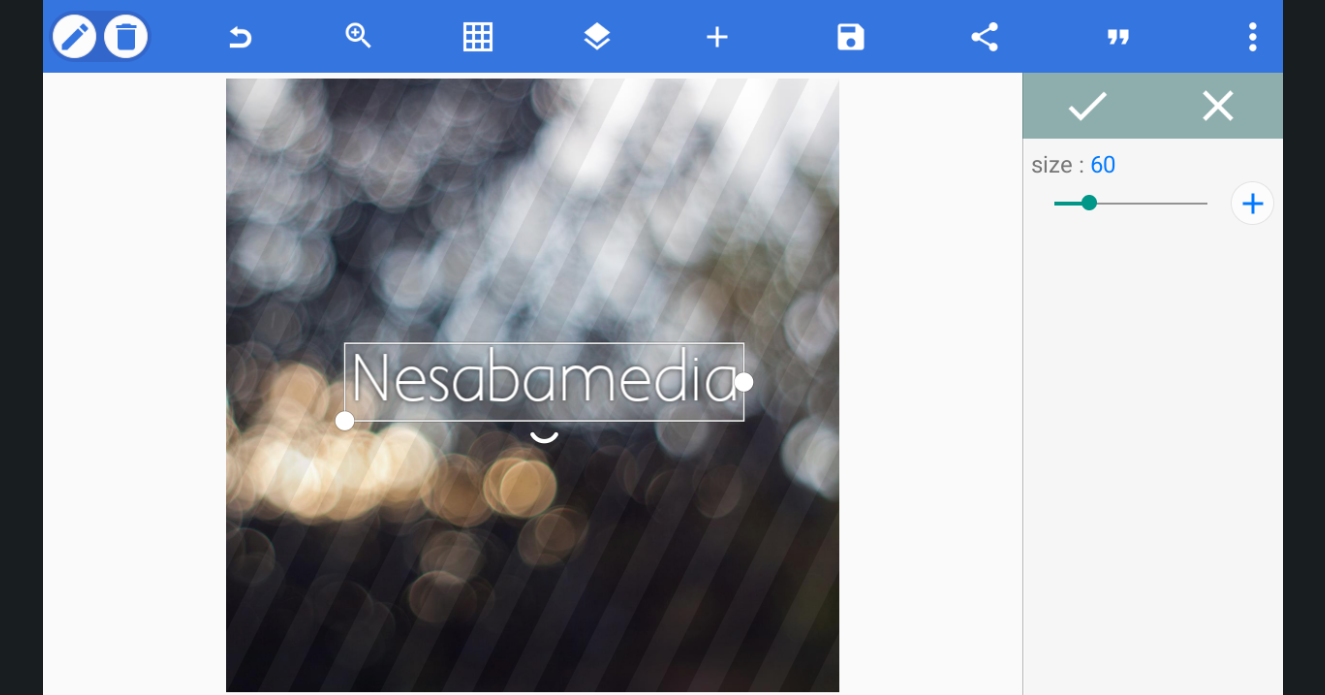
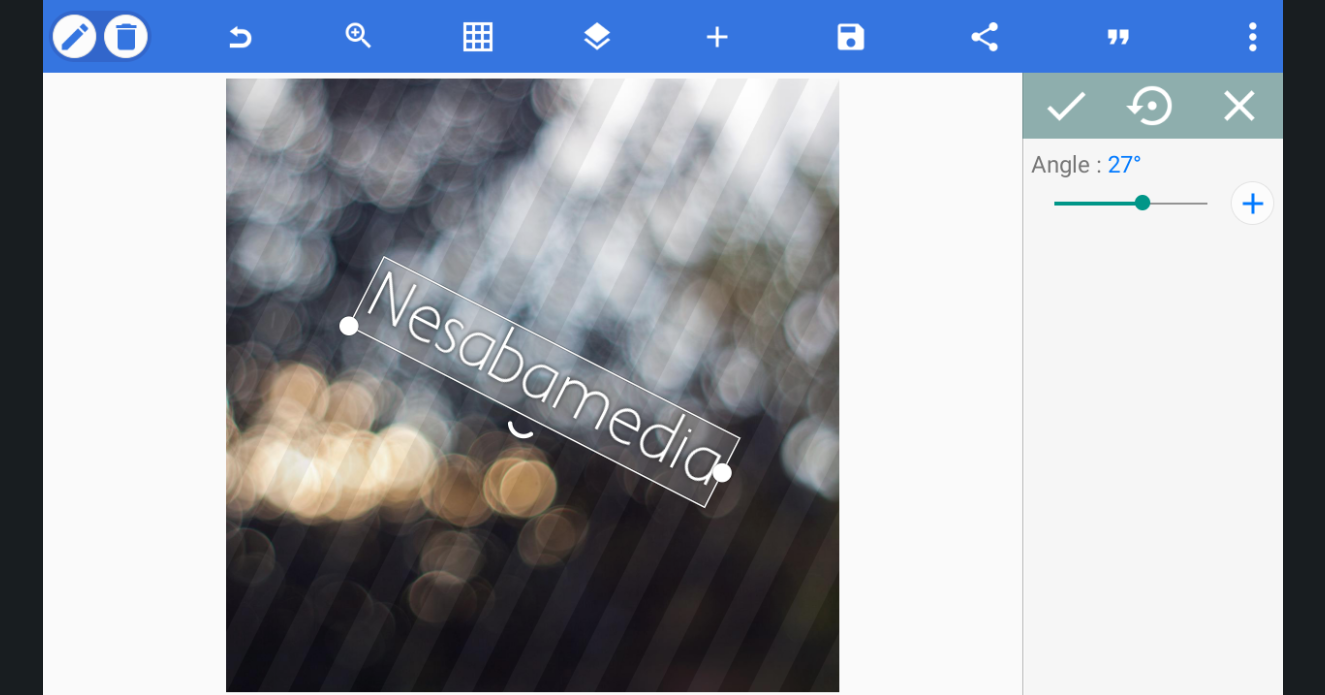
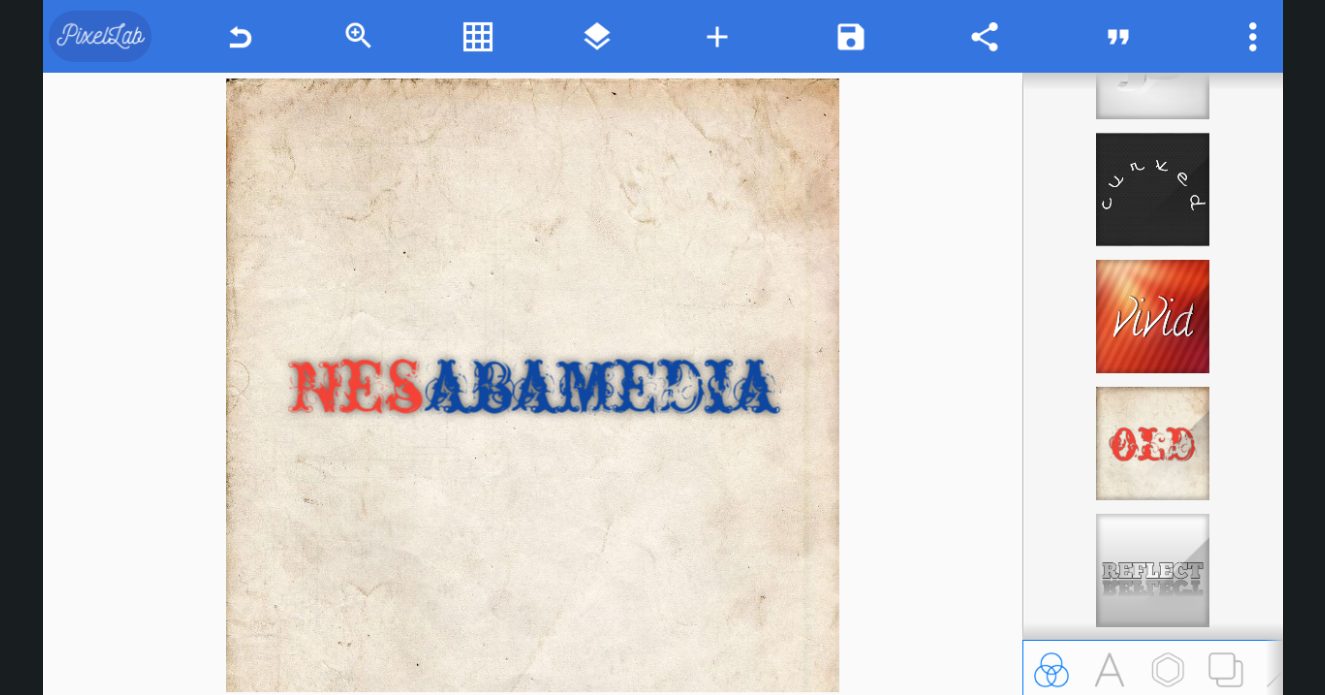
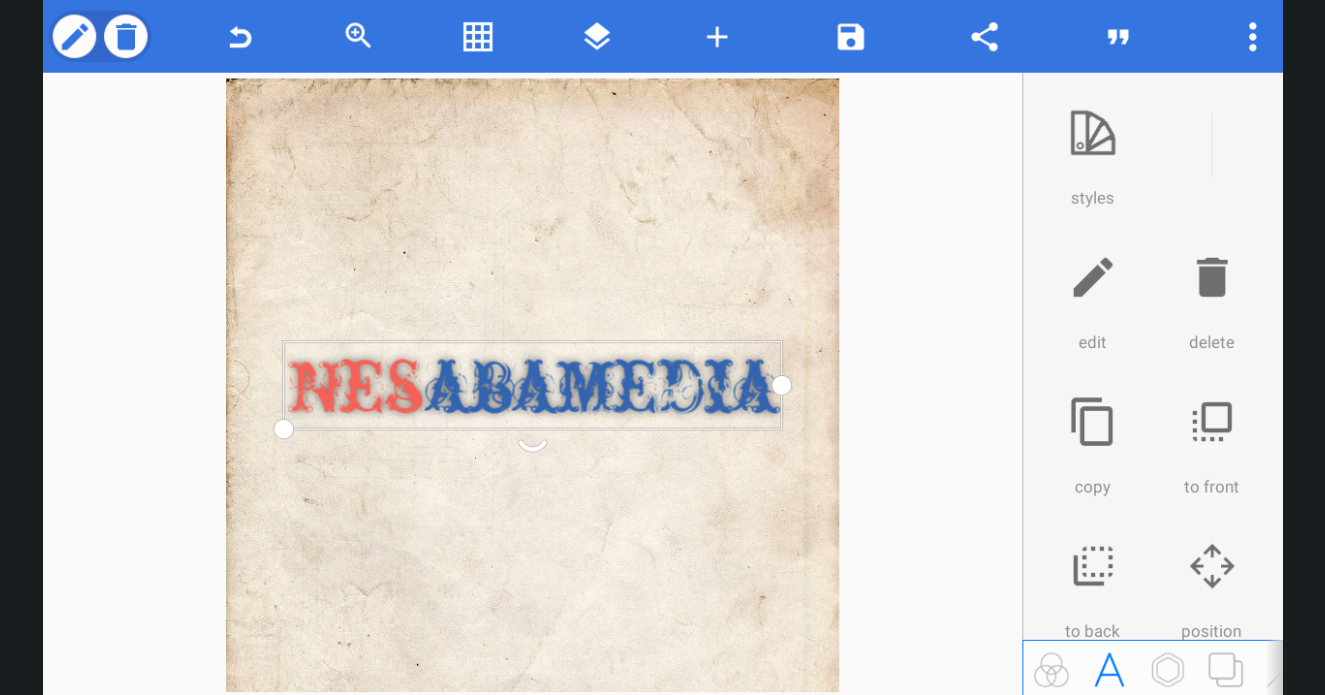
It provides a list of text designs that you can choose from. The text can be replaced with your own, centered on the image, and rotated. If you click the text tool icon at the right bottom corner of the interface, you’ll find more tools to edit the text like changing its color, adjusting the left and right paddings, increasing the size, adjusting its opacity level, adding a shadow effect and texture, and adding a background, among others.
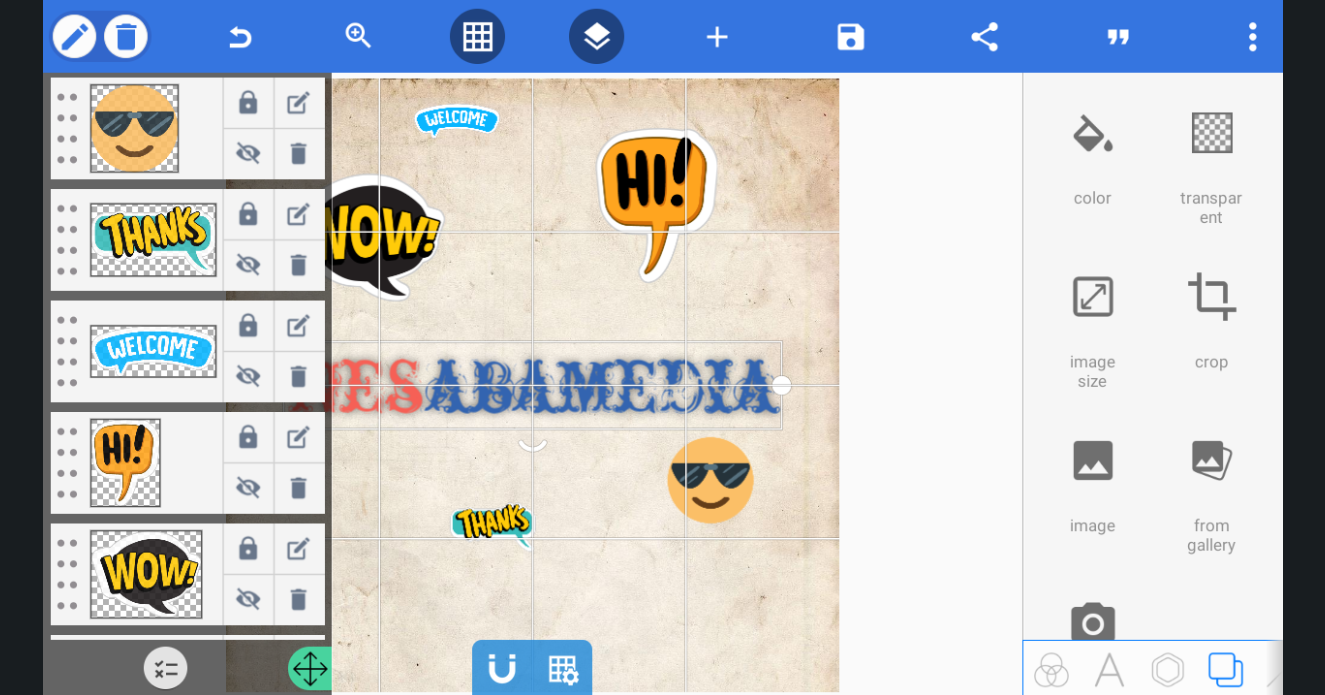
At the upper part of the interface, you’ll find the layer tool. Clicking it will display every layer for each graphic element you add to the image. You can make some basic adjustments, including hiding an element from the image, locking an element to prevent accidental editing, and deleting an element.
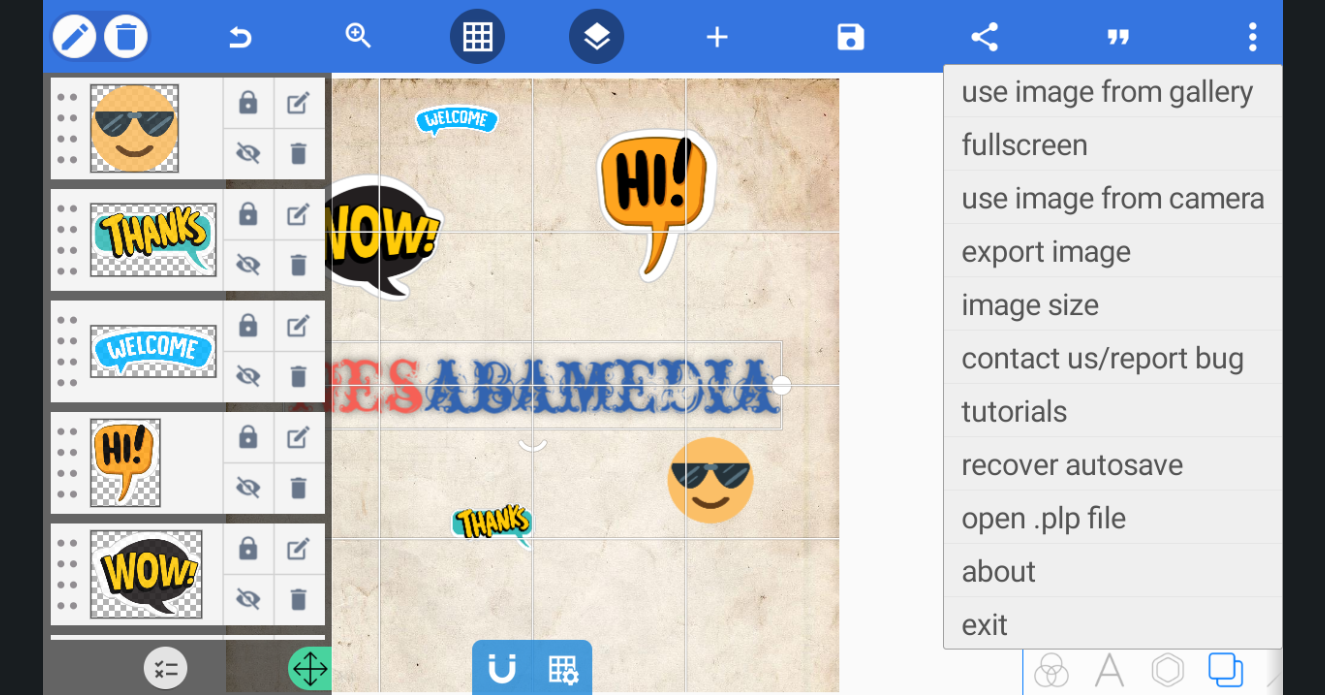
After you finish editing an image, you can save it as a project for future use or save it in JPG or PNG format. The latter is recommended to retain any transparency effect. As for the image quality, some options are available, which includes default, custom, low, medium, high, very high, and ultra.
PixelLab Free Download for Windows
Adding text is a task that almost any image editing tool can do, but PixelLab excels in how easy it is to use. You don’t need to spend time designing text since it already provides a variety of ready-made styles. Even better, the text effect you select can be edited if you need to personalize it further.
For more detailed text effects, you might need Adobe Photoshop, GIMP, CorelDraw, or anything similar since PixelLab is rather limited in what it can do. For quickly spicing up your images with text, however, it’s the better tool. You can click the link below to download PixelLab for Windows:
This program is also available in
Similar to PixelLab
- App Name PixelLab
- License Freeware
- App Name PixelLab
- Publisher PixelLab
- Updated
- Version: 2.1.3