WinToFlash

- Windows: 7, 8, 10, 11
- Version: 1.13.0000
- Size: 13.38 MB
-
[Total: 1 Average: 5]
Many computer issues can be fixed easily, but there also some issues that can only be resolved by reinstalling the operating system. That’s why it is recommended to have a bootable installation media at hand, and WinToFlash can help you create one or two, or more, with a little bit of efforts on your part.
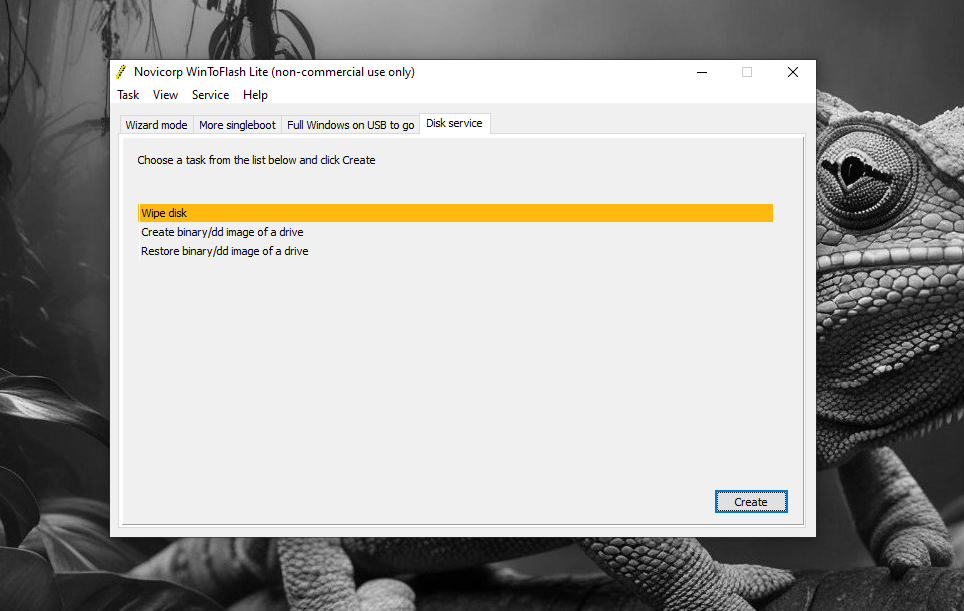
WinToFlash can turn your USB flash drive into an installation media. It can also be used just for the purpose of backing up your Windows DVD. By having more than one installation media, it means you prepare yourself for the situation where you need to reinstall Windows only to find out that the only installation media is corrupted.
Features and Highlights
WinToFlash shows a brief description on what it is all about to every new user. It also asks you to choose between a paid and free license. After that, it will install the key, as well as show an ad, before you can finally use the software.
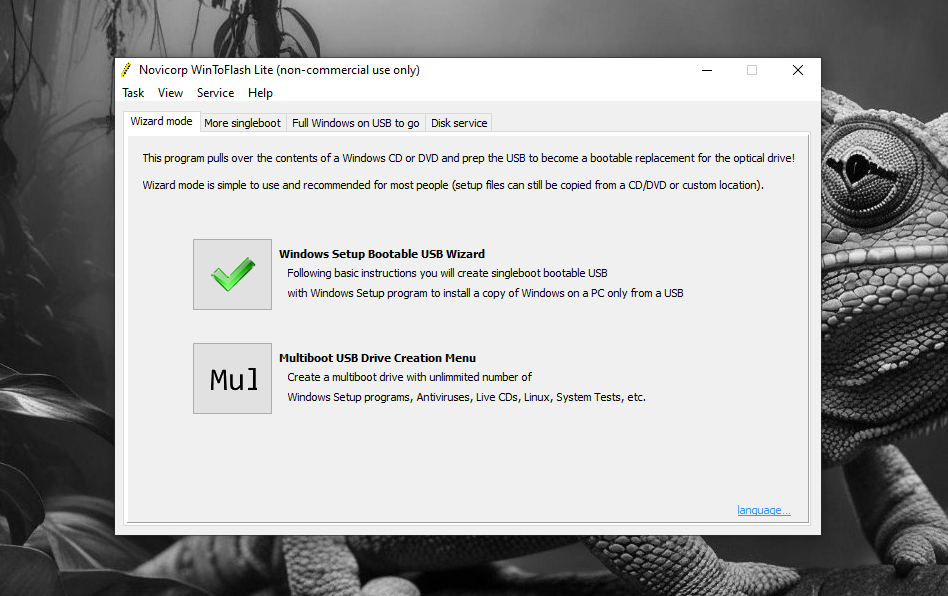
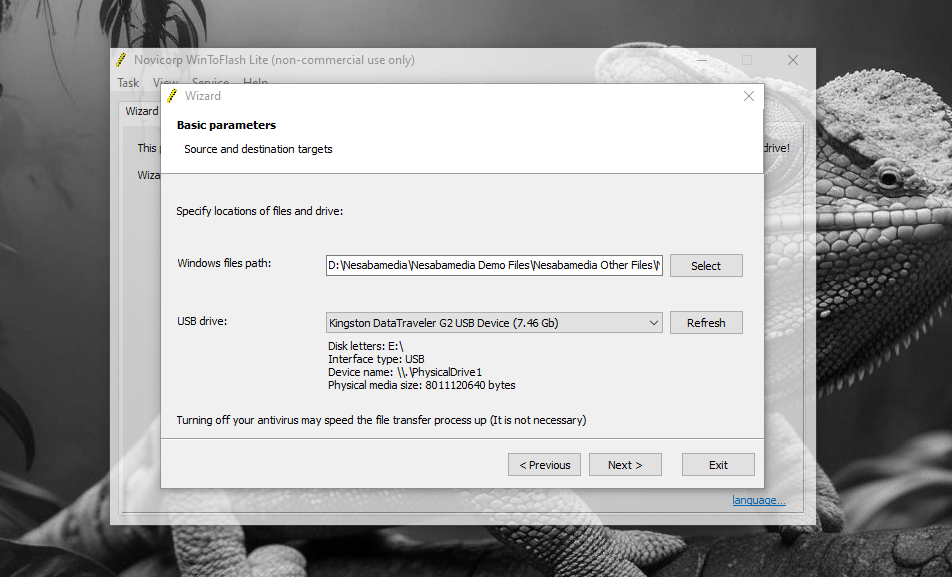
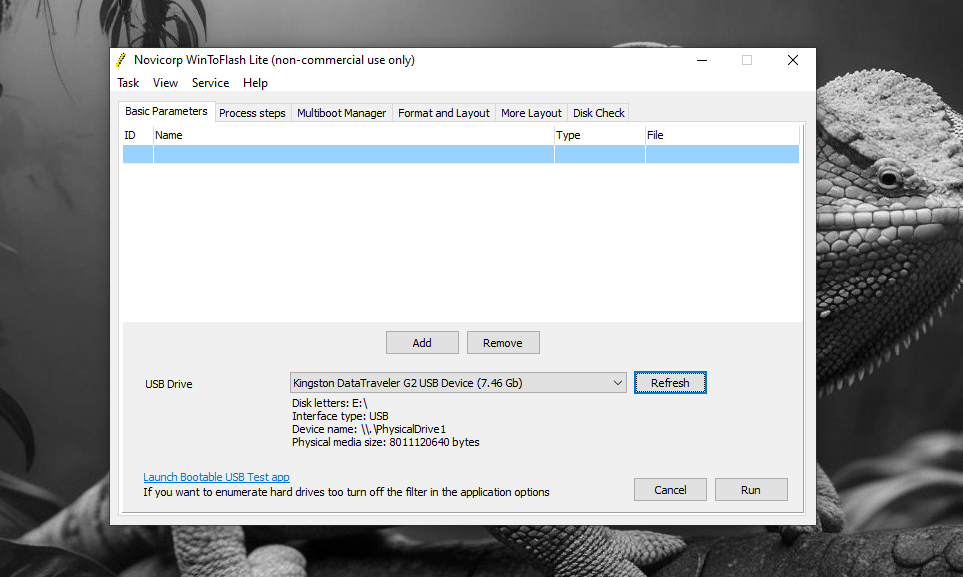
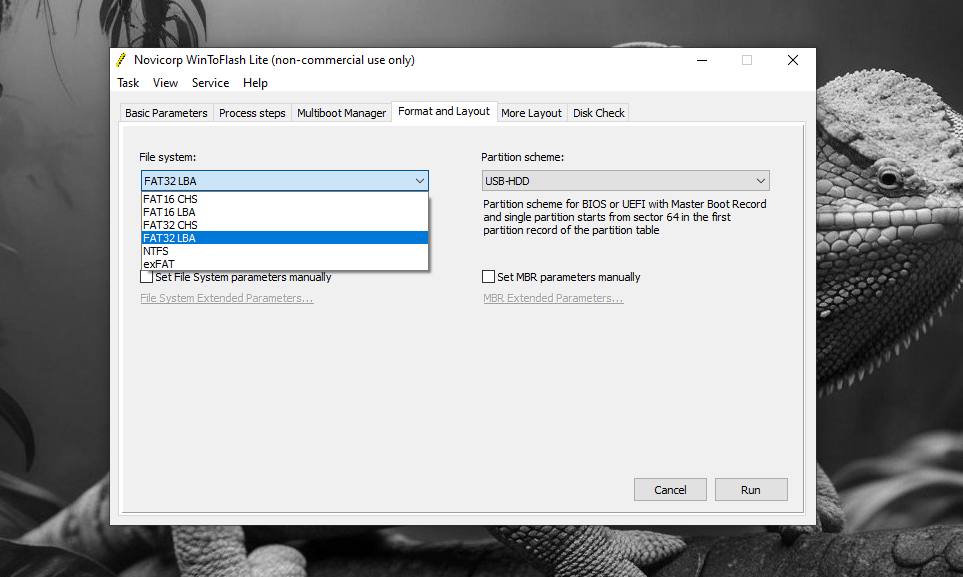
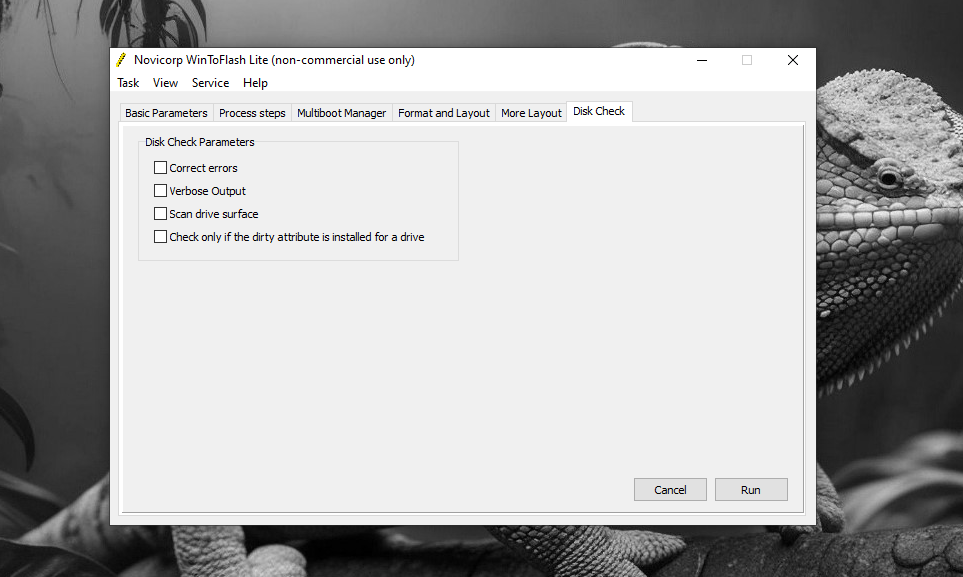
There are two options, in forms of two buttons, displayed in the middle of the main interface. The first one allows you to create a standard Windows setup bootable USB media, while the other one lets you create a multiboot drive.
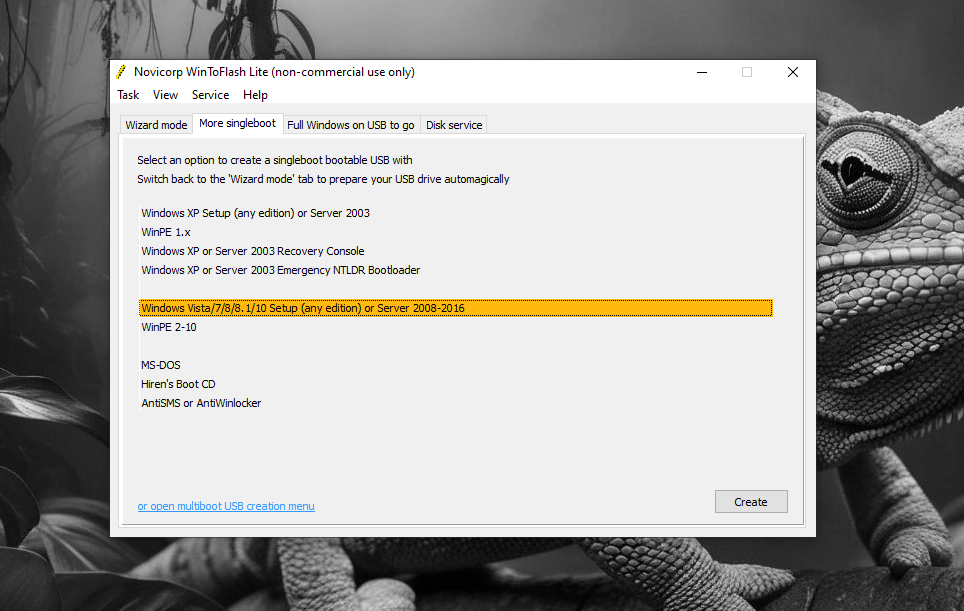
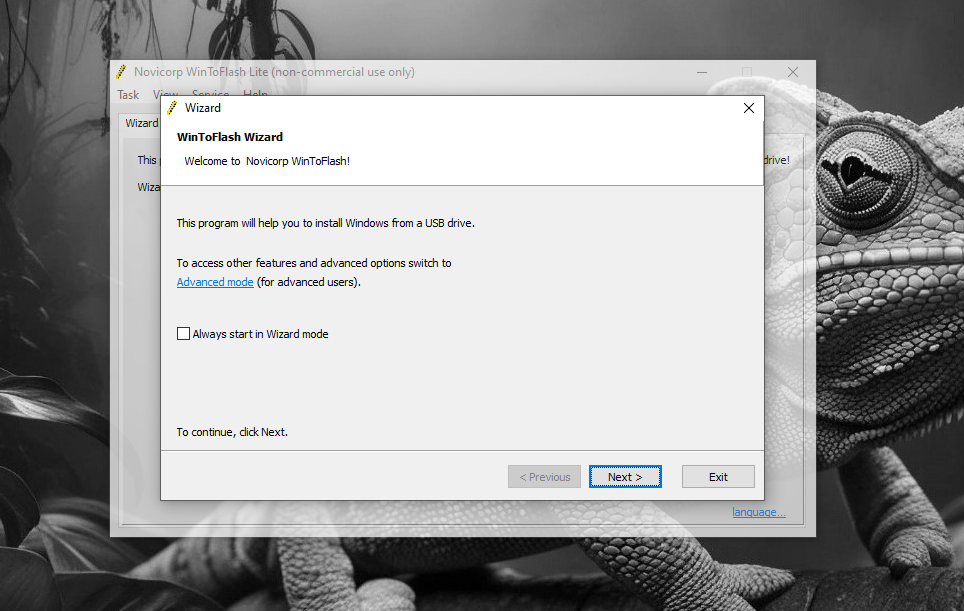
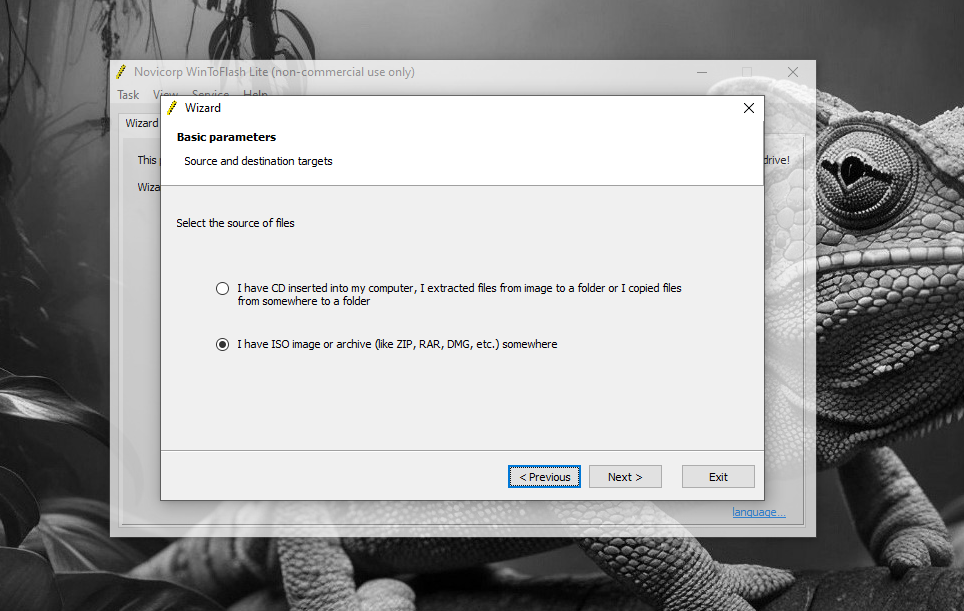
If you just need a standard bootable USB, then the process is straightforward. After you click the button, the wizard window appears, which will guide you step by step throughout the process. Experienced users can optionally run the advanced mode instead. In both modes, you can choose between an ISO or a Windows DVD to be used as the source to create the bootable media.
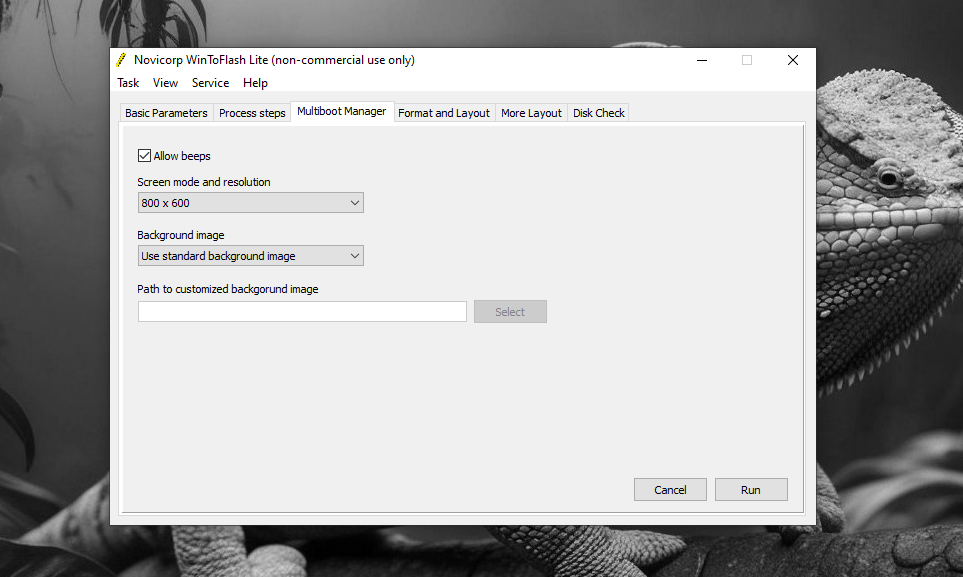
On the other hand, there is no wizard available to help you create a multiboot drive, which is a term that refers to a single bootable drive that contains a number of different tools. So, in addition to Windows setup, you can add antiviruses, Linux distros, memory diagnostic tools, recovery tools, and any other kinds of tools into one drive.
While creating a multiboot drive is not as easy as creating a standard one, it is a preferable option for USB drives with large storage capacities.
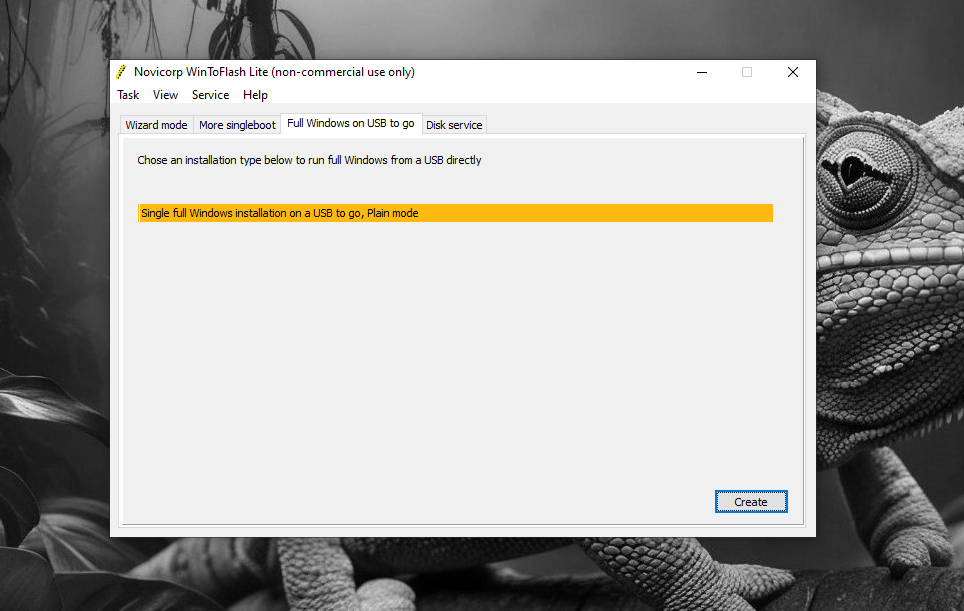
What if you want to run Windows straight from a USB drive? WinToFlash can make that wish comes true, though the process of creating one is not as straightforward as you might expect. Experienced users would probably not find it difficult to use, but users who are less tech savvy might find it too much of a hassle.
WinToFlash Free Download for Windows
When you create a multiboot drive, WinToFlash provides access to a lot of tools that you can download from the web, such as BitDefender Rescue Disk, Hirens Boot CD, F-Secure Rescue CD, Standard GRUB ISO, GParted, Parted Magic, UBCD Live, Ultimate Boot CD, Minitool Partition Wizard, and many more.
WinToFlash is no longer developed, so some of its features may not work as intended. Many of the download links for the tools are probably broken too, but you can still download them from alternative sources. You can click the link below to download WinToFlash for Windows:
- App Name WinToFlash
- License Freeware
- App Name WinToFlash
- Publisher Novicorp
- Updated
- Version: 1.13.0000
On our site you can easily download WinToFlash. All without registration and send SMS!