UltraISO

- Windows: 7, 8, 10, 11
- Version: 9.7.6.3860
- Size: 4.89 MB
-
[Total: 1 Average: 5]
UltraISO can edit ISO images, turn your files into a single ISO image, burn ISO images to DVDs, extract the content of an ISO image, and more. It can do so many things related to ISO image that it can be considered as the swiss army knife of ISO editing software.
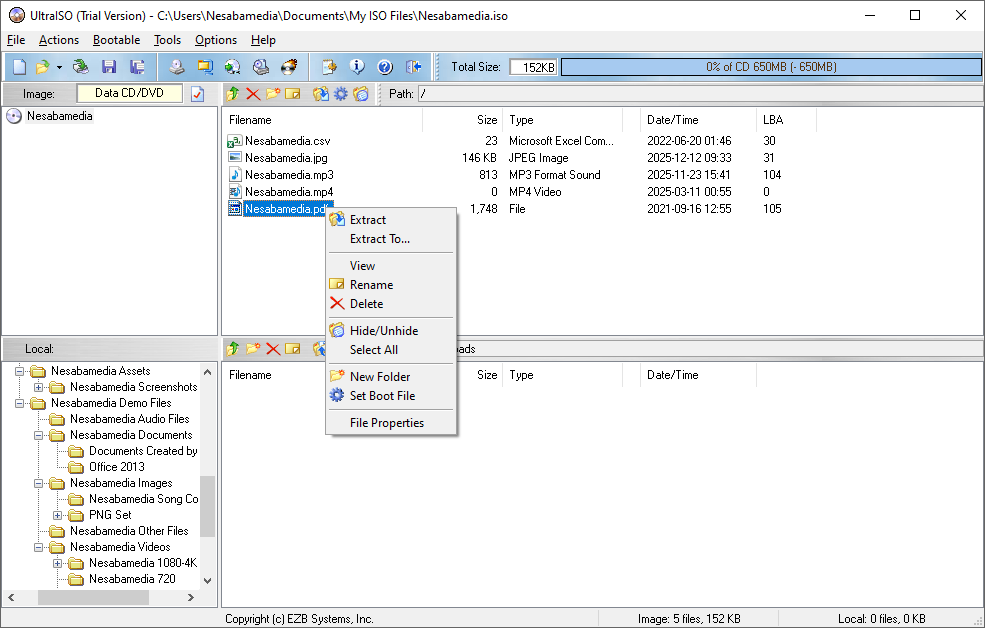
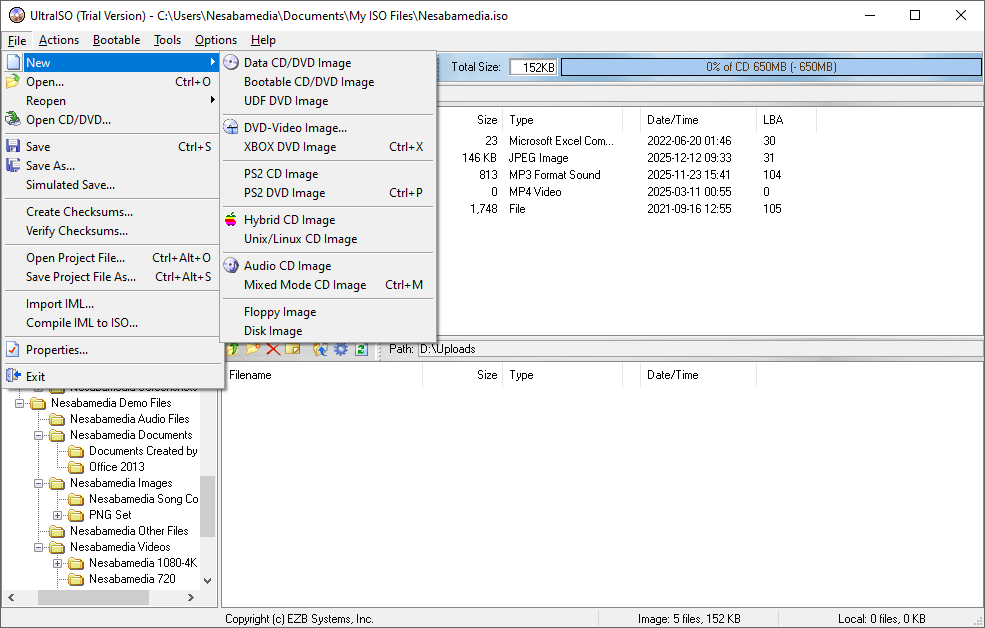
The design of its user interface is perhaps a bit outdated but most users would probably not complain about it too much. What matters much more than a fancy interface are the functionality and the ease of use.
Features and Highlights
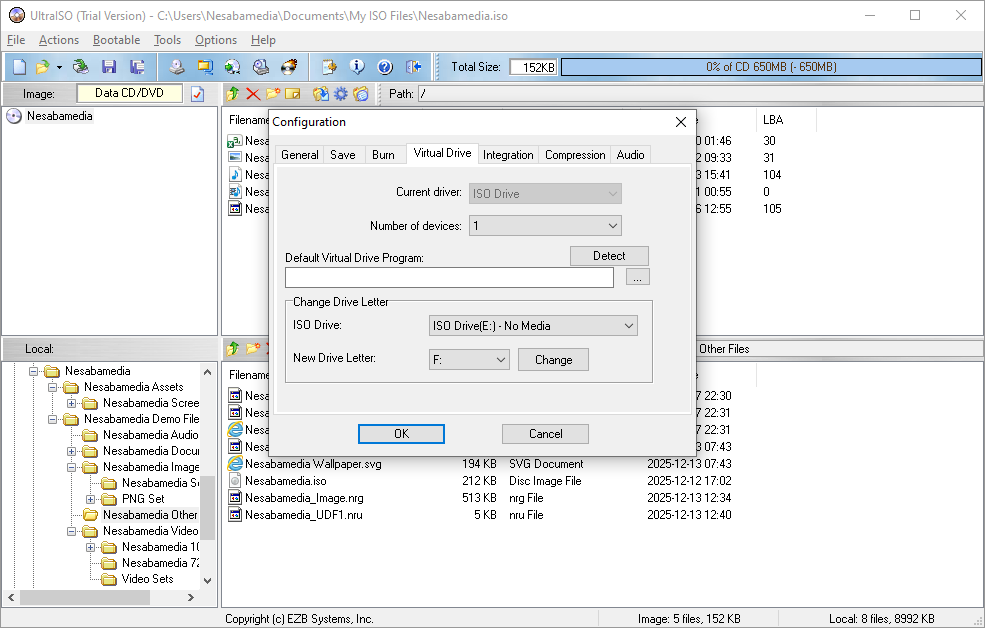
The easiest way to open ISO images with UltraISO is to associate it with the supported file types. The file type association can be done from within the installer window where you can also enable or disable ISODrive, which is an additional feature that allows you to mount an ISO image.
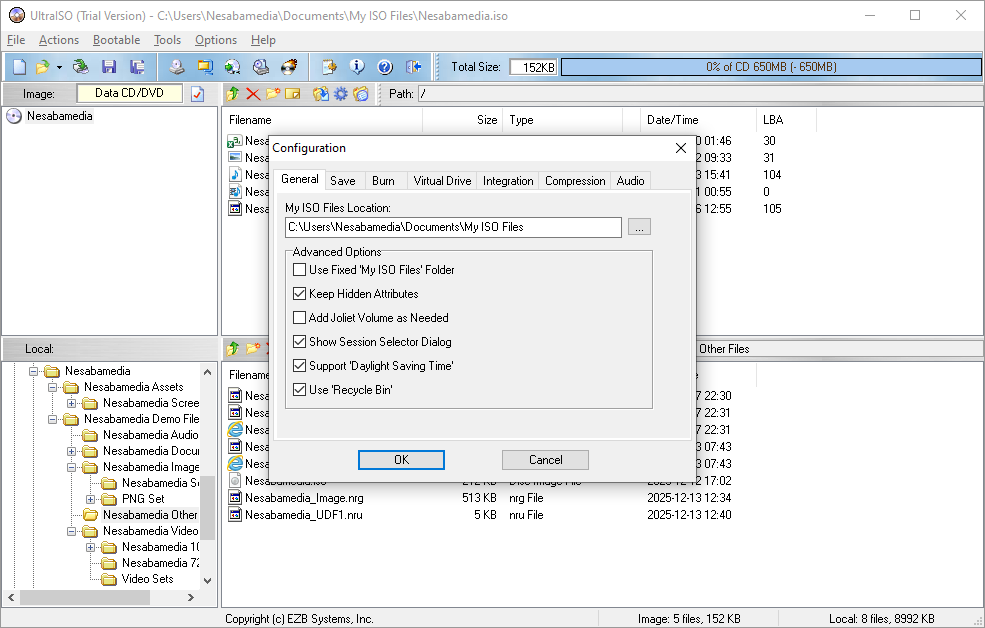
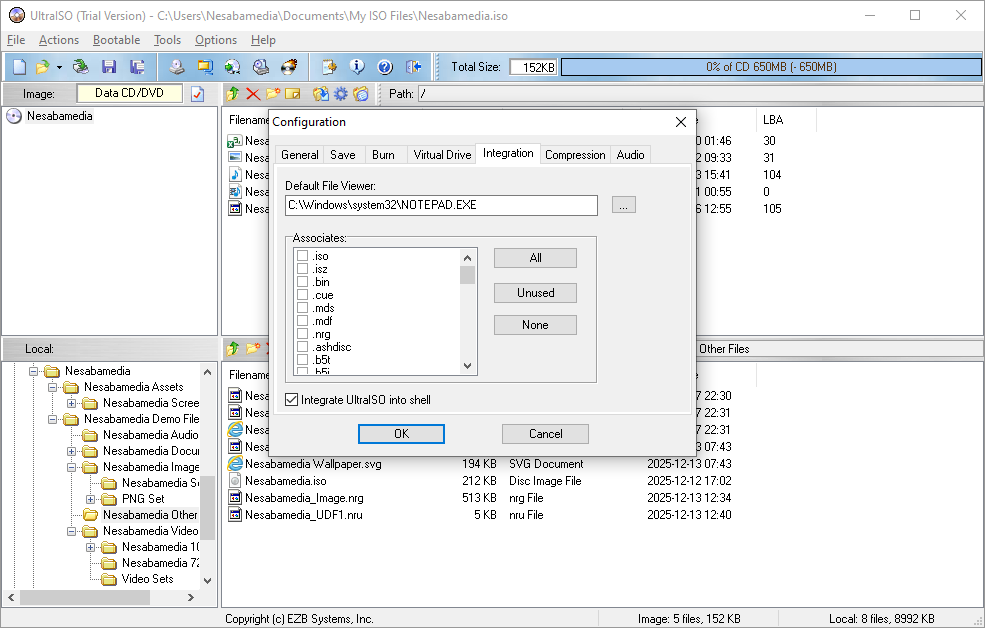
If you dive into the configuration menu, you will see the complete list of supported file types, and you can select which ones you want to associate with UltraISO. The shell integration option, when enabled, adds UltraISO’s menu into the context menu, and the new menu appears every time you right-click a supported file type.
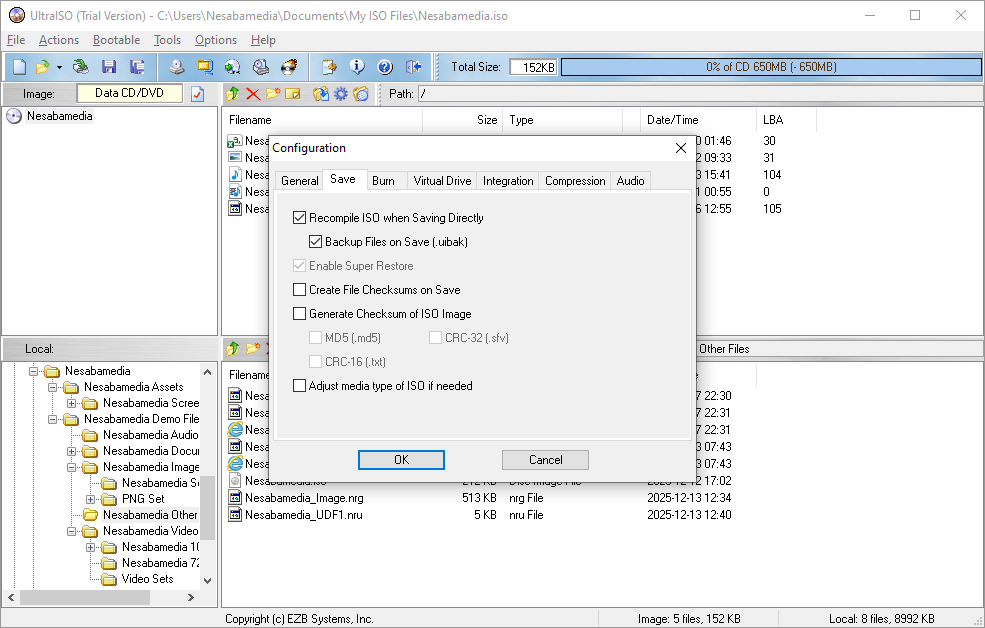
UltraISO can be used to generate MD5 checksum file, which is useful to verify the content of a DVD. The verification process produces one of the following results: OK, Error, or File Not Found on the CD/DVD.
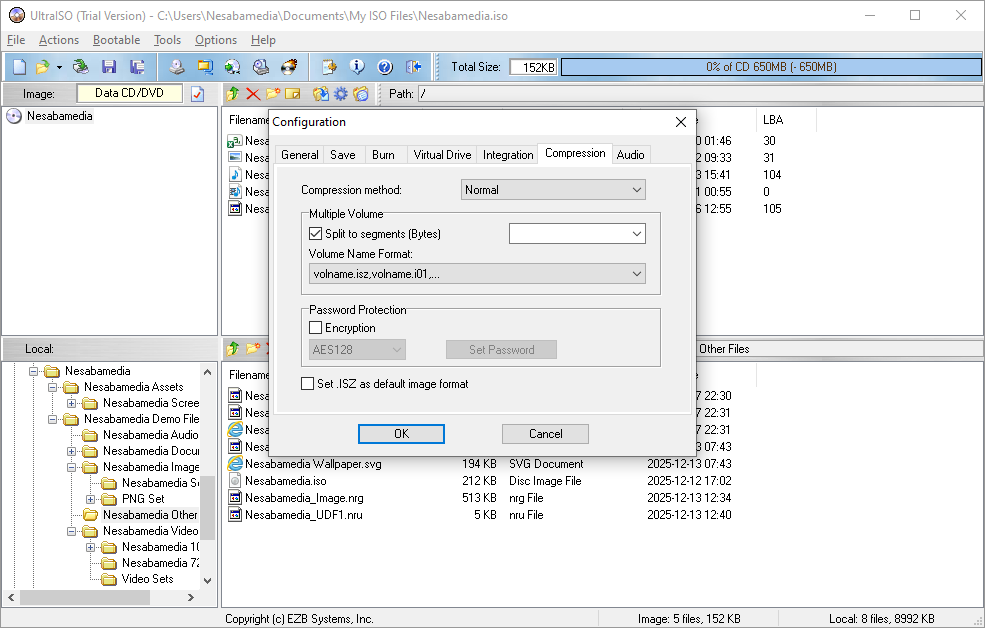
If you have ever wanted to extract one or two files from an ISO image, UltraISO can do it too. After the necessary files are extracted, the ISO image can be deleted to prevent it from wasting your disk space. If you want to keep the image in your hard drive, you can compress the image to reduce its file size by using one of the six compression methods.
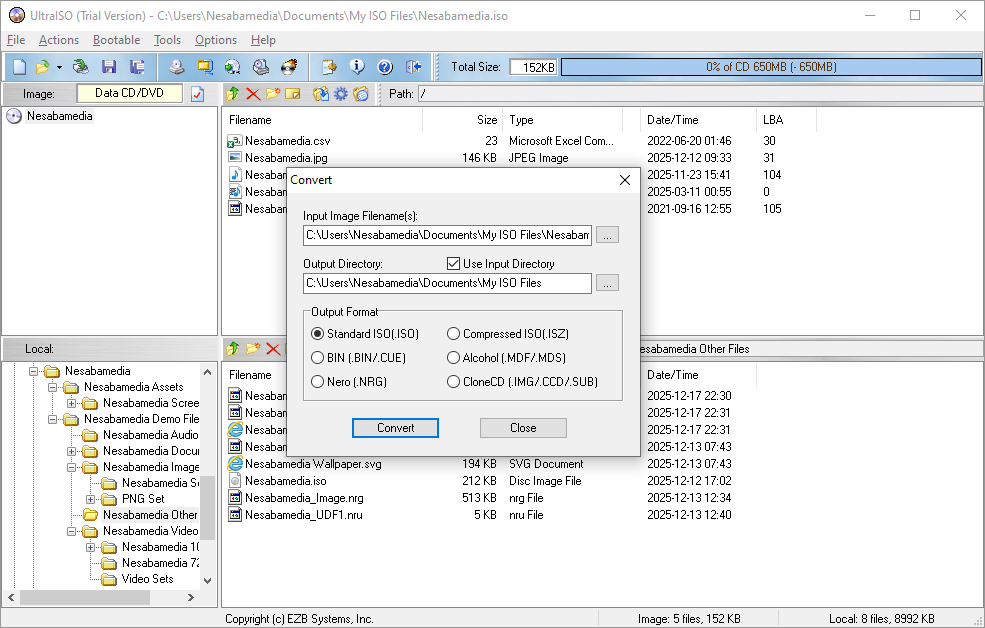
Creating an ISO image is also easy. Drag and drop all the files you need to put into the ISO, click the Save or Save As button, choose a file type, and press OK. How fast the ISO image is created depends on a number of factors, which include the number of files it contains.
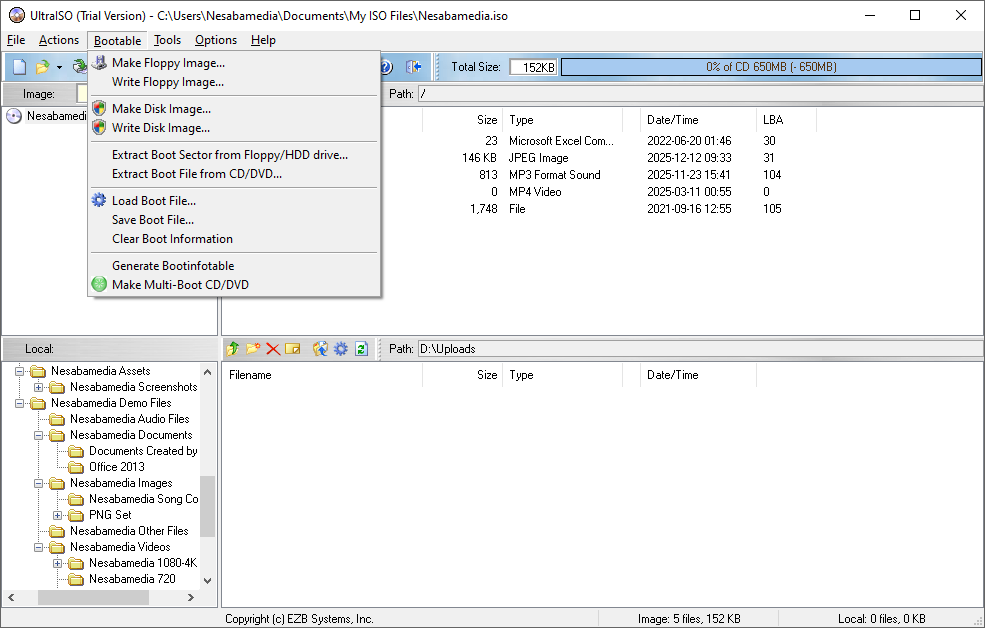
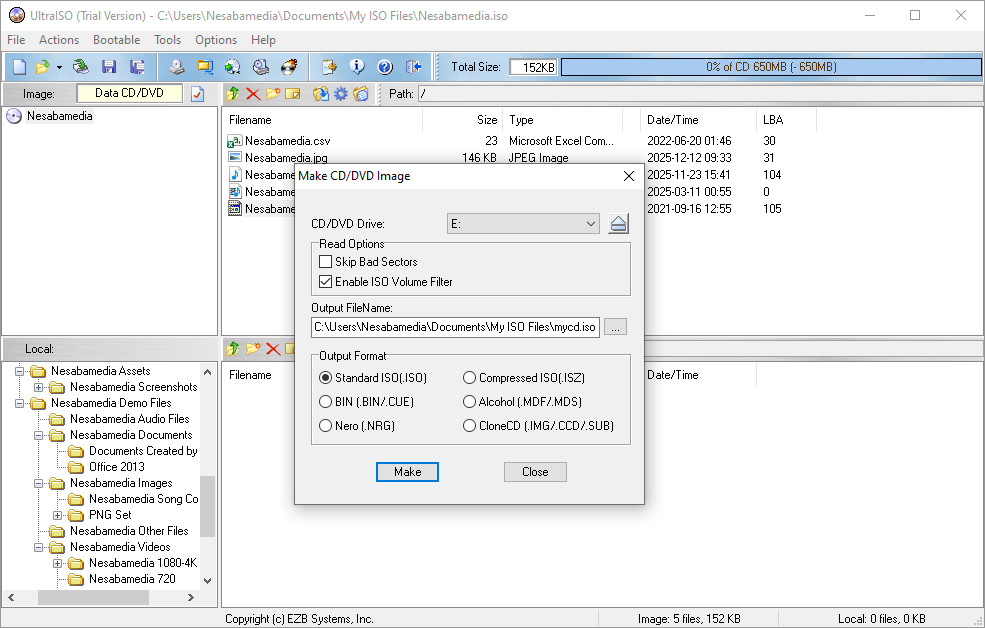
If you want to back up the content of a DVD into an ISO file, the process is a bit different but it is still easy to do. First you need to insert a DVD, specify a file name for the output, choose an output format, and hit the Make button. Checking bad sectors is optional.
There are four skins to alter the appearance but the changes are so minimal that you probably decide to just stick to the default one.
UltraISO Free Download for Windows
UltraISO is not the fanciest ISO editing software you will ever find but it is definitely one of the easiest to use. Its wide range of features allow you to perform many tasks on ISO files. You can, for instance, open an ISO image, delete some files, and then save it under the same name to overwrite the existing one or save it under a different name to create a new one. You can click the link below to download UltraISO for Windows:




- App Name UltraISO
- License Freeware
- App Name UltraISO
- Publisher EZB Systems
- Updated
- Version: 9.7.6.3860
On our site you can easily download UltraISO. All without registration and send SMS!