Teracopy

- Windows: 7, 8, 10, 11
- Version: 3.17
- Size: 11.83 MB
-
[Total: 1 Average: 5]
When you transfer a small file, perhaps the built-in feature that Windows provides is sufficient to complete the task. But if you need to transfer large files, especially for backup purpose, you’d better off with Teracopy.
Teracopy is developed precisely for transferring files as fast as possible, but the transfer speed is not the major reason of why this utility has been a favorite of many users. Its ability to compare the hash of the original files with the copied ones is often considered a more important feature.
Features and Highlights
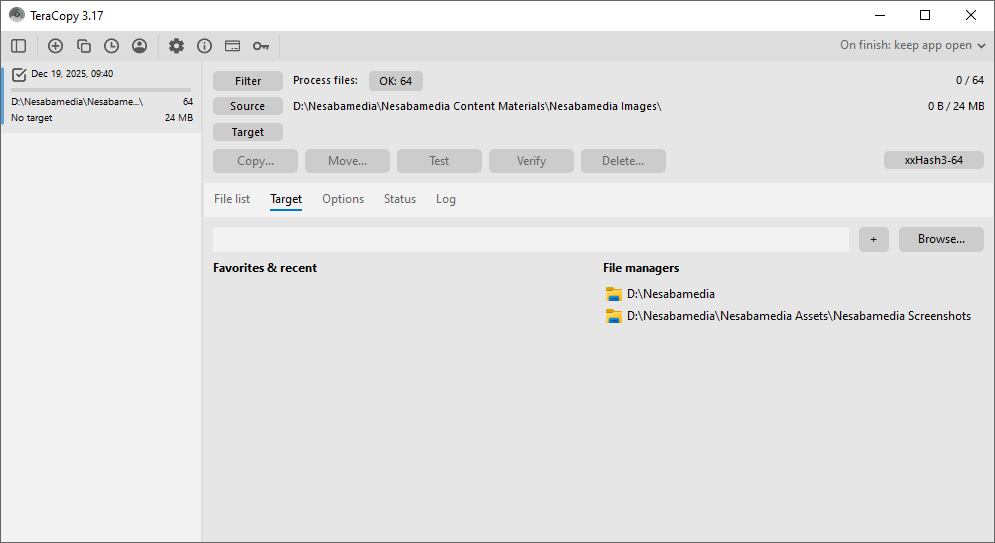
When you need to transfer a file, right-click on it, and click ‘Teracopy…’. A dialog box opens where you can choose to either move or copy the file to a specified location.
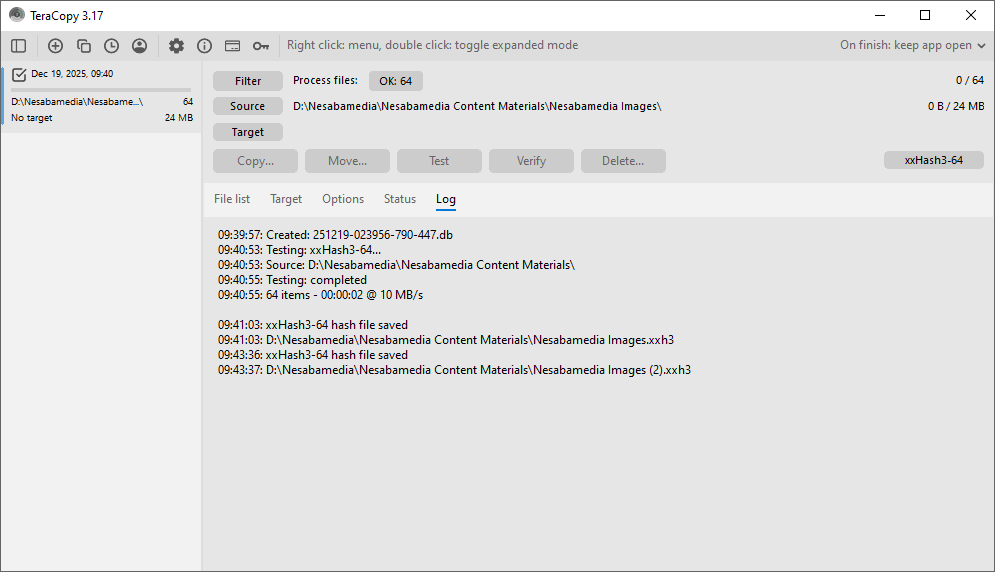
When a file is being copied, Teracopy shows the transfer speed and progress. It keeps a log that records when the task is created, when the transfer is started and completed, and the source and destination of the file.
Teracopy also keeps a history of every file you transfer. The history is displayed on the left panel and deleted after one week by default, which can be shortened to one day, or set to permanent, or set to never keep the history.
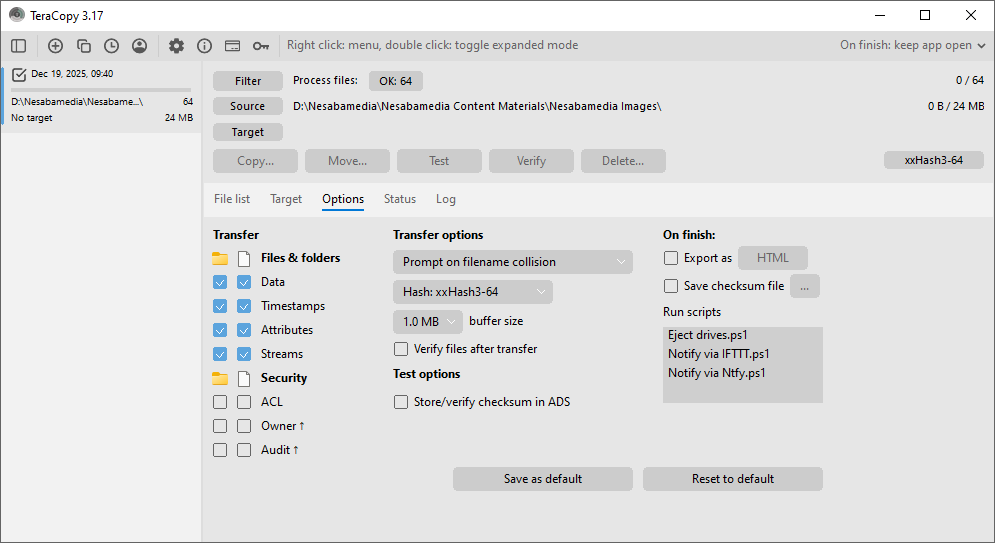
If a file in the destination folder has the same name as the file being transferred, you will be asked to choose which action that Teracopy must perform: skip, rename, or overwrite. The selected action can be set as default so that you don’t have to confirm it repeatedly.
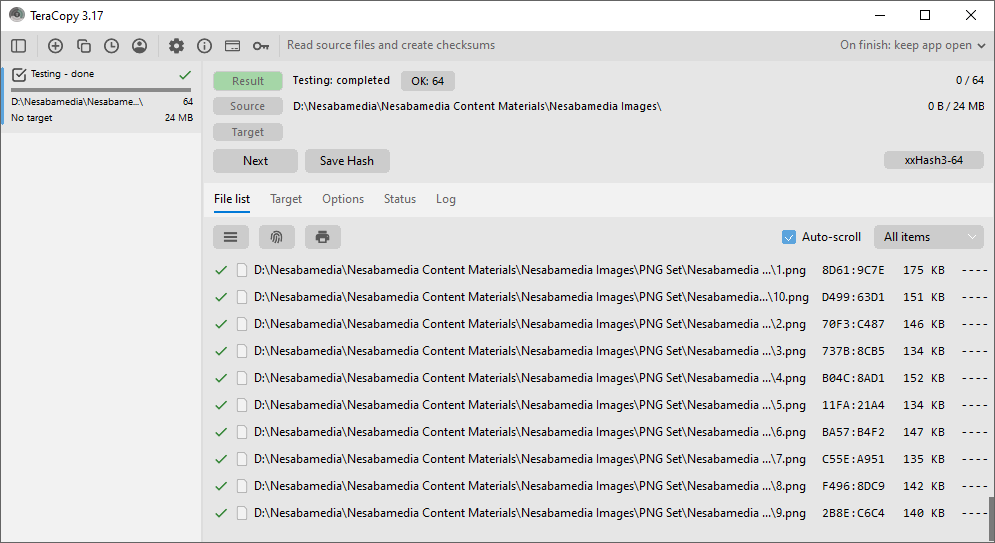
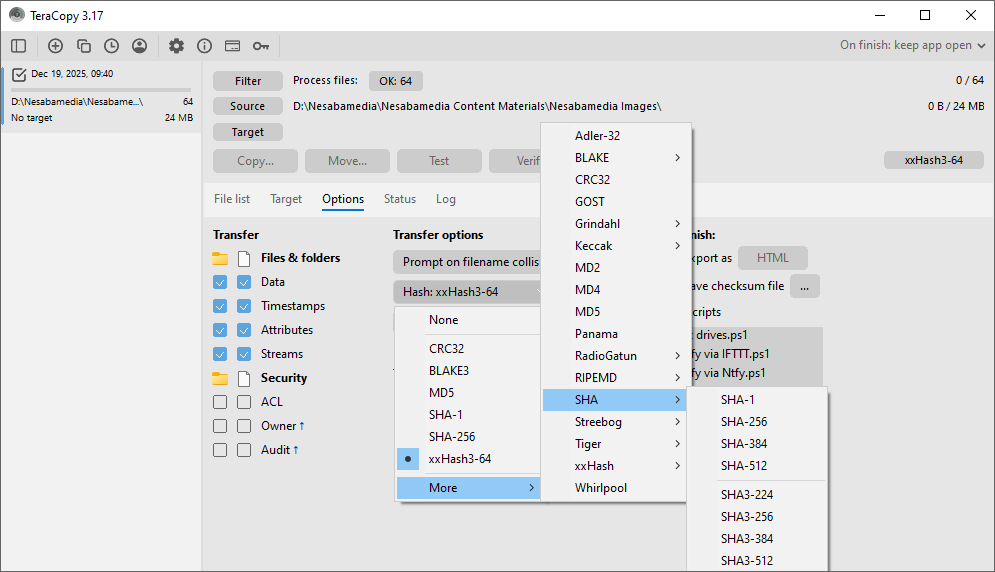
To make sure that the copied file is identical to the original one, you can verify the file transfer either manually or automatically. It takes longer to complete the whole process when the file integrity verification is enabled, but it is worth the wait. After the verification is successful, the hash file can be saved in the same folder where the copied file is stored.
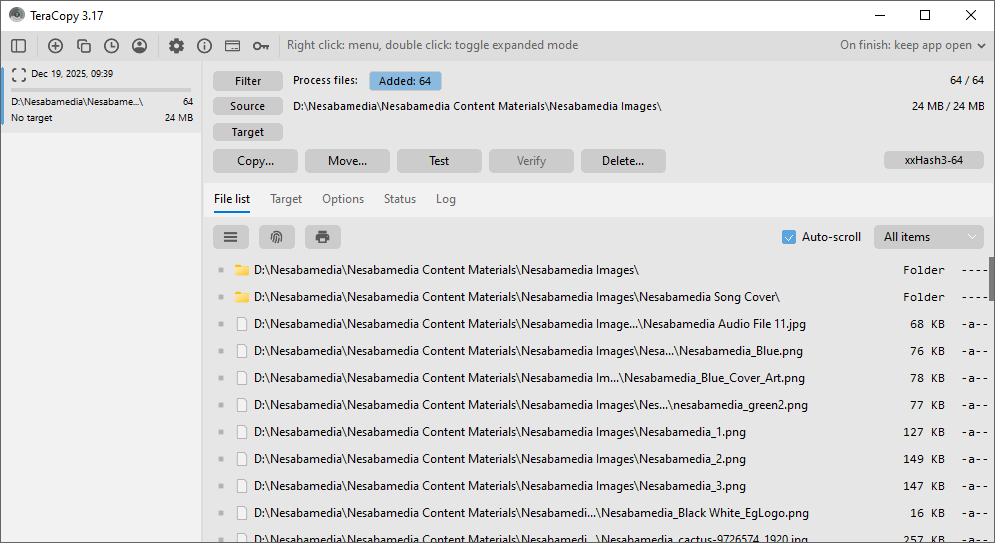
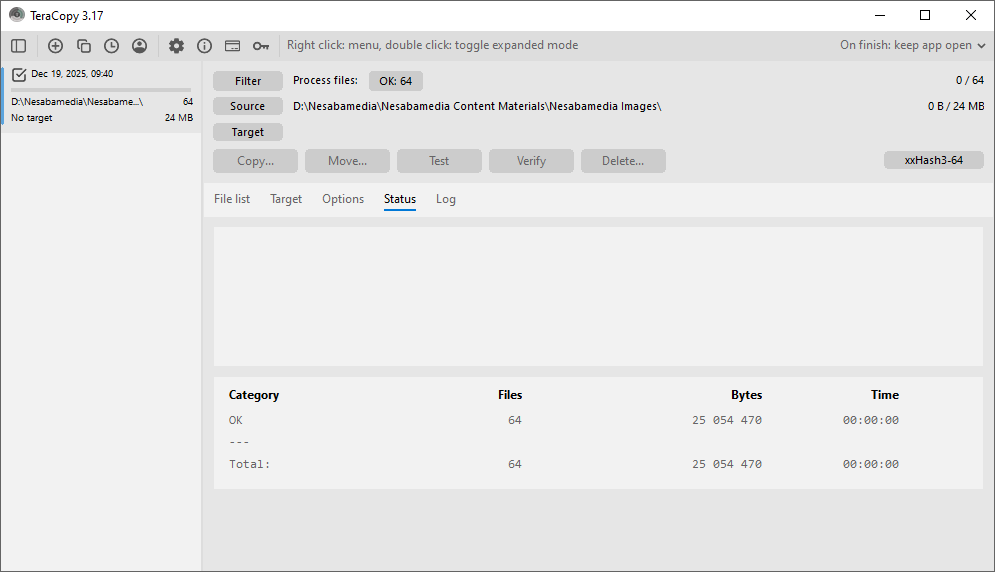
If you try to transfer several files at the same time, Teracopy processes each file in turn. All files are displayed in a list which shows you which file that is still in progress, which ones that have been successfully transferred, and which ones that are failed to transfer.
Last but not least, its support for command line makes it possible to use Teracopy for more tasks such as automatically copying changed or new files. This particular task, however, needs the participation of another third-party software to execute it.
Teracopy Free Download for Windows
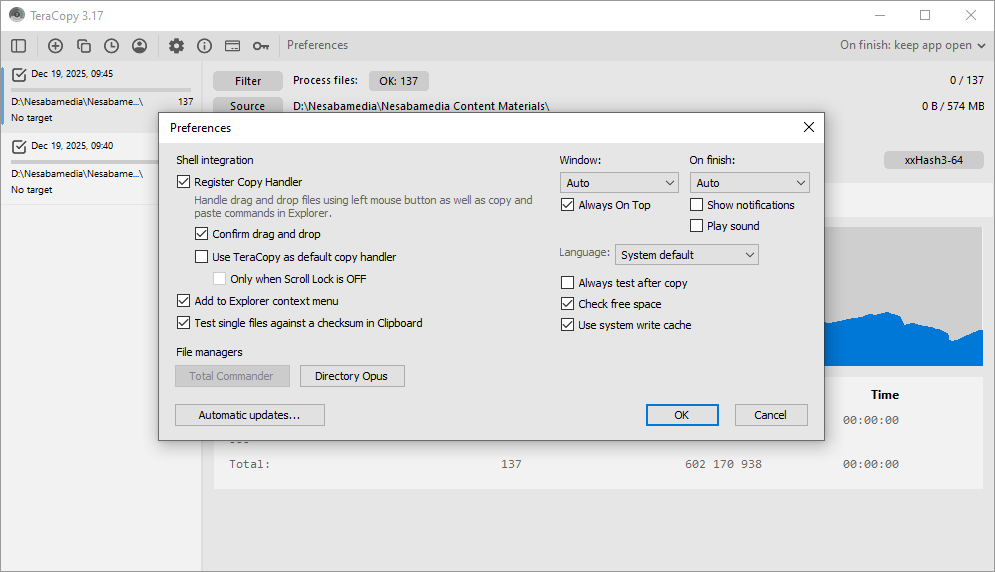
Teracopy can be configured to replace the default copy handler on Windows, and there is one way to make it runs faster. Open the built-in antivirus on Windows, and whitelist the Teracopy folder. The idea is to prevent the antivirus from scanning every file processed by the utility.
Teracopy is not only useful to transfer files. It can also be used to compare two folders for the purpose of verifying file integrity. This method, if applicable, is more efficient than checking files one by one. You can click the link below to download Teracopy for Windows:
- App Name Teracopy
- License Freeware
- App Name Teracopy
- Publisher Code Sector Inc
- Updated
- Version: 3.17
On our site you can easily download Teracopy. All without registration and send SMS!