PuTTY

- Windows: 7, 8, 10, 11
- Version: 0.83
- Size: 3.65 MB
-
[Total: 1 Average: 5]
PuTTY has long been used as a free tool to connect to a remote computer. This terminal emulator also has some added functions that allow it to do more than simply establishing a connection.
Although it runs on Windows, PuTTY can also be used to connect your Windows PC to a Unix machine. It gives you a window where the communication between the connected computers takes place.
Features and Highlights
Some options are presented when you’re running the installation wizard. Any of them can be disabled or enabled. Once PuTTY is completely installed, you can run it and, if necessary, read the Readme file.
The file provides a short instruction on what to do next after you install PuTTY, as well as a web address that you should visit when you encounter an issue when running the terminal emulator.
Connection Types
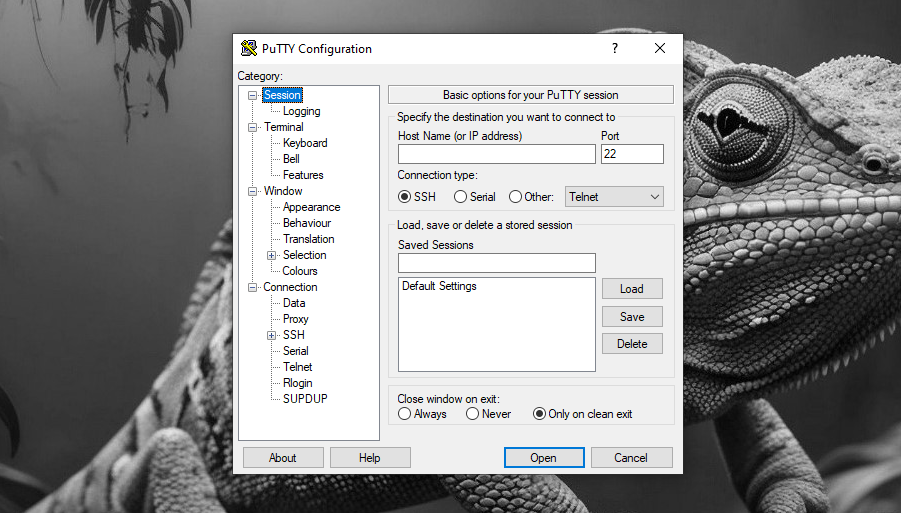
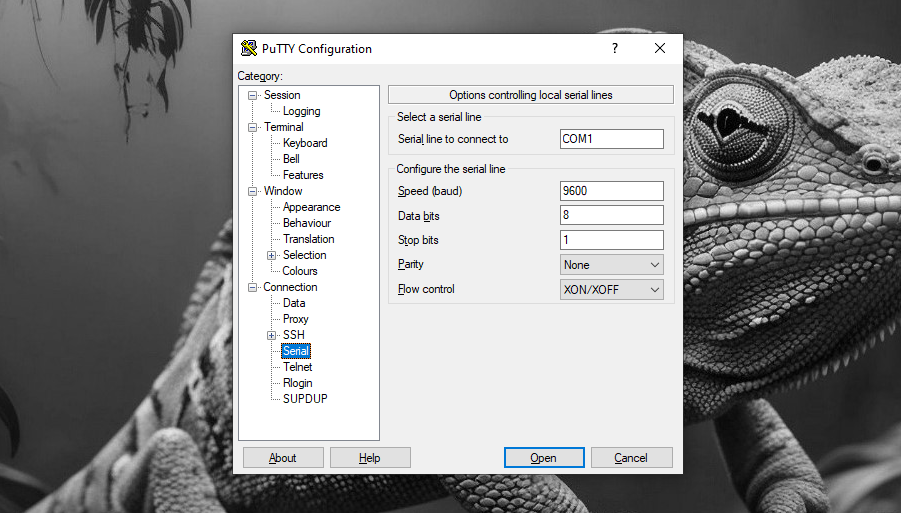
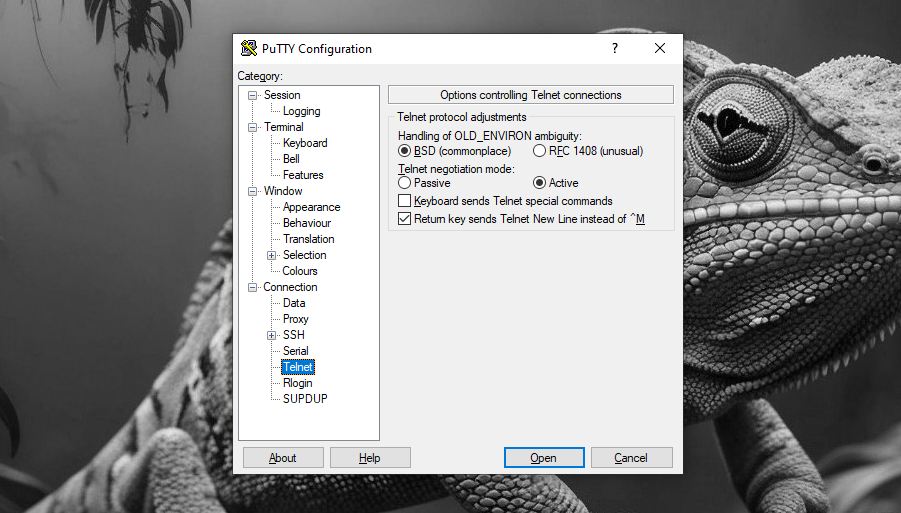
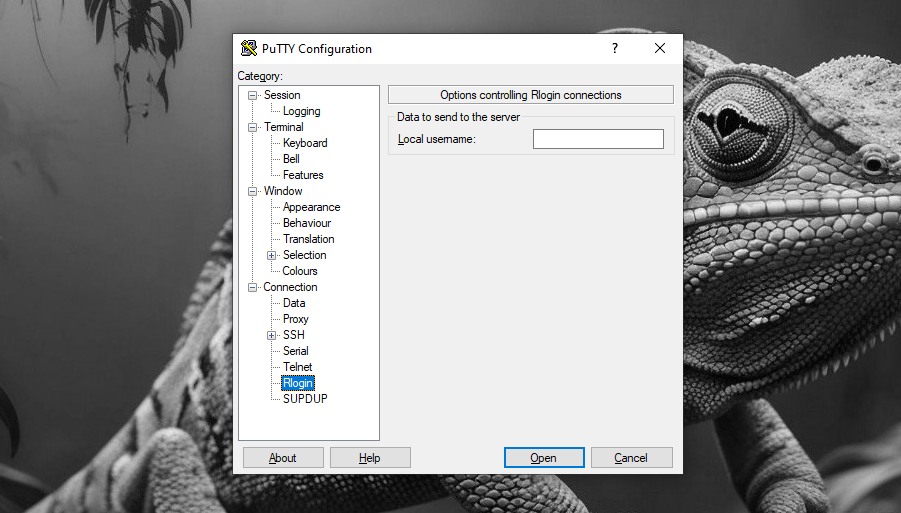
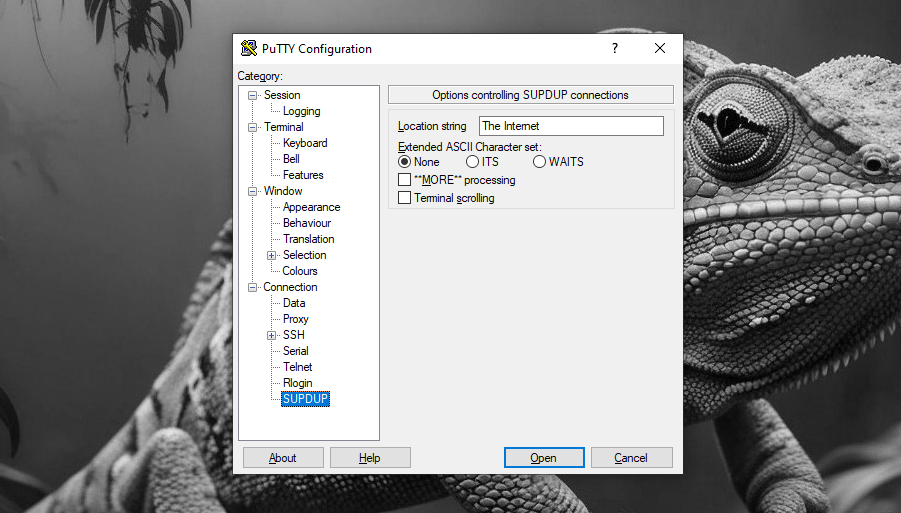
PuTTY supports seven connection types. The SSH and Serial connection types can be seen directly in the main window, while the rest are grouped under Other drop-down menu which include Telnet, Rlogin, SUPDUP, Raw, and Bare ssh-connection.
Profiles
As soon as a connection is established, you can enter the username and password required to access the remote computer. After you successfully log in, the session can be saved as a profile for future use. This profile is quite useful to reduce the hassle when you need to make the same connection again.
Each profile you save will be stored and displayed in the larger box of Saved Sessions. To use a profile, select it and click the Load button. To delete a profile that you don’t need anymore, select it and click the Delete button.
A saved profile can also be modified, and the modified profile can be saved to overwrite the old one or saved as a new profile under a different name.
Close Window on Exit
At the bottom of the window in the Sessions menu, Close Window on Exit is an option that specifies how the terminal window should react when a connection is terminated. By default it is set to “Only on clean exit” which specifies that the terminal window should be automatically closed only when a session is ended normally. If the session is unexpectedly terminated, the terminal window will stay open.
File Transfer
PuTTY provides PSCP and PSFTP to transfer files securely between the connected computers. The former is used for a single file transfer operation, while the latter can be used to run an interactive file transfer session but it uses an SFTP protocol which is only supported by SSH-2.
PuTTY Free Download for Windows
PuTTY is a powerful solution to access a computer remotely. It emulates the function of a terminal and provides a long list of options that allow you to configure the program the way you want it to work.
Generating SSH keys is also one of PuTTY’s abilities. It is an alternative solution that eliminates the need to type a password when logging in to a server and protects the password when a server is under attack. You can click the link below to download PuTTY for Windows:
- App Name PuTTY
- License Freeware
- App Name PuTTY
- Publisher Simon Tatham
- Updated
- Version: 0.83
On our site you can easily download PuTTY. All without registration and send SMS!