Pixel Repair
- Windows: 7, 8, 10, 11
- Version: 11.1.1.1008
Nobody wants a stuck pixel, let alone a dead one, on their monitor screens. It is simply annoying. It’s like a dirt that cannot be wiped clean. Fortunately, this kind of monitor problem is still possible to fix with Pixel Repair.
But, Pixel Repair doesn’t promise any miracle. Sometimes it will work, sometimes it will not. You can try it to eliminate that stuck pixel on your PC’s monitor and hope that luck is on your side.
Features and Highlights
Pixel Repair has a small file size, and it is a portable software to boot, which means an installation is not necessary. It only needs to be extracted. And since it is a zip package, there is no need to get yourself a third-party extraction tool since the built-in functionality of Windows is good enough to handle the job.
After it is extracted, open the folder and double-click on PixRepair. It loads so fast that the main window seems to show up instantly as you double-click on the executable file.
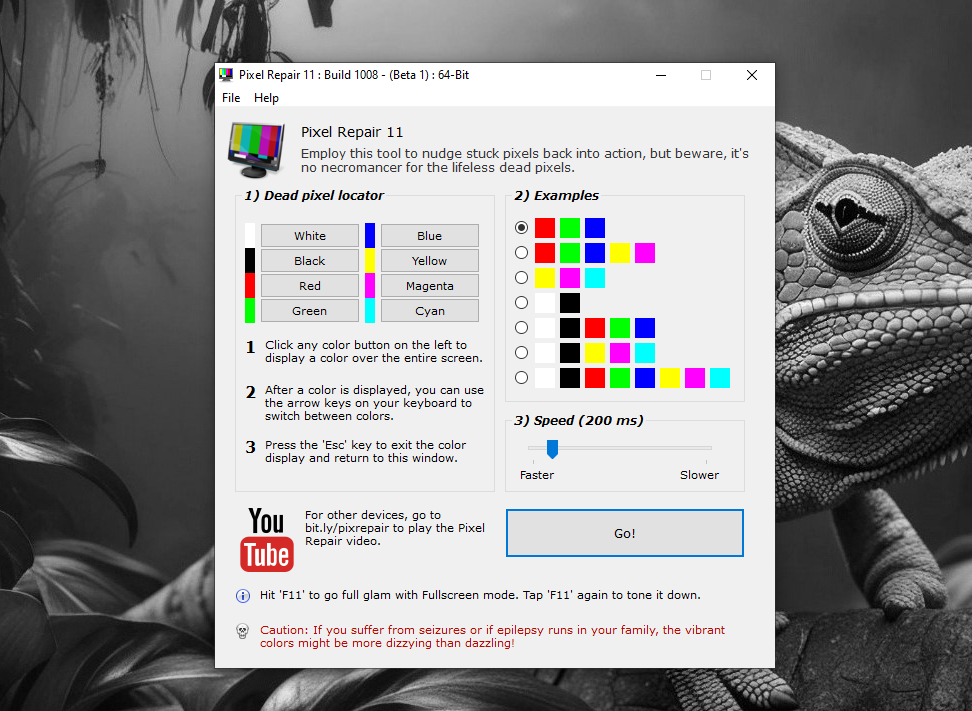
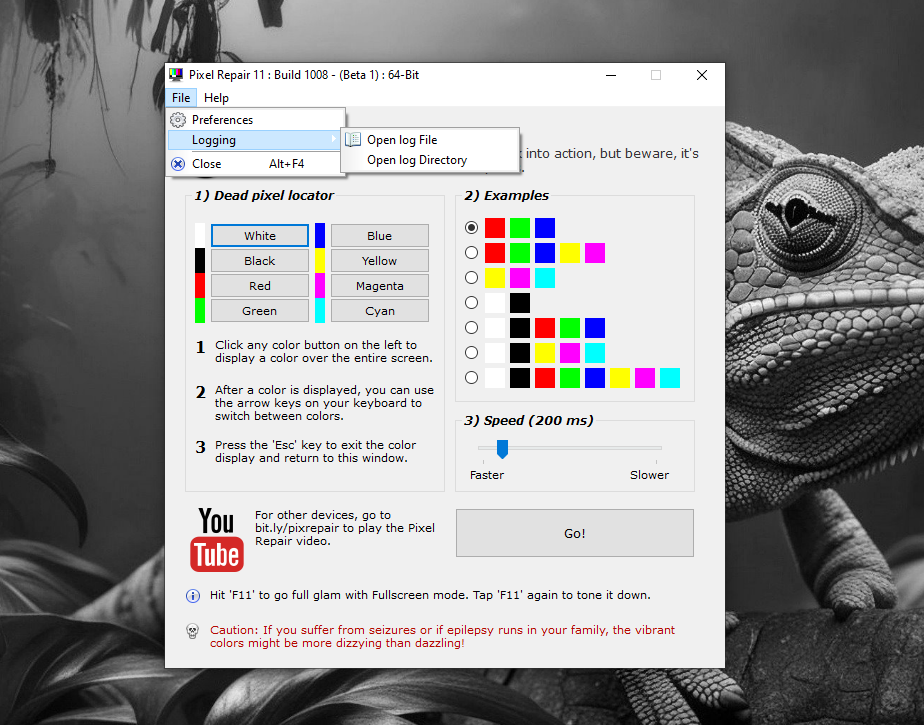
All the available features are shown in the main window. To locate any dead or stuck pixel, click any of the colors you see in the Dead Pixel Locator section on the left side of the main window.
For example, click the White button. Pixel Repair will then display a white color all across your screen. Use the left or arrow button on your keyboard to change the color from white to black, green, red, blue, yellow, magenta, and cyan, one at a time.
If you see any pixel on your screen that displays a different color than the rest, that pixel is either a dead or stuck one.
If you do find a stuck pixel, press the Esc button on your keyboard to get the screen back to normal, and return to the main window. After that, click the Go button in Pixel Repair.
A small window will appear and flash different colors. The slider that you can find in the main window is used to control the speed of the color changes. If you want to make it slower, drag the slider to the left. If you want to make it faster, drag the slider to the opposite direction.
What you need to do next is to move the flashy window under the stuck pixel and wait for the result while hoping for the best. If it works, then you can continue whatever you’re doing on screen. If it doesn’t, perhaps it is time to look for an alternative, or check your monitor’s warranty to see if dead pixel is covered.
Pixel Repair Free Download for Windows
Having a small size software like Pixel Repair is good for your computer’s storage since it doesn’t occupy too much space, not to mention that its memory footprint is very minimal too. And its ease of use is definitely worth mentioning because a software, no matter how powerful it should be, would be useless if it is too difficult to use. You can click the link below to download Pixel Repair for Windows:

- App Name Pixel Repair
- License Freeware
- App Name Pixel Repair
- Publisher Rizonesoft
- Updated
- Version: 11.1.1.1008
On our site you can easily download Pixel Repair. All without registration and send SMS!