Phoenix OS

- Version: 3.6.1.564
- Size: 634.85 MB
-
[Total: 1 Average: 5]
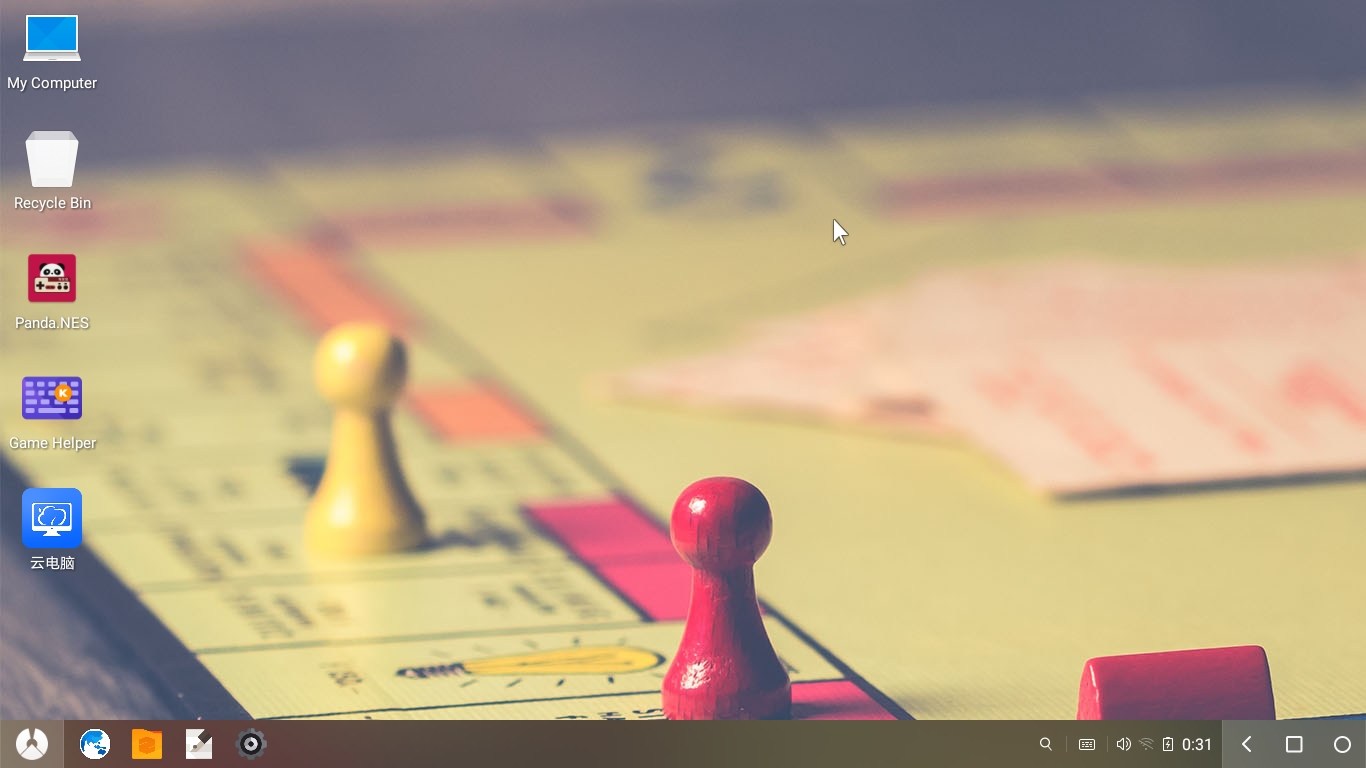
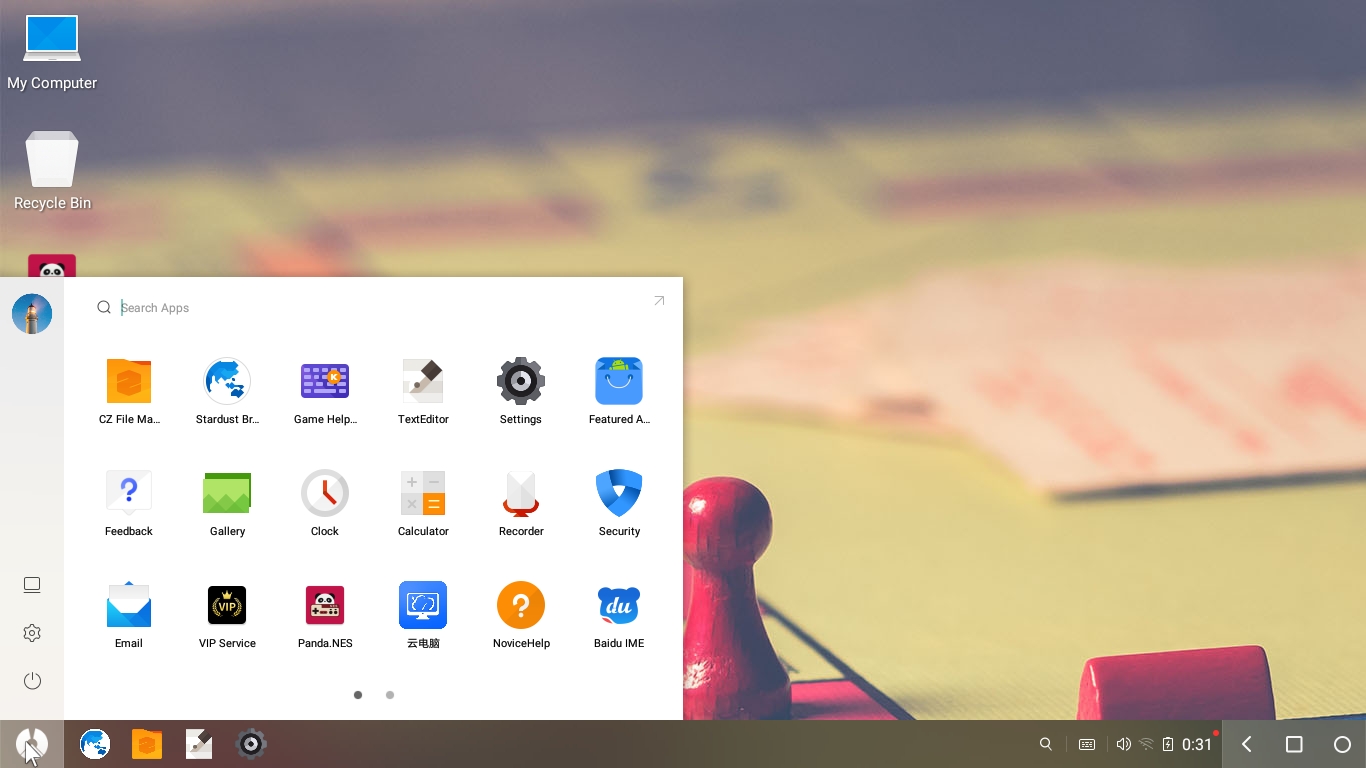
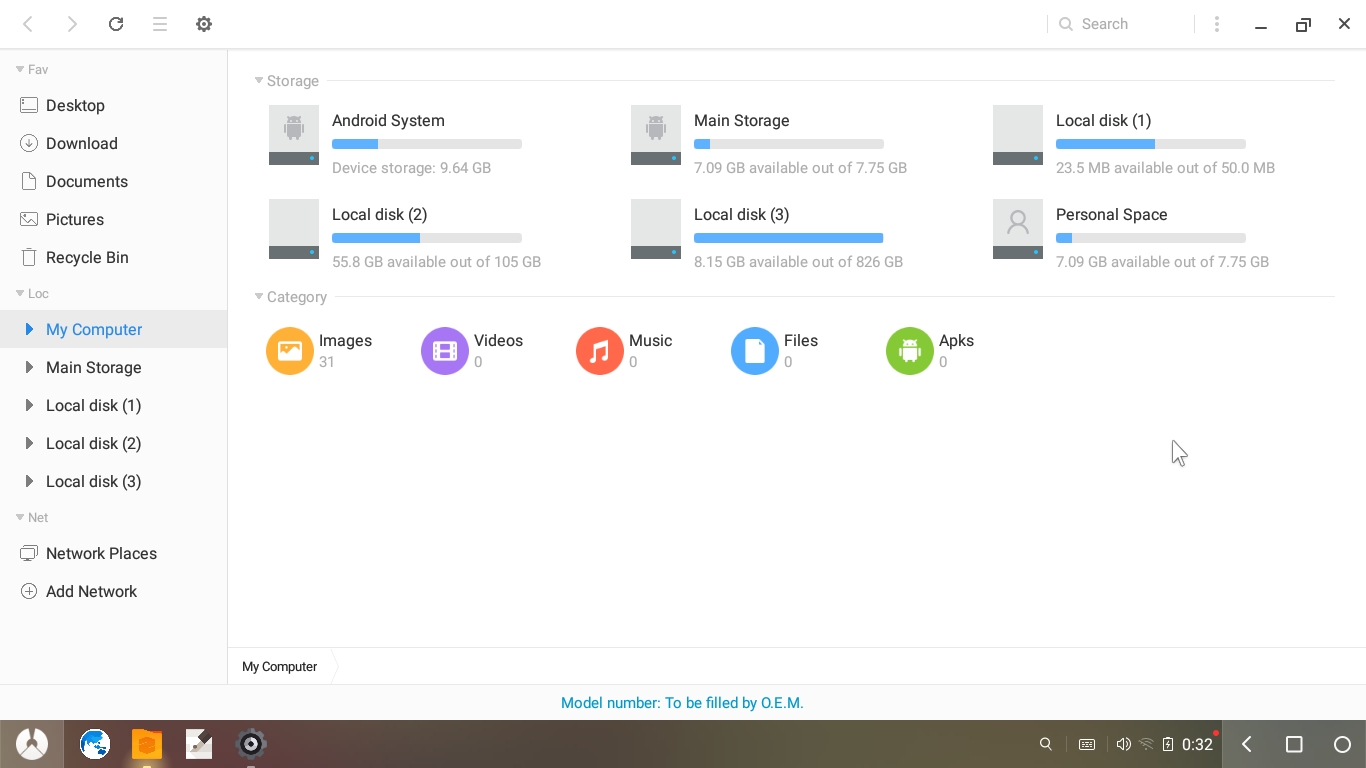
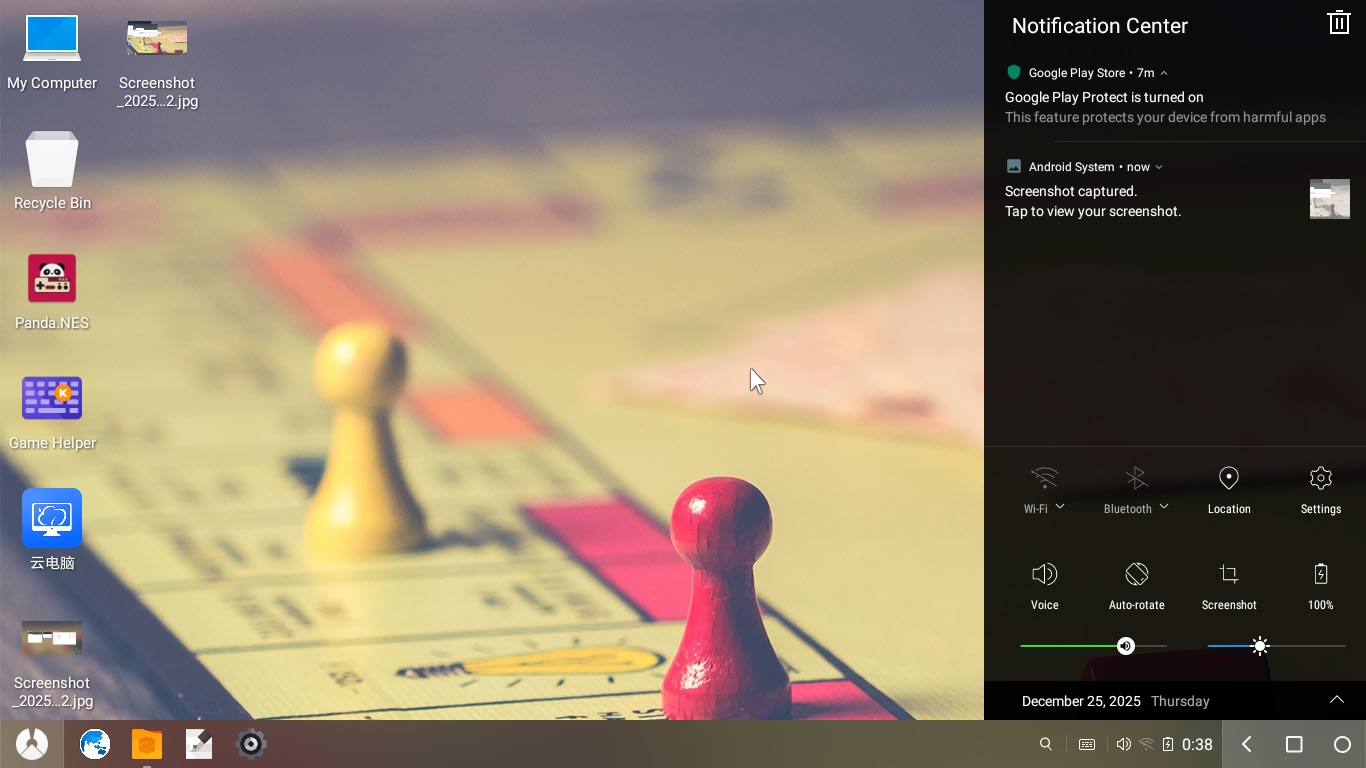
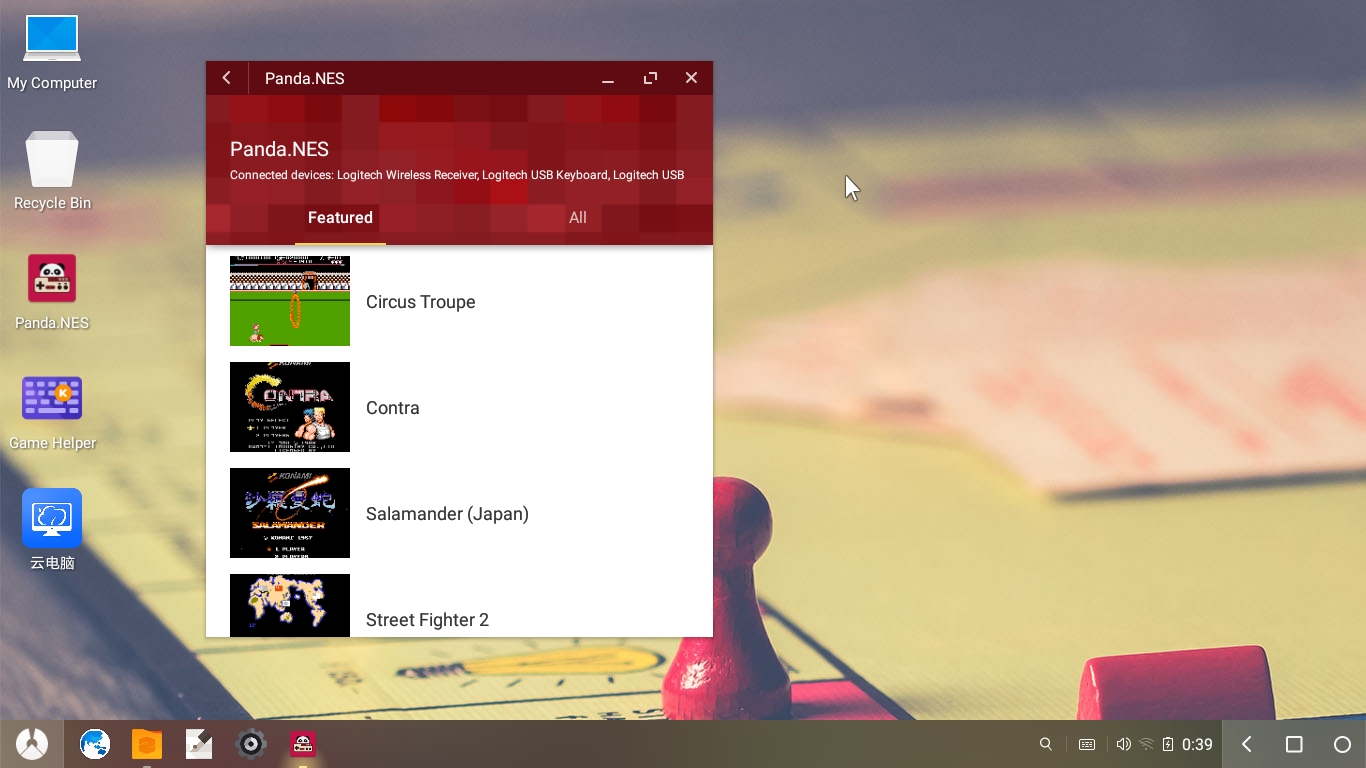
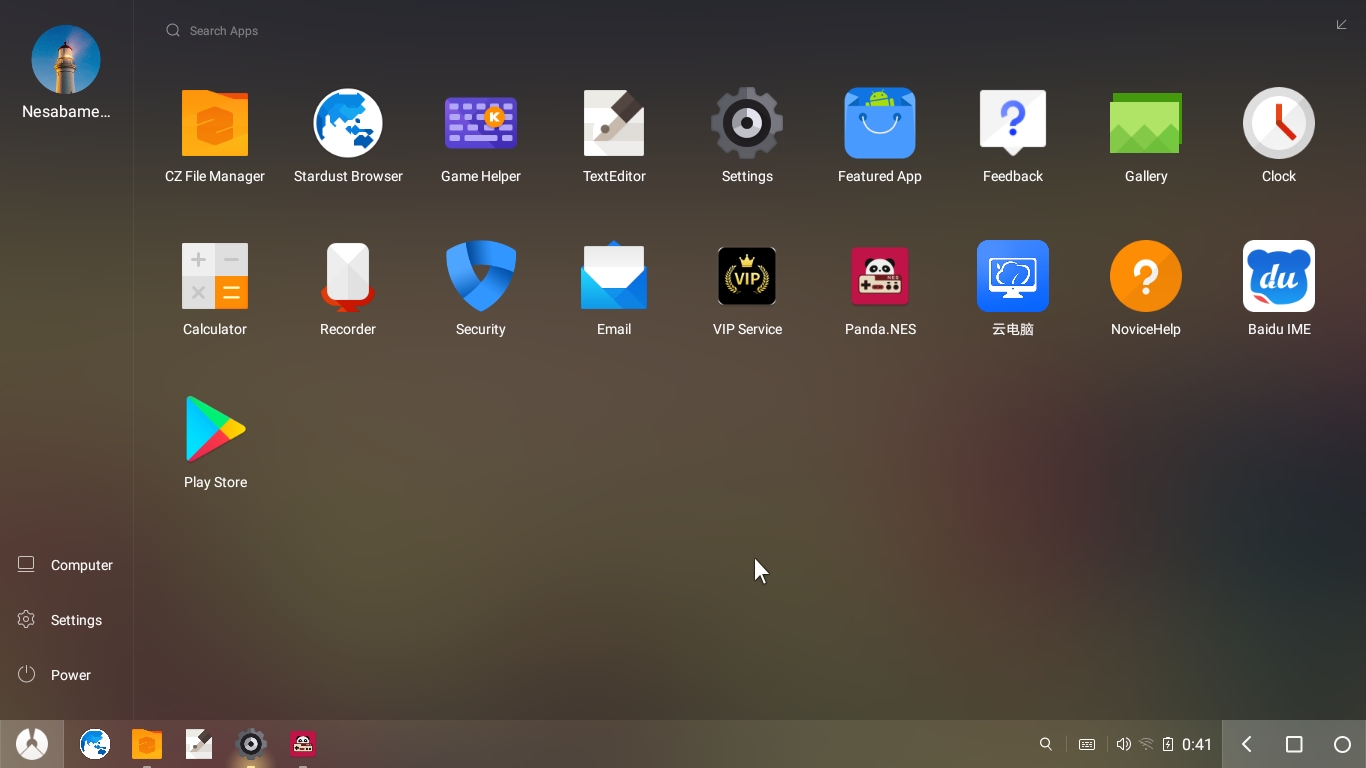
Phoenix OS lets you experience how it feels to use Android apps on a PC. As an emulated operating system intended for desktop computer, it has a start menu and taskbar that have the same core functionalities just like those in Windows.
There are only a few solutions in the market that allows you to run Android apps on desktop computers, and Phoenix OS is one of them that you can take for a test drive anytime you like.
Features and Highlights
To install Phoenix OS, you can grab either the executable file or ISO disk image. Which one to choose depends on what you need. For a fresh install, use the latter option. For a dual-boot setup, use the former.
The easiest way to install the operating system is by using the executable file as it will walk you through the process.
After you download the executable file, run it with an administrator account, and then select a partition to install Phoenix OS, preferably any other partition than the one where Windows is installed.
The installation doesn’t delete the files in the selected partition. It would be better, however, if you perform a full backup or at least back up the most important data before you begin the installation process.
Usually it doesn’t take a really long time to install the operating system, so there is no need to leave your desk while waiting for the installation to finish.
As soon as Phoenix OS is completely installed, you can restart your computer if there is nothing else you need to do. The OS selection menu will then appear on boot. You need to click the Phoenix OS icon to run the operating system.
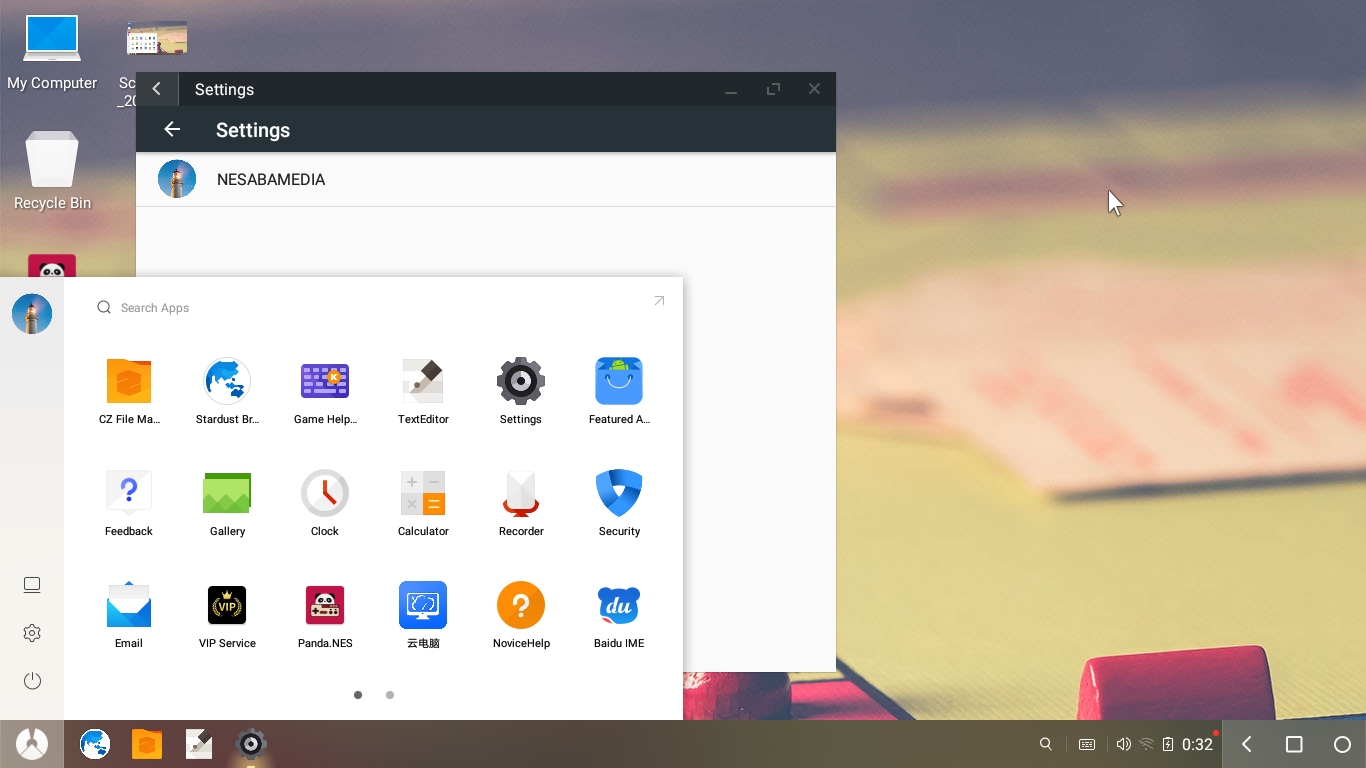
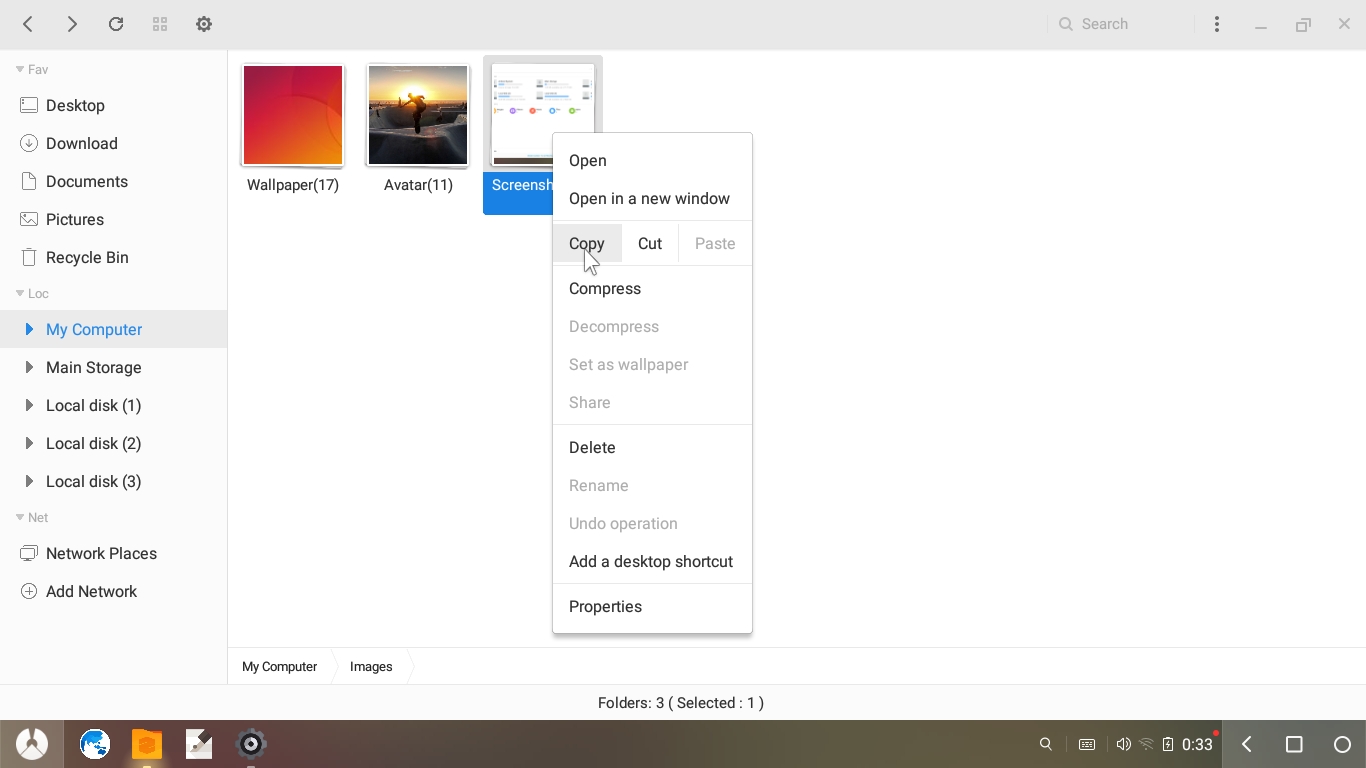
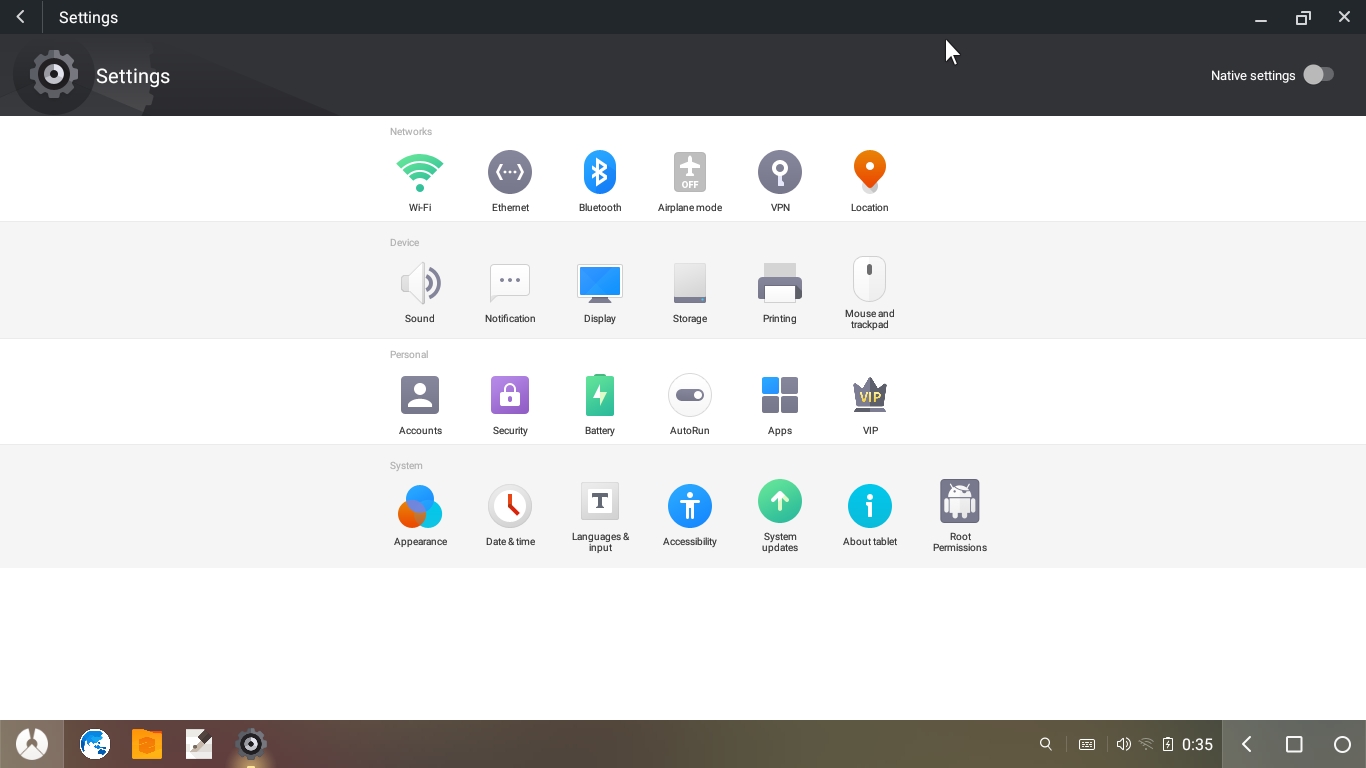
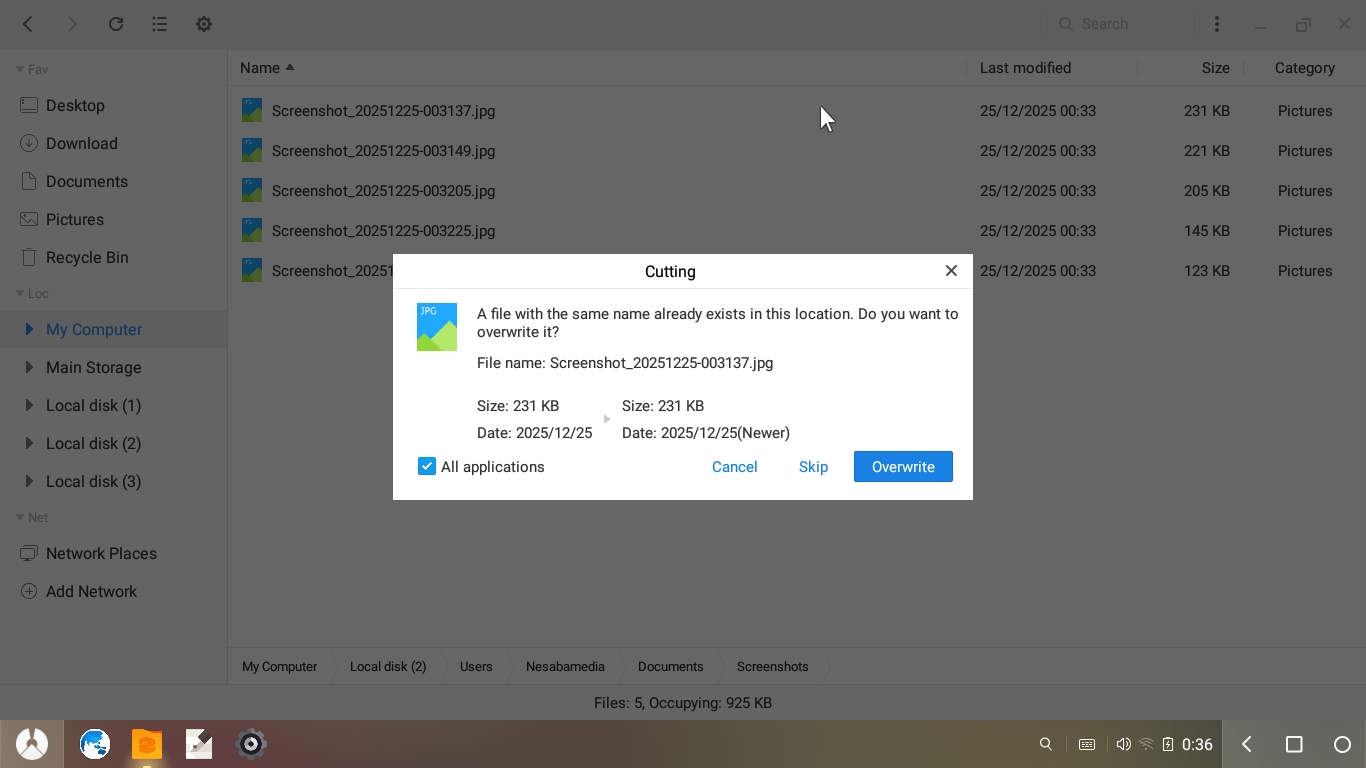
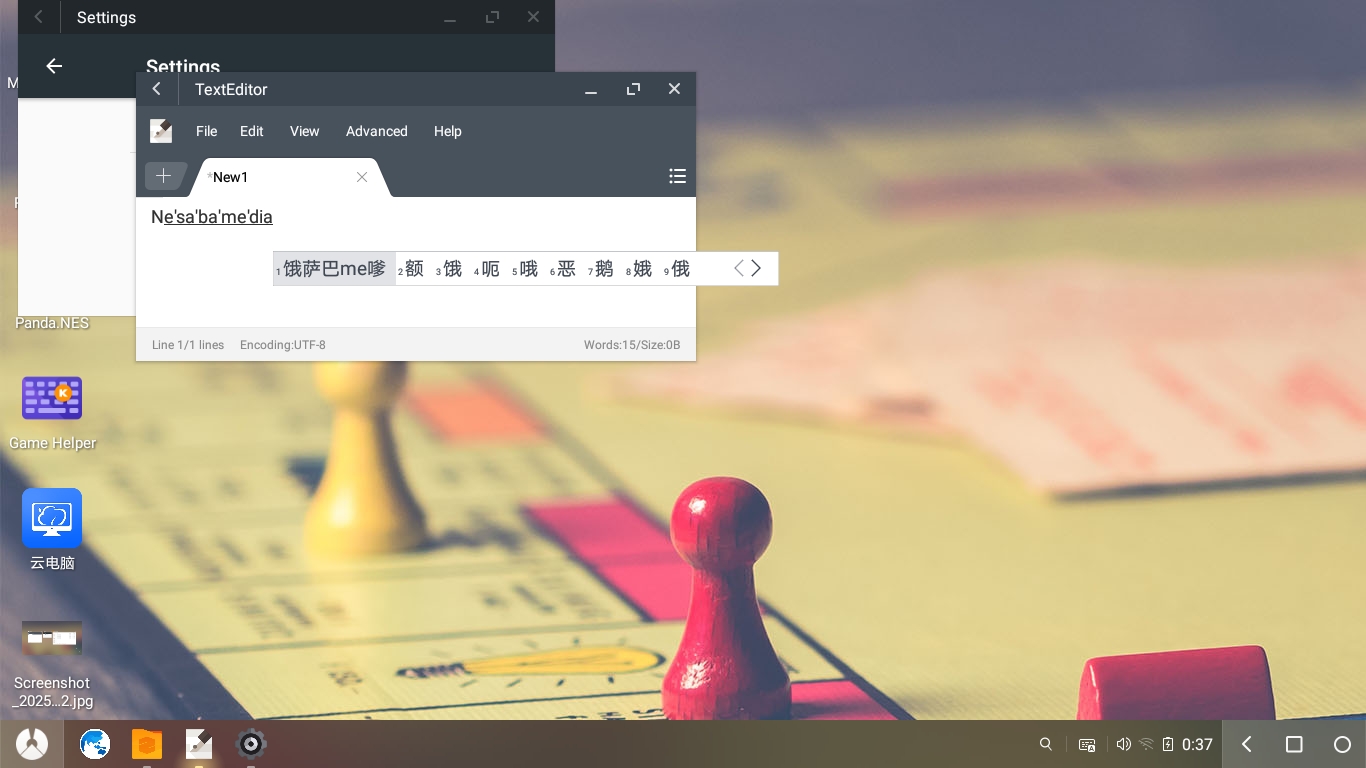
Phoenix OS has a number of apps that you can use immediately after you enter the operating system. It also has a configuration window that provides a wide array of options for you to adjust according to your need.
One of the apps that are available by default in Phoenix OS is Google Play. With this app, you can open and explore Google Play Store, and install more apps that draw your attention from the platform.
However, note that not every app will be compatible with the emulated operating system. Some apps might be able to run but cannot function properly, and some other apps might not be able to be installed at all.
You can keep Phoenix OS installed for as long as you need. When it is no longer needed, you can remove it as easy as you install it.
Phoenix OS Free Download for Windows
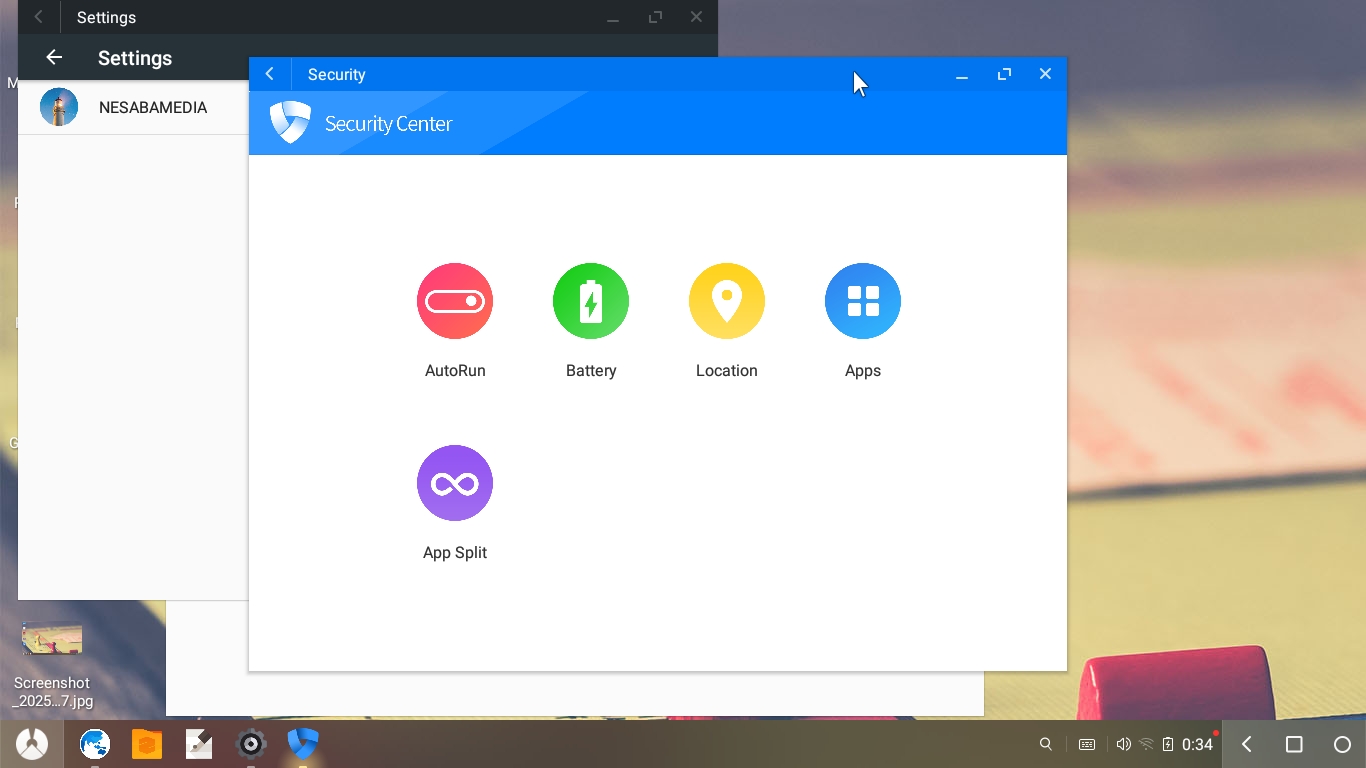
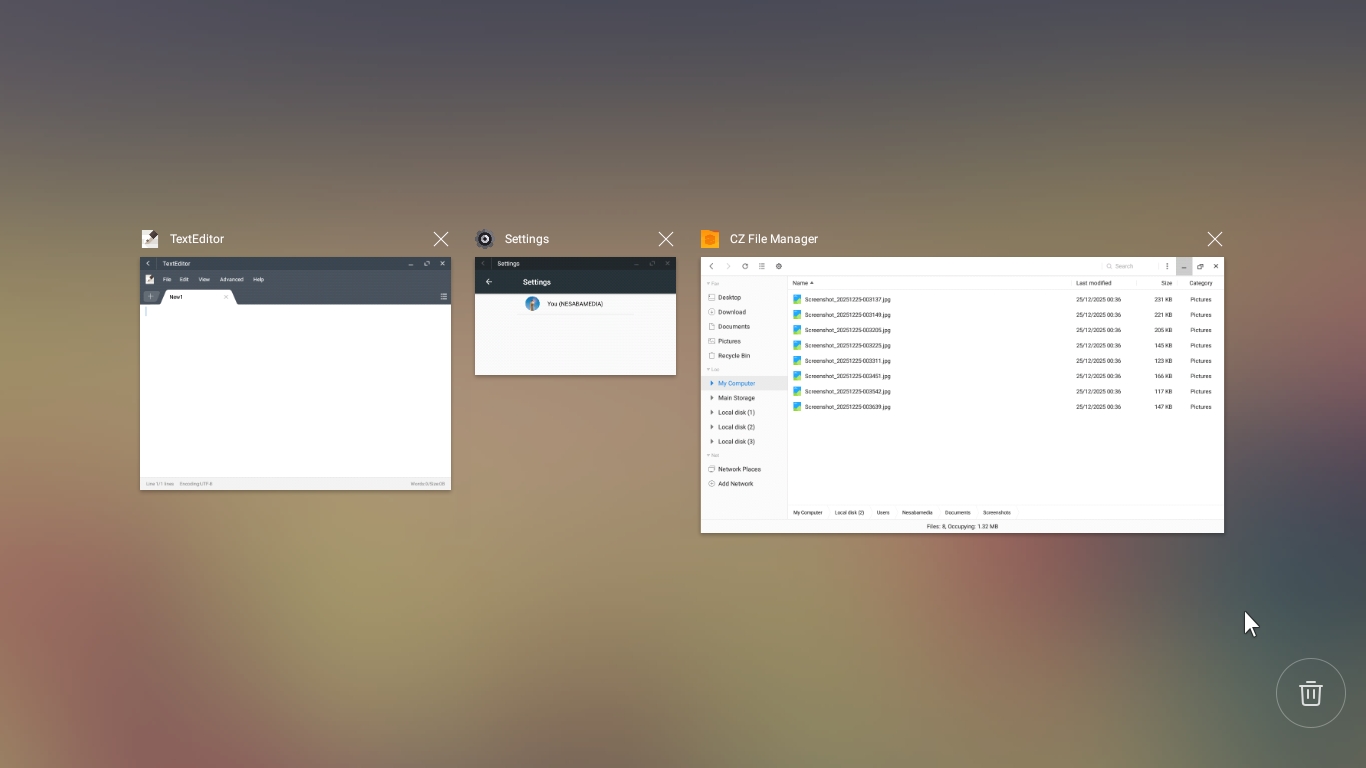
Running Android apps on a PC with Phoenix OS gives you another benefit. It can run several apps at the same time that you can place side by side, unlike on Android device where the screen can only show one app while the rest of the apps are running in the background.
However, the number of Android apps that are compatible with Phoenix OS is most probably less than your expectation, and that is because its development has been discontinued. You can click the link below to download Phoenix OS for Windows:
- App Name Phoenix OS
- License Freeware
- App Name Phoenix OS
- Publisher Phoenix OS
- Updated
- Version: 3.6.1.564
On our site you can easily download Phoenix OS. All without registration and send SMS!