Microsoft Project 2019

- Windows: 7, 8, 10, 11
- Version: 2019
- Size: 4.00 GB
-
[Total: 1 Average: 5]
Microsoft Project 2019 is a comprehensive platform for managing your projects. It is designed in such a way that allows you to use resources more efficiently, create detailed plans, share data with your team, and schedule projects realistically.
There are tons of handy features in Microsoft Project 2019 that will help you with your projects. However, while it is nice to find out that it can do a lot of things, you need to spend plenty of time to familiarize yourself with it.
Features and Highlights
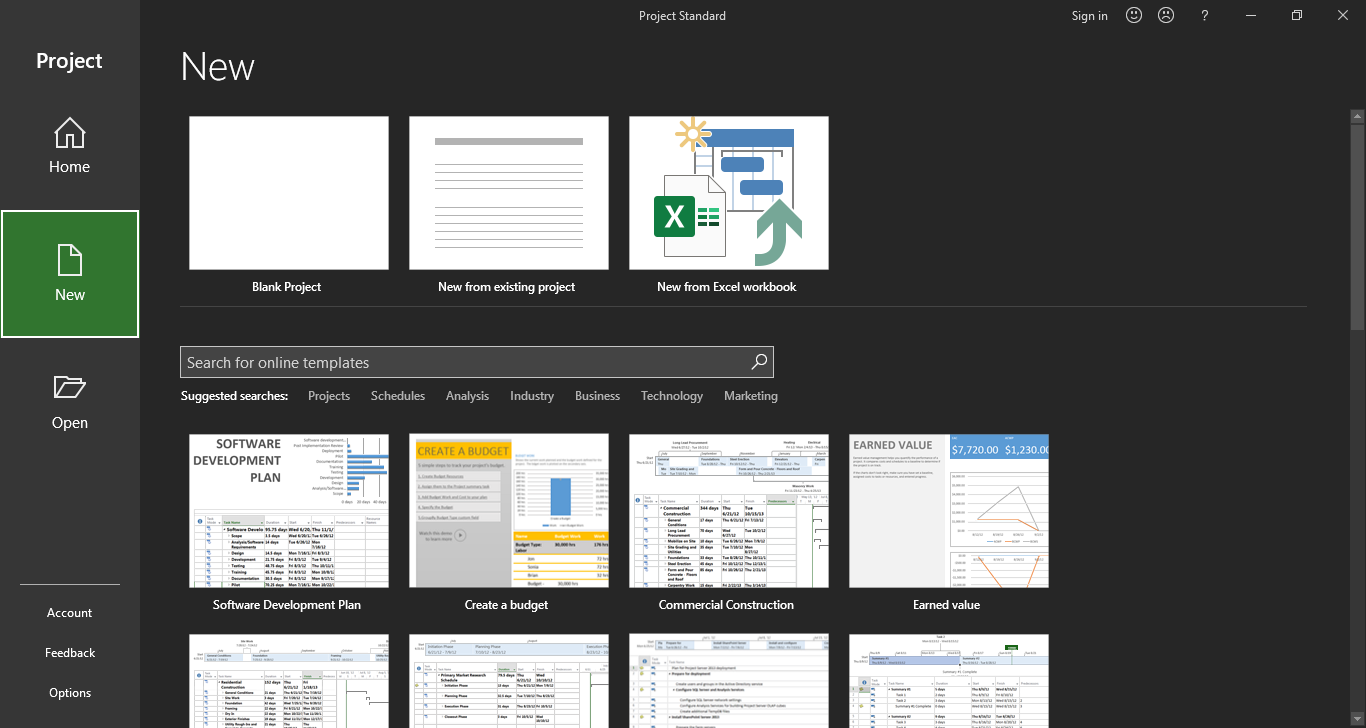
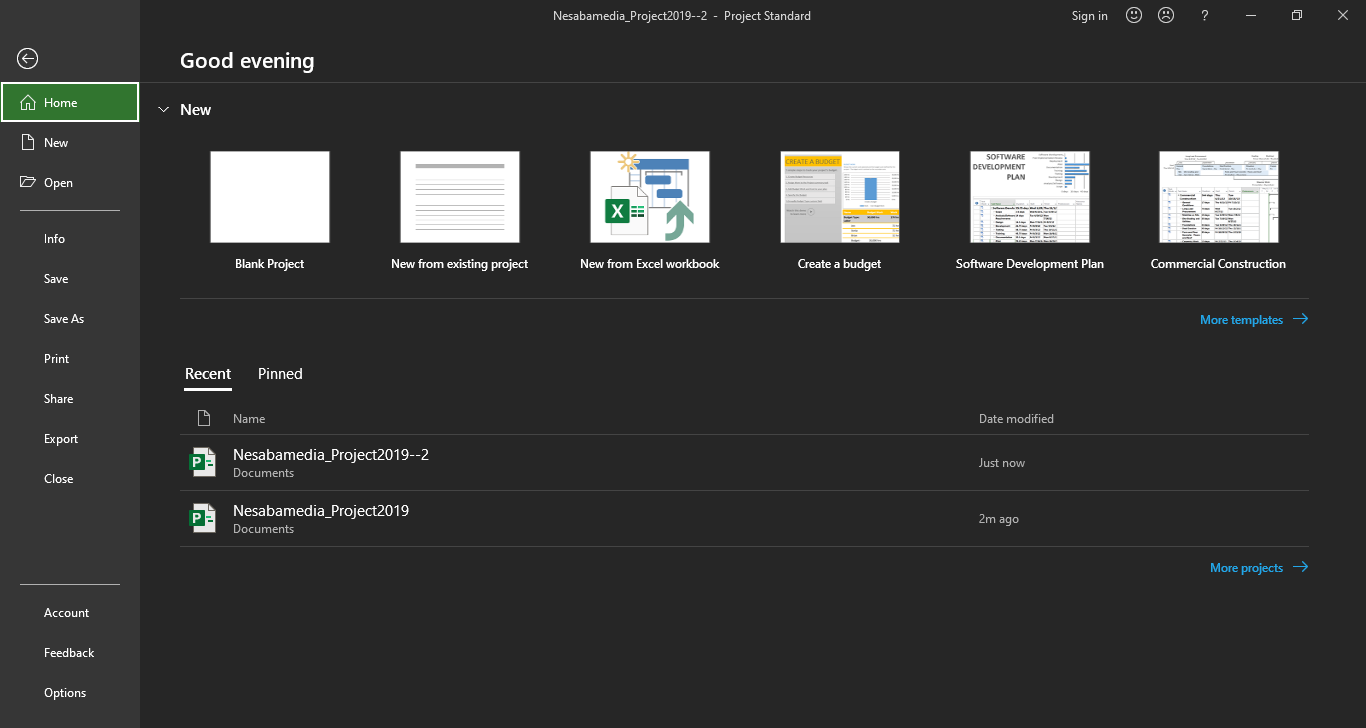
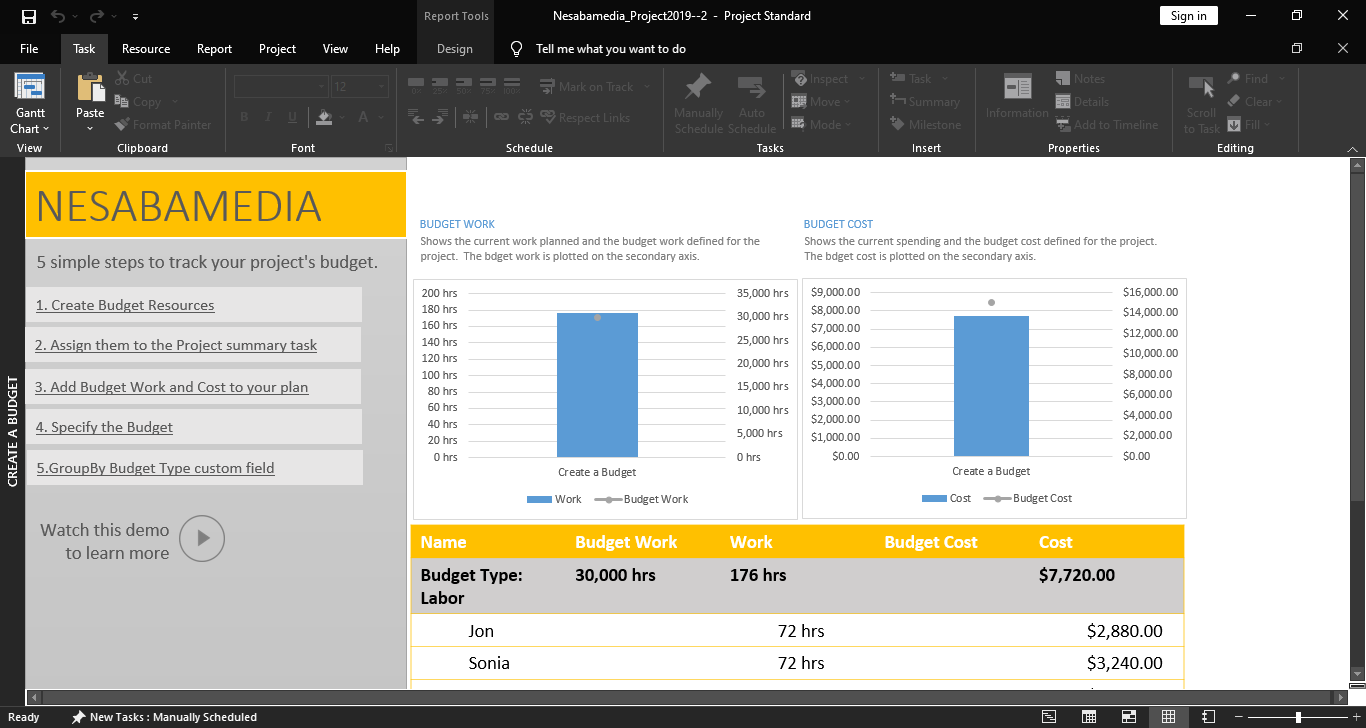
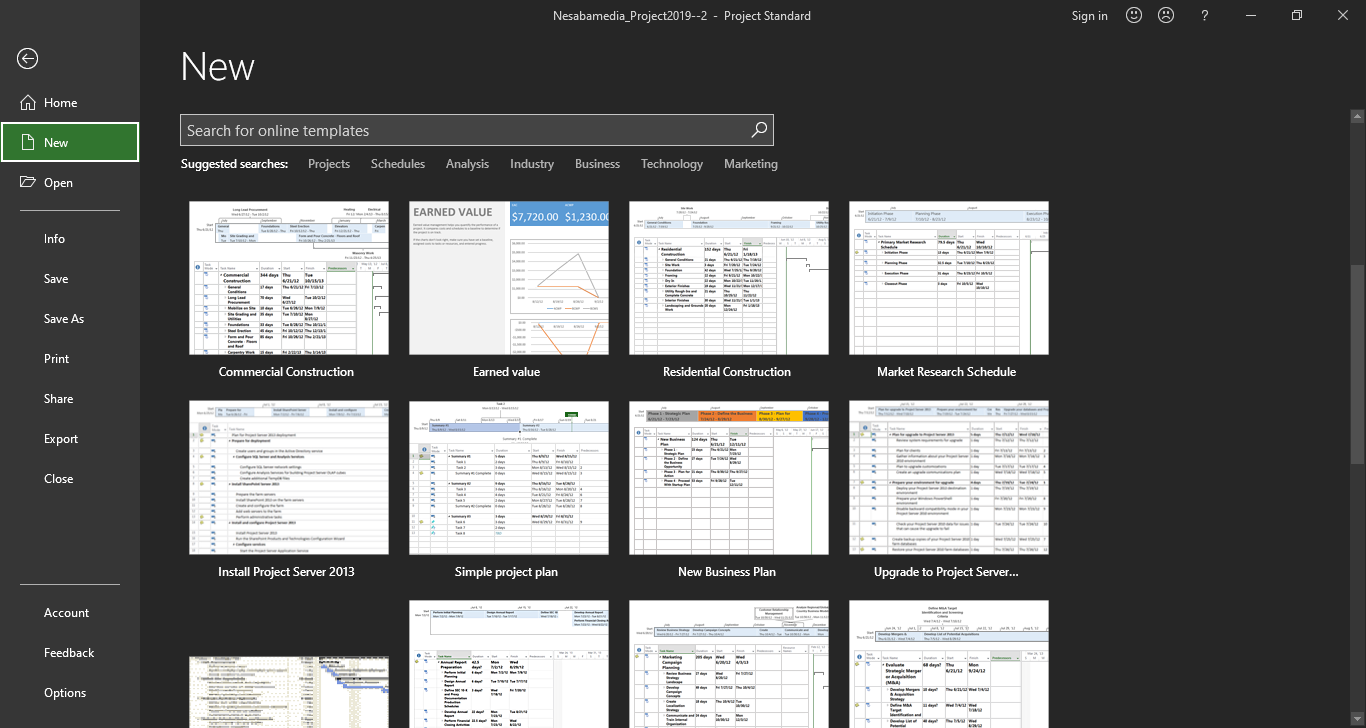
When you launch Microsoft Project 2019, the first thing that appears to greet you is its Start Screen. This is the area where you can open a file or create a new plan. In addition to create a new empty plan, you can also create a new one by using a template such as Software Development Plan, Agile Project Management, Create a Budget, and Commercial Construction templates.
There are many templates to choose from, but if you are working offline, you can only use the ones that are available in your local computer. If you are working online, you can get access to the online templates that are provided by Microsoft. To use a template more quickly in the future, you should pin the template to the New page.
An existing plan can also be used to create a new template. If you are going to share such a template, Microsoft Project 2019 provides an option to clear sensitive information from it.
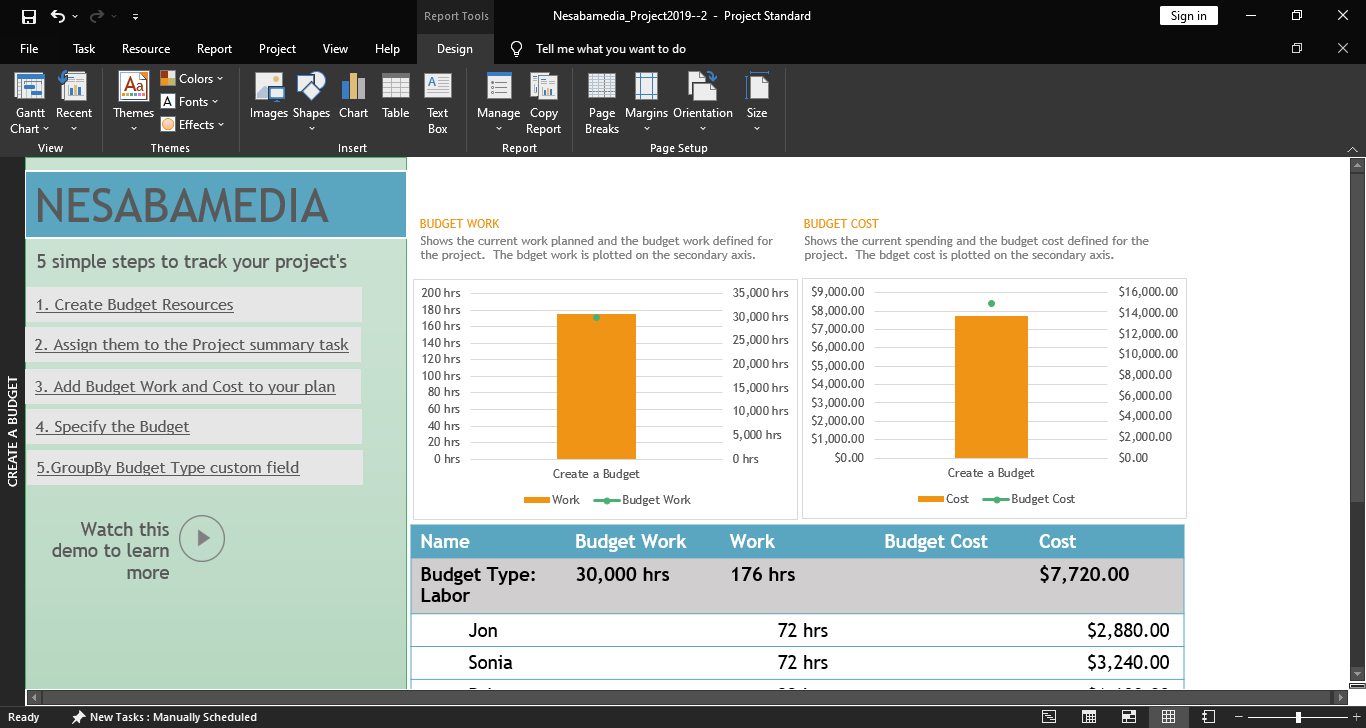
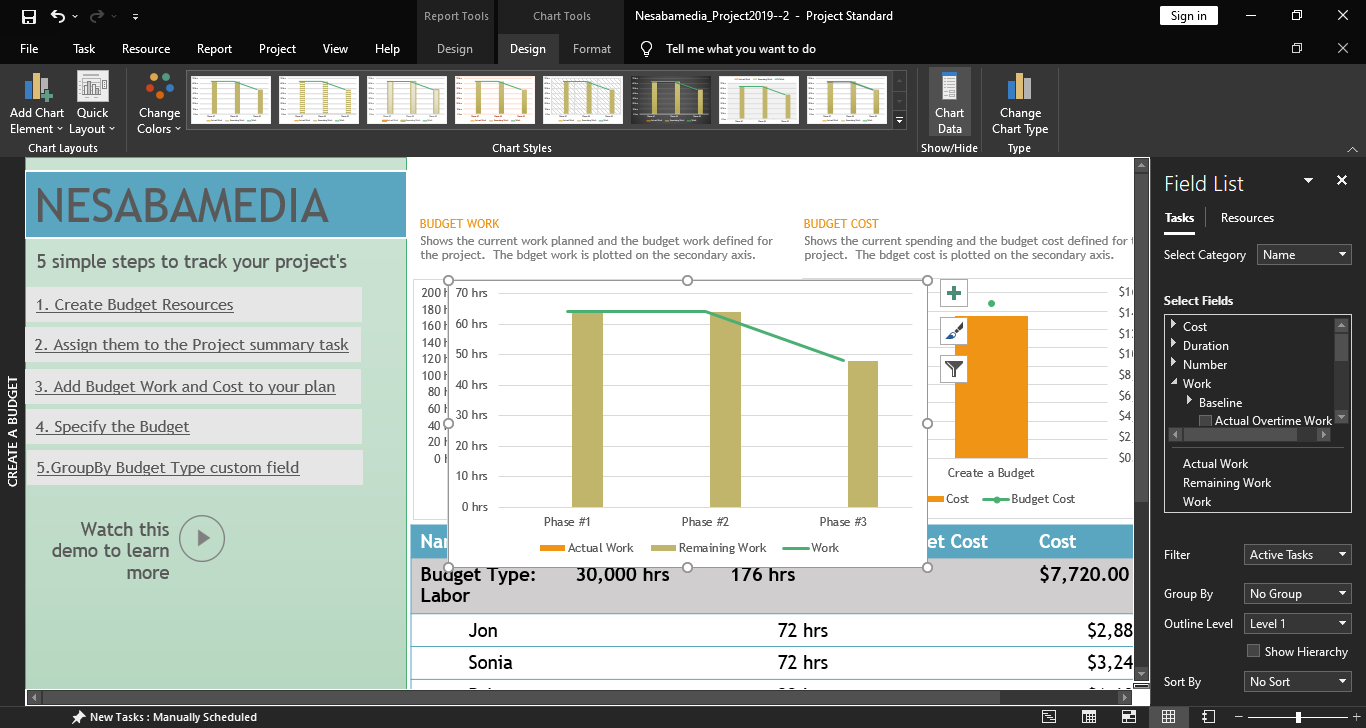
Microsoft Project 2019’s interface is made up of several major parts. One of them is the Quick Access Toolbar that allows you to collect the commands you frequently use in one place. There are also a number of tabs, each of which contains various commands. And then the status bar, which is used to display additional information.
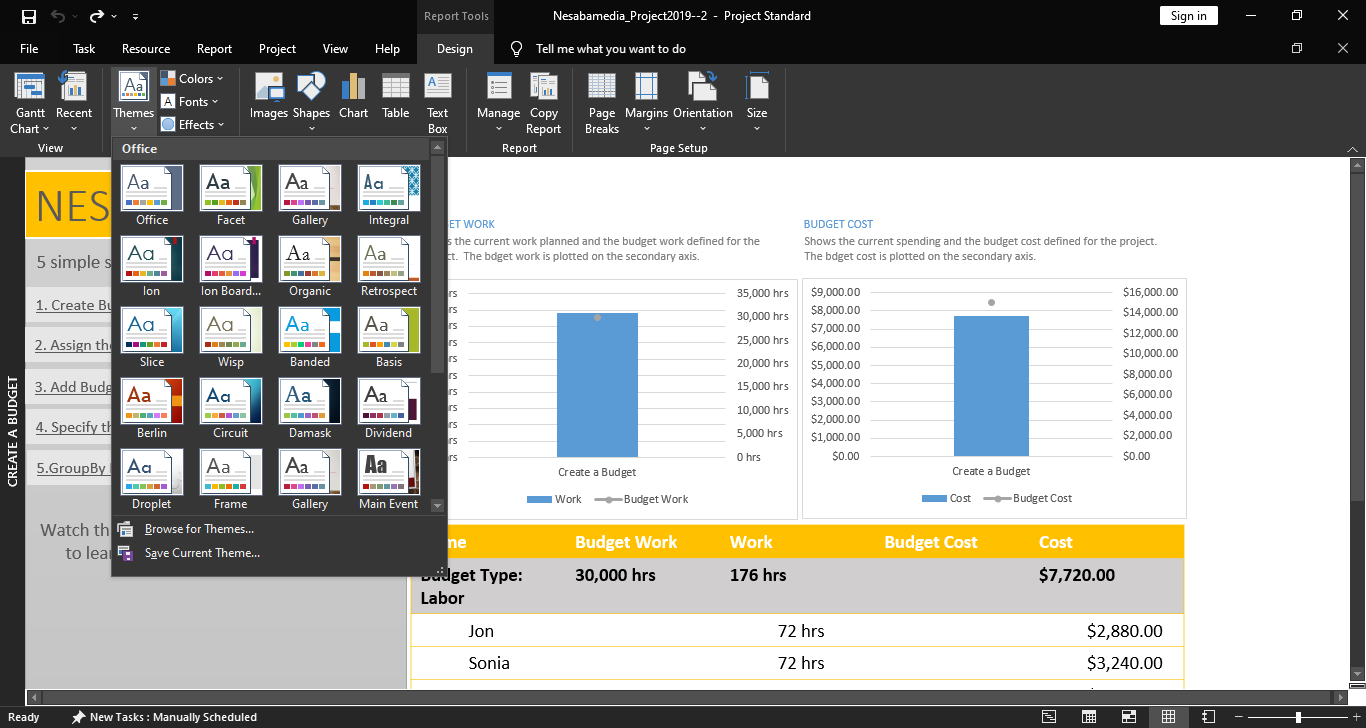
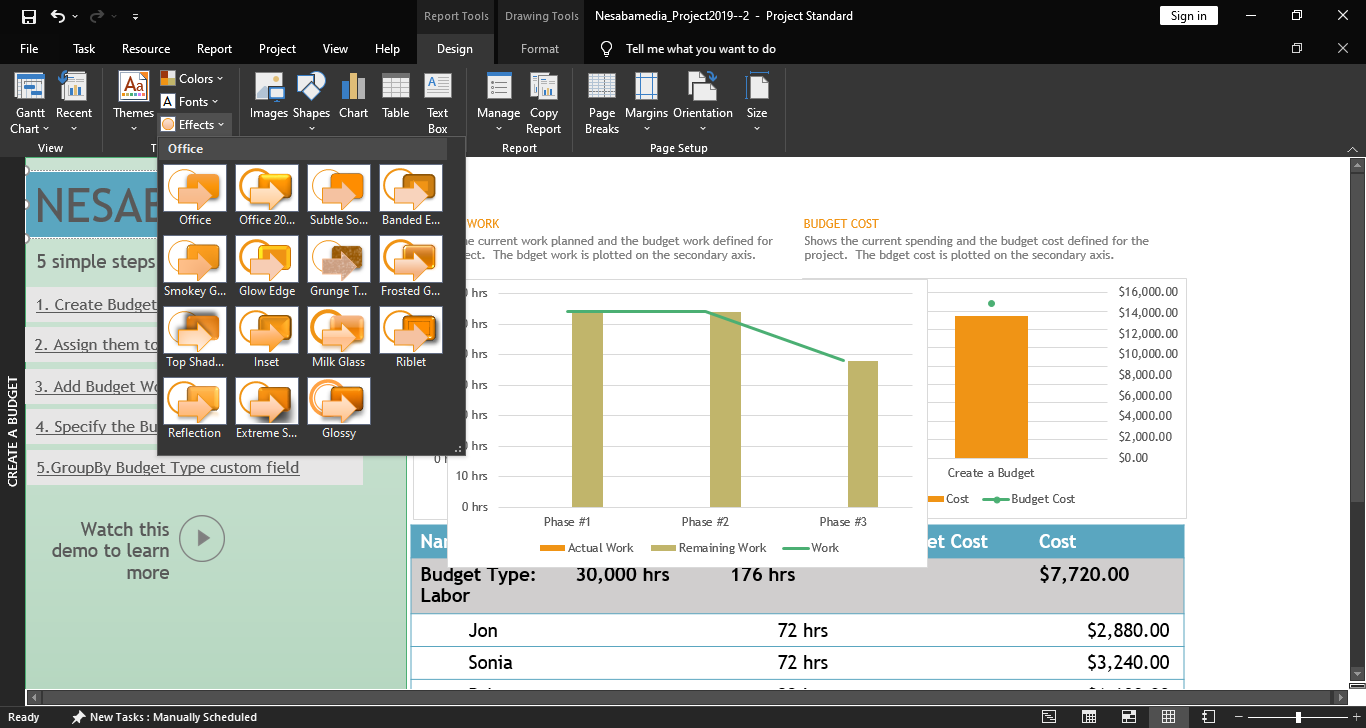
As with the previous versions, a lot of commands can be found in Microsoft Project 2019. Some of them perform immediate actions, while others give you more options. Most commands are organized in groups. If you open one of the tabs, you will see that each group is placed in a separate section, which makes the commands much easier to find.
As you use Microsoft Project 2019, you will get more familiar with it over time, but there are some options or commands that can be accessed more quickly if you just use Tell Me. It is a text field that can serve as a quick access to features and find help about what you want to do.
Microsoft Project 2019 Free Download for Windows
The controversial ribbon is still used in Microsoft Project 2019 to organize and display commands. Users who come from the previous version should be able to adapt to its interface more quickly.
Even those who use this project management software for the first time should be able to get familiar with the interface without any difficulty. The reason is that the interface is similar to that of Microsoft Word, Excel, and PowerPoint. You can click the link below to download Microsoft Project 2019 for Windows:
- App Name Microsoft Project 2019
- License Freeware
- App Name Microsoft Project 2019
- Publisher Microsoft
- Updated
- Version: 2019
On our site you can easily download Microsoft Project 2019. All without registration and send SMS!