GOM Player

- Windows: 7, 8, 10, 11
- Version: 2.3.114.5384
- Size: 32.10 MB
-
[Total: 1 Average: 5]
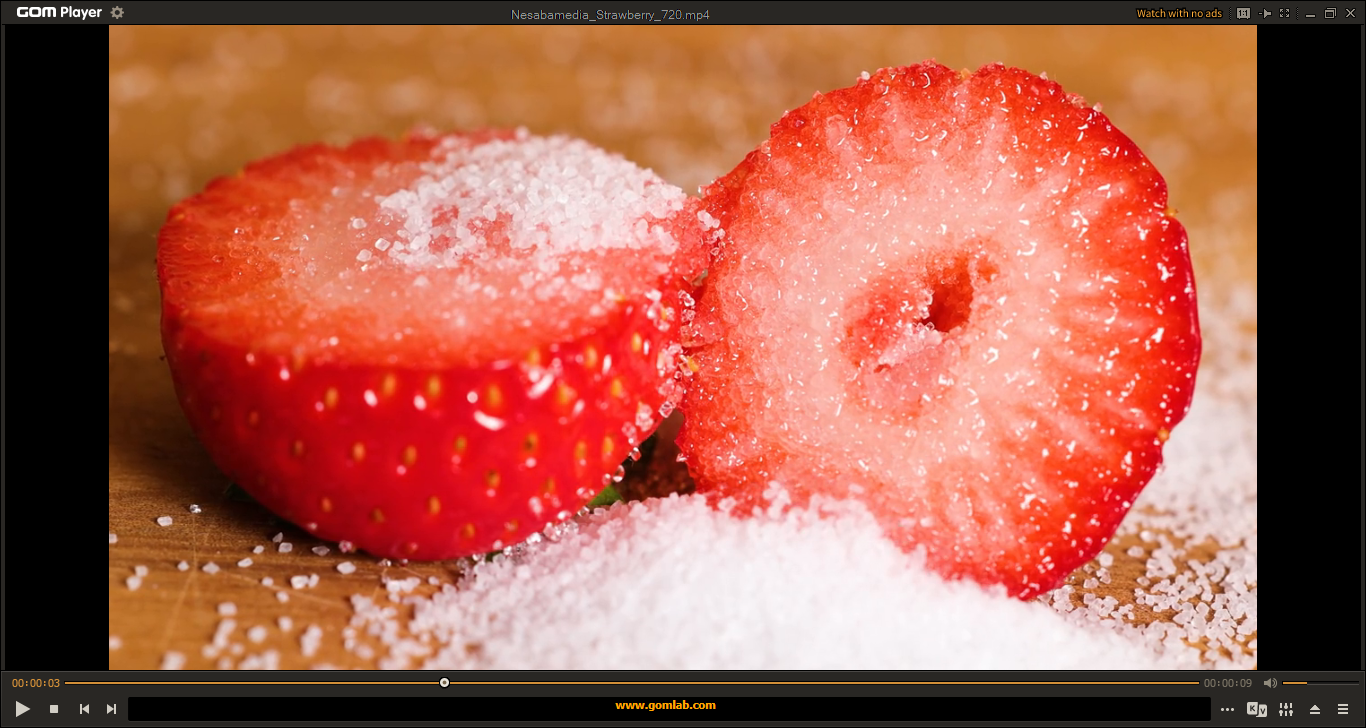
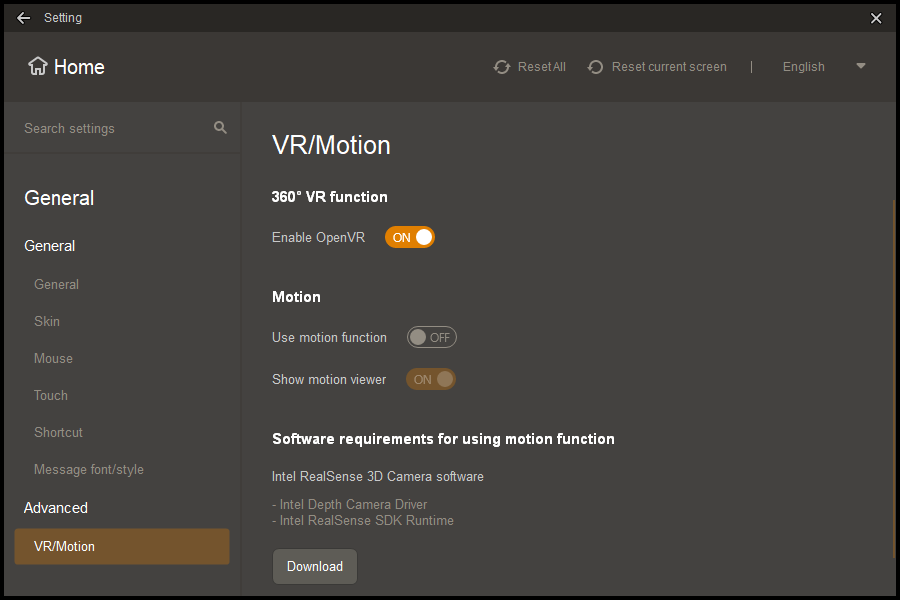
GOM Player has been consistently ranked as one of the widely used media players. Its interface is slick, and it has an abundant amount of features. The most important of all is perhaps its ability to play just about any video file, including 360-degree VR video. The lack of a proper codec is an issue that you might never have to worry about again.
If by any chance you encounter such an issue, GOM Player should be able to help you out. It shows a warning message containing a bit of information that explains the situation and a few instructions on what you should do, like clicking a button that will open up a web page where you can find the missing codec.
Features and Highlights
When playing a video, GOM Player displays subtitle automatically if the video has it.
For video that has several subtitles, you can choose which subtitle to be displayed. For video that lacks any subtitle, there is a subtitle finder that searches for subtitles in GOM’s online database.
External subtitle can be added by dragging and dropping it on the player’s interface.
When you watch a video, you can bookmark any part of the video. All bookmarks that you have created can be found in the bookmark manager, and each bookmark is presented as a thumbnail.
Like any other video player, GOM Player has a seek bar, but it is capable of something that not every video player can do, and that is showing thumbnail preview as you hover the mouse cursor over the seek bar.
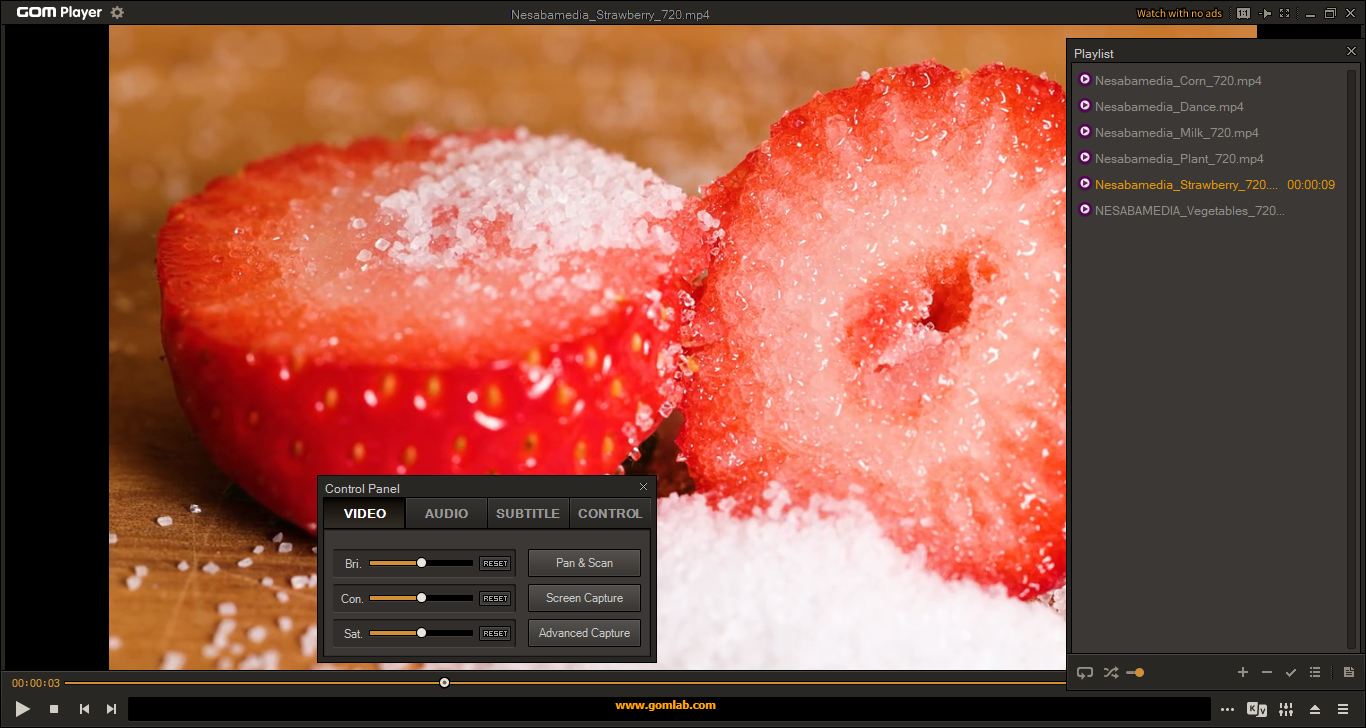
Screen capture is also a standard feature among media players, and GOM Player takes a step further by including what is called as Burst Capture. It lets you take a series of screenshot at a specified interval or capture a specified number of frames, though it has a downside that makes the capture a bit challenging to do: it can only takes screenshots when the video is playing. Setting up a custom hotkey to execute burst capture can make it less hassle.
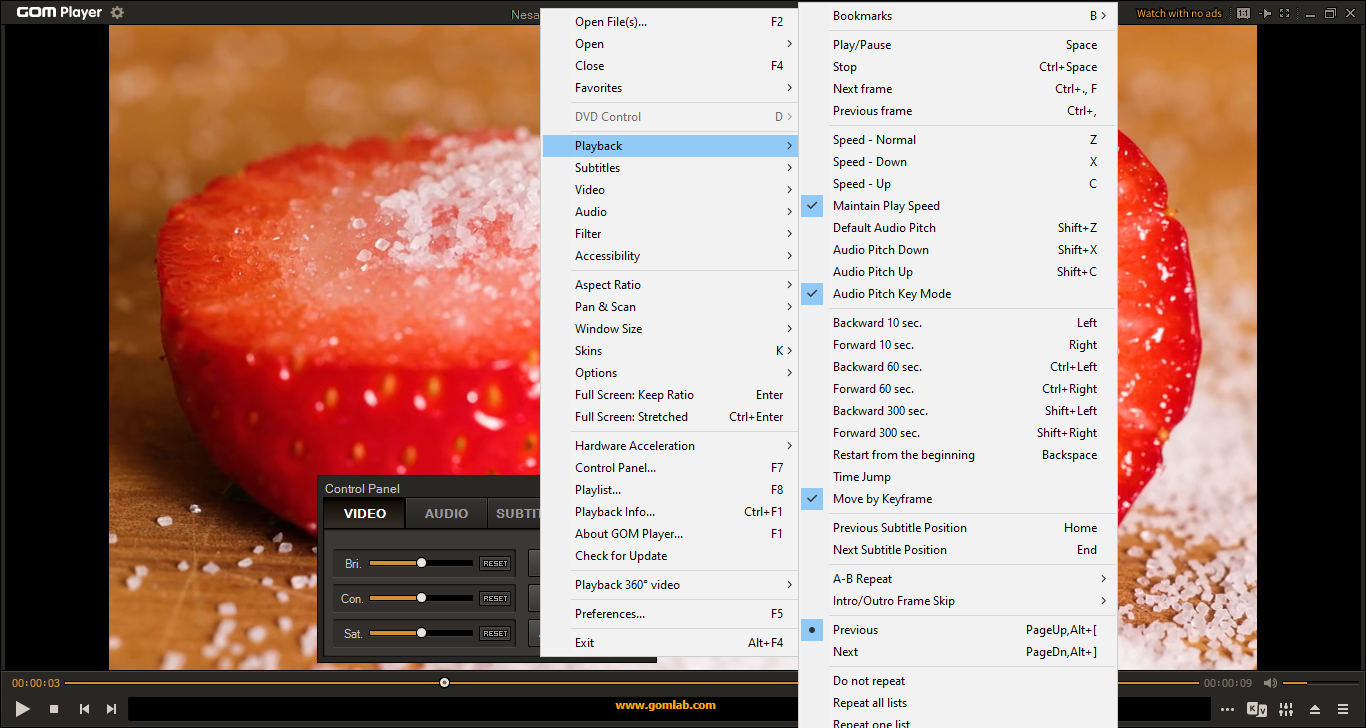
GOM Player has two shortcut modes: Default and Cat. The former allows you to use both the default and custom hotkeys, while the latter disables the default hotkeys so only the custom ones can be used.
To set up a custom hotkey, open Preferences > Shortcut and then click the plus button, select a command, assign a custom hotkey to the command, and click OK to apply the change.
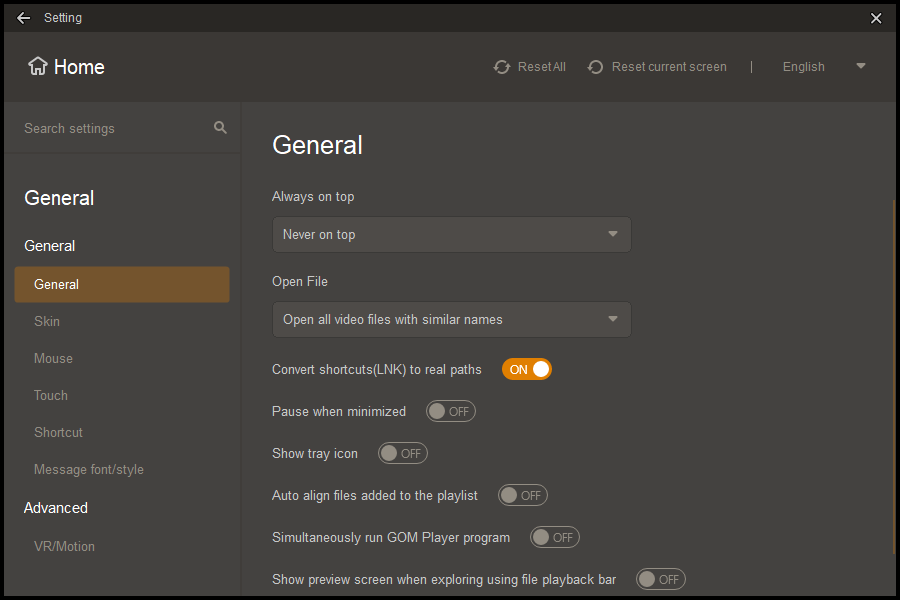
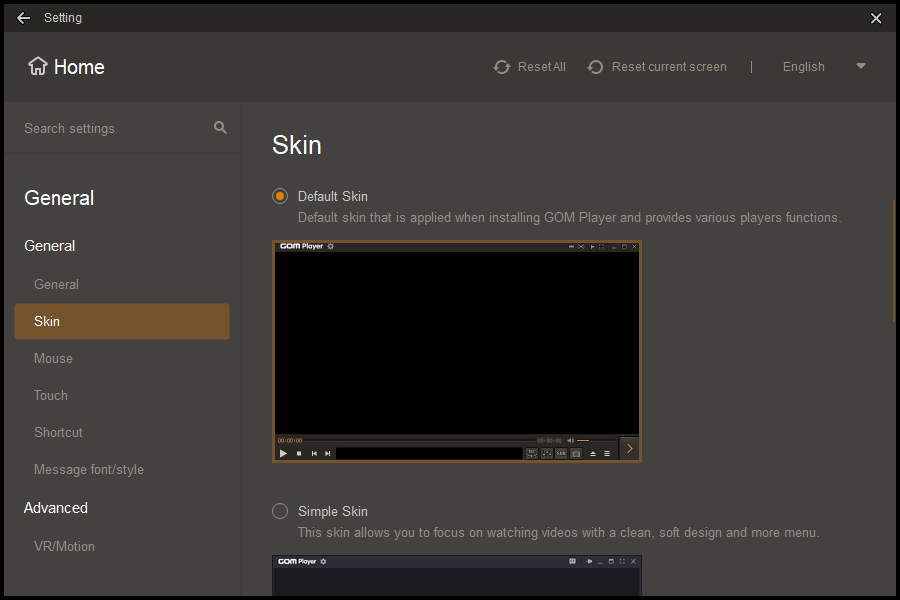
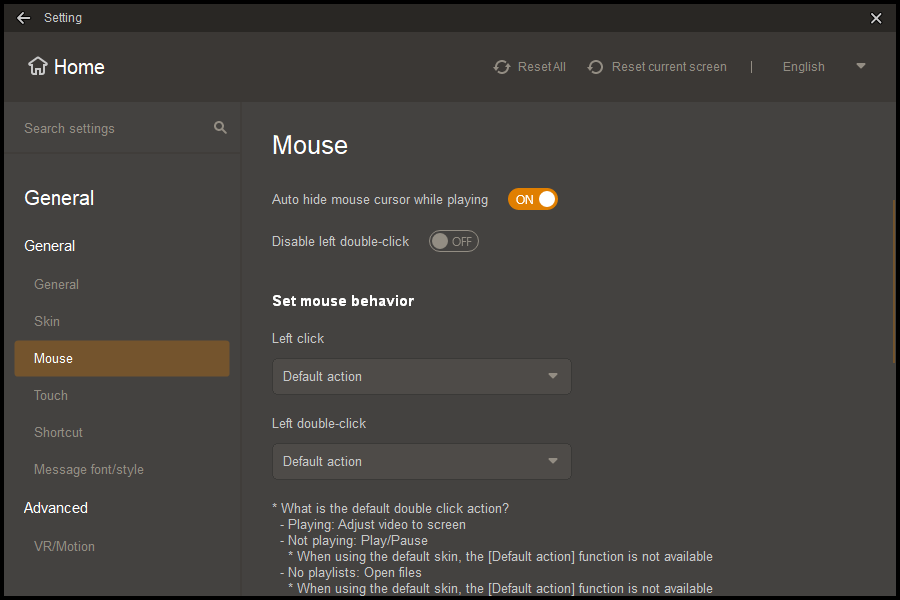
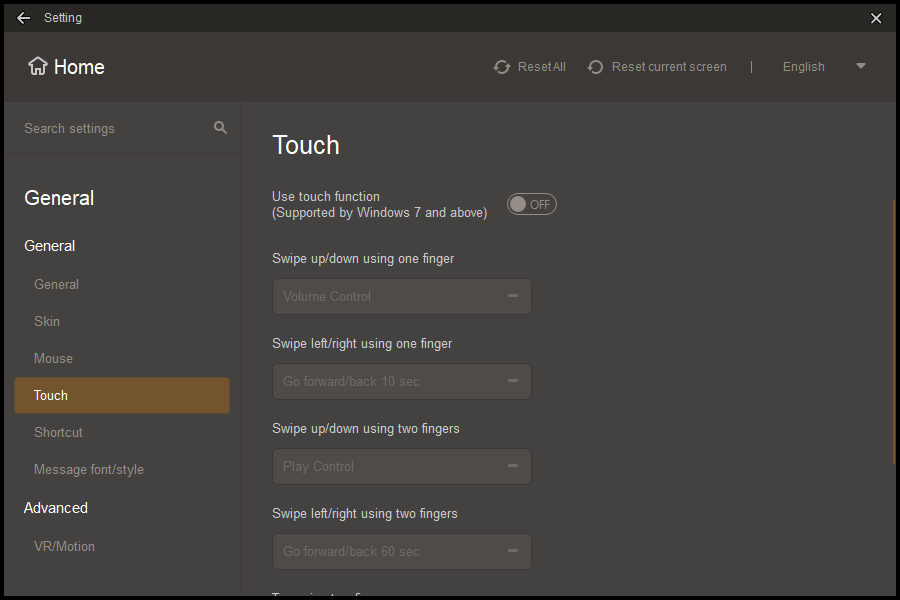
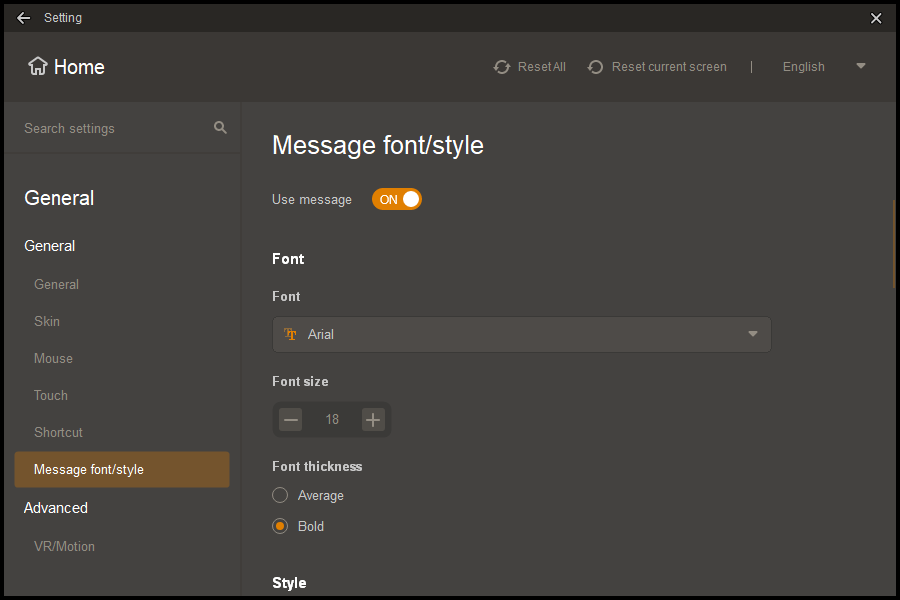
The search box in the Preferences window makes it easier to find an option. Type a word, and a list of suggestions is revealed in a drop-down style. Clicking any of the suggestions will bring you to the option right away.
GOM Player Free Download for Windows
If you need a lightweight media player, you should look for an alternative. If you want a slick media player laden with cool features, try GOM Player. On the downside, the free version is plastered with ads and sometimes it cannot show subtitles properly. There are methods to remove the ads, including the official one, which is upgrading GOM Player to the Plus version. You can click the link below to download GOM Player for Windows:
- App Name GOM Player
- License Freeware
- App Name GOM Player
- Publisher Gretech Corp
- Updated
- Version: 2.3.114.5384
On our site you can easily download GOM Player. All without registration and send SMS!