Discord

- Windows: 7, 8, 10, 11
- Version: 1.0.9218
Millions of users worldwide have been using Discord on daily basis to talk to each other about a wide variety of topics. Just like its tagline, Discord is a place to hang out whether it is to discuss about games, seek new friends, join communities, or anything else.
Discord used to be focused heavily on gamers. Its fame began when gaming-related subreddits decided to use it for communication. In 2020, there were changes to make Discord more appealing for a broader audience, and today it has been known as a communication tool for everyone, especially for those who have similar interests.
Features and Highlights
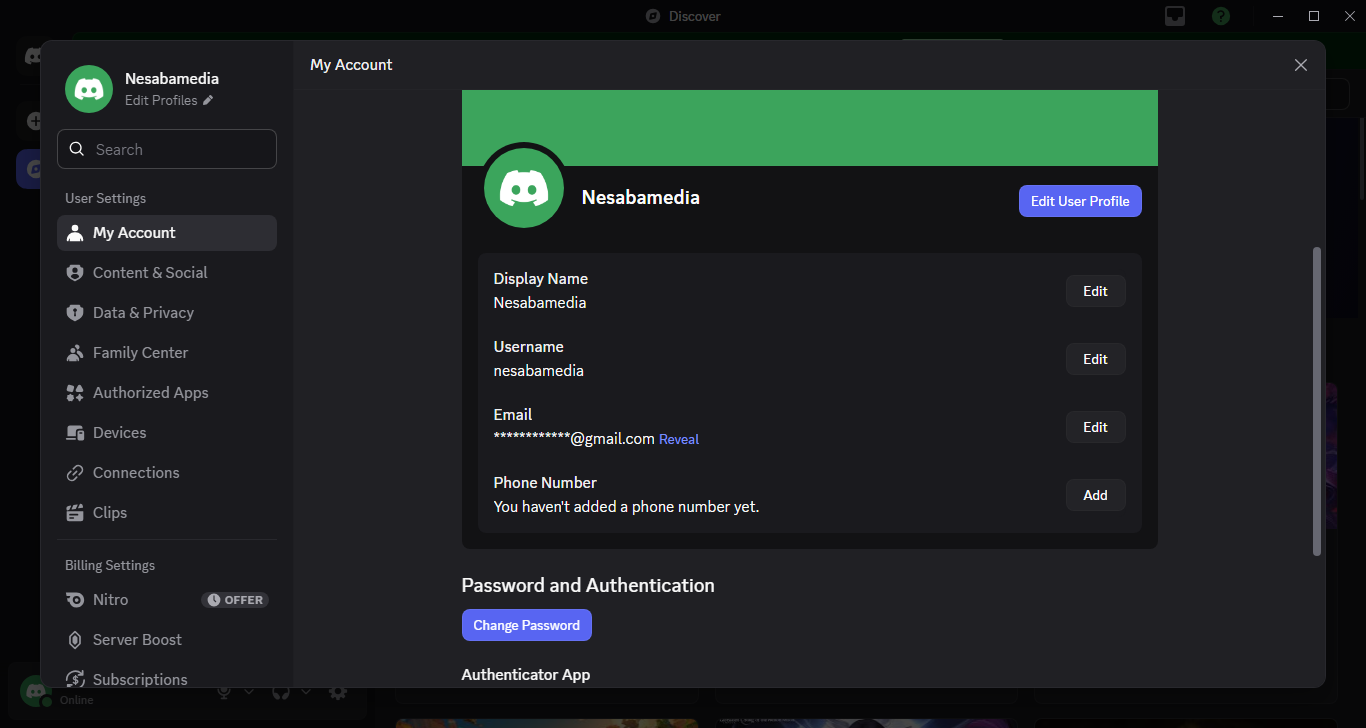
To use Discord, you must create an account first. While you can do it directly from the desktop client, you have to confirm your registration by opening your email account.
If you already have an account but forget the correct password, Discord will send the password reset link to your email account. And if you log in to Discord from a different IP address, you will be asked to verify the IP address, otherwise you won’t be able to access your account.
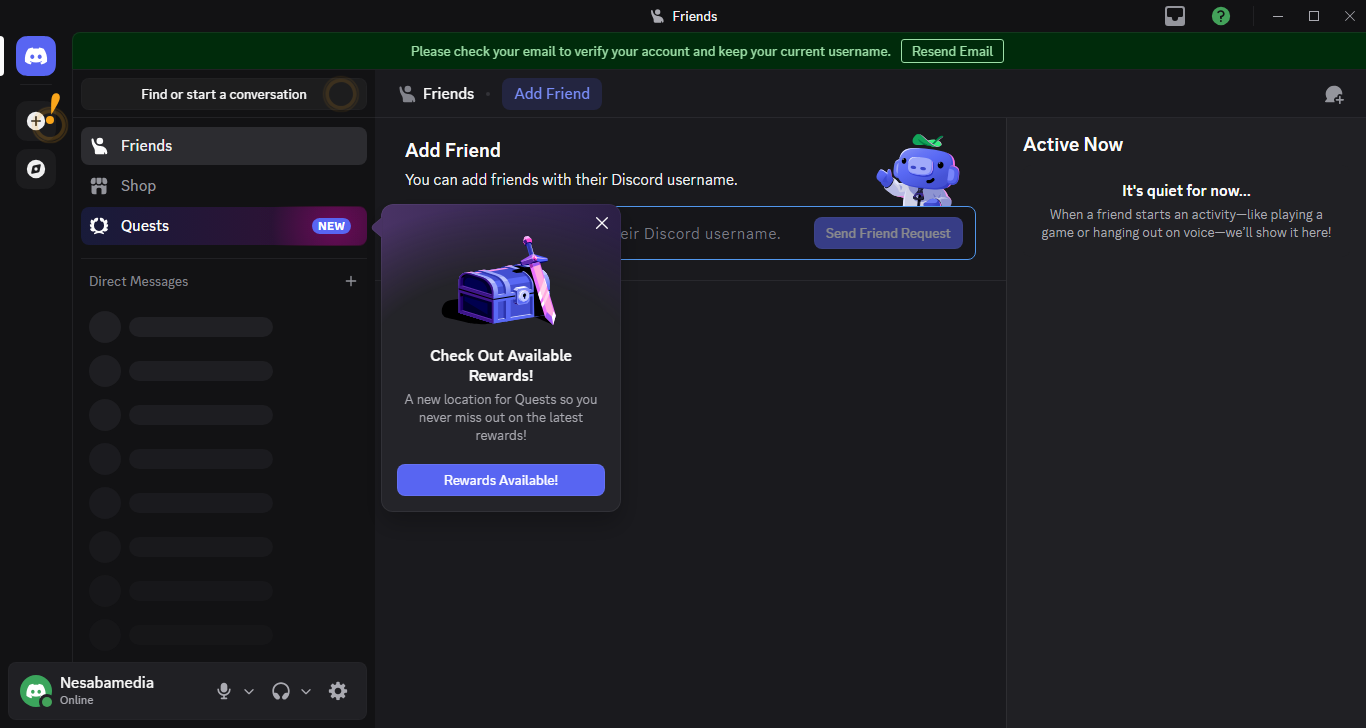
In Discord, you talk to each other in a chat room, which is referred to as a server. You have to create or join a server after you sign up to Discord. If you want to create a new server, click the plus button on the left sidebar and then pick a template. After it is created, send invitations to your family, friends, colleagues, and anyone else you want to have conversation with. They can join your server by using your invitation.
When you want to join a server, you also need an invitation, but only if it is a private server. For public servers, you can join them immediately.
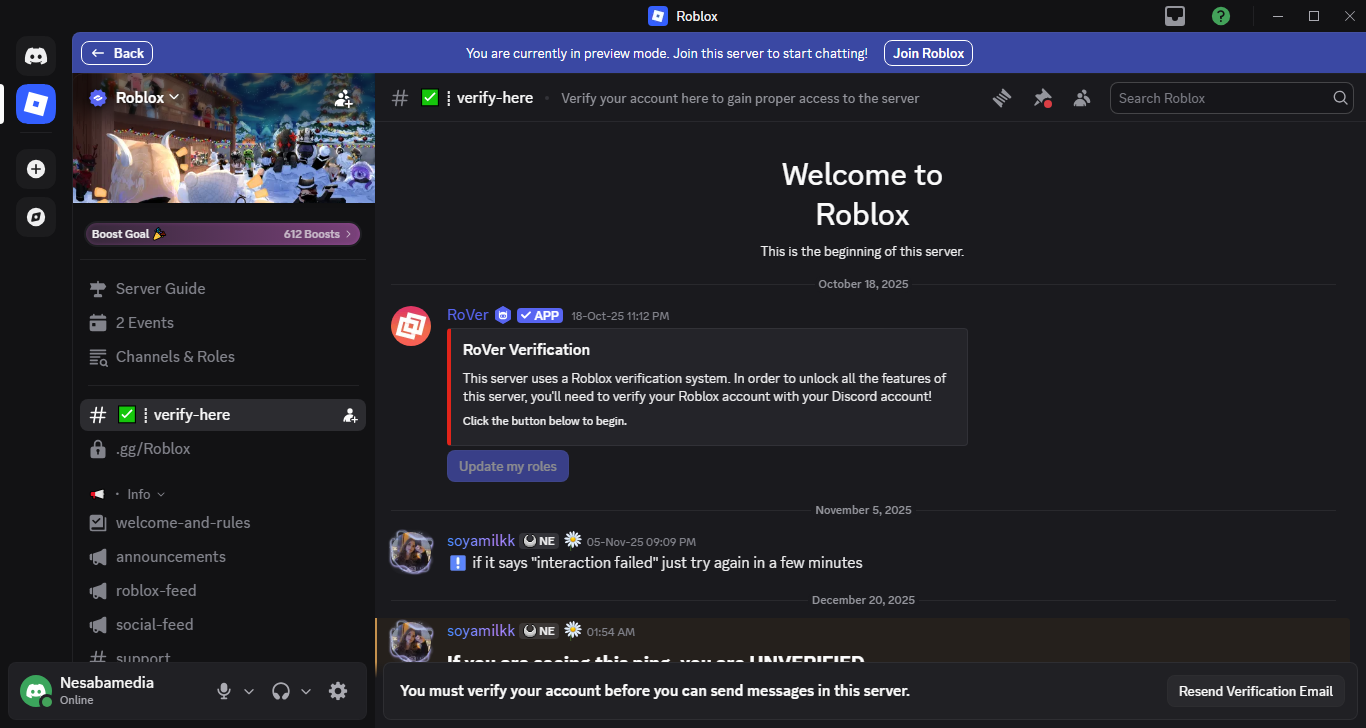
When joining a server, sometimes you have to prove that you are a human by solving the captcha, sometimes you can directly participate in the ongoing conversations.
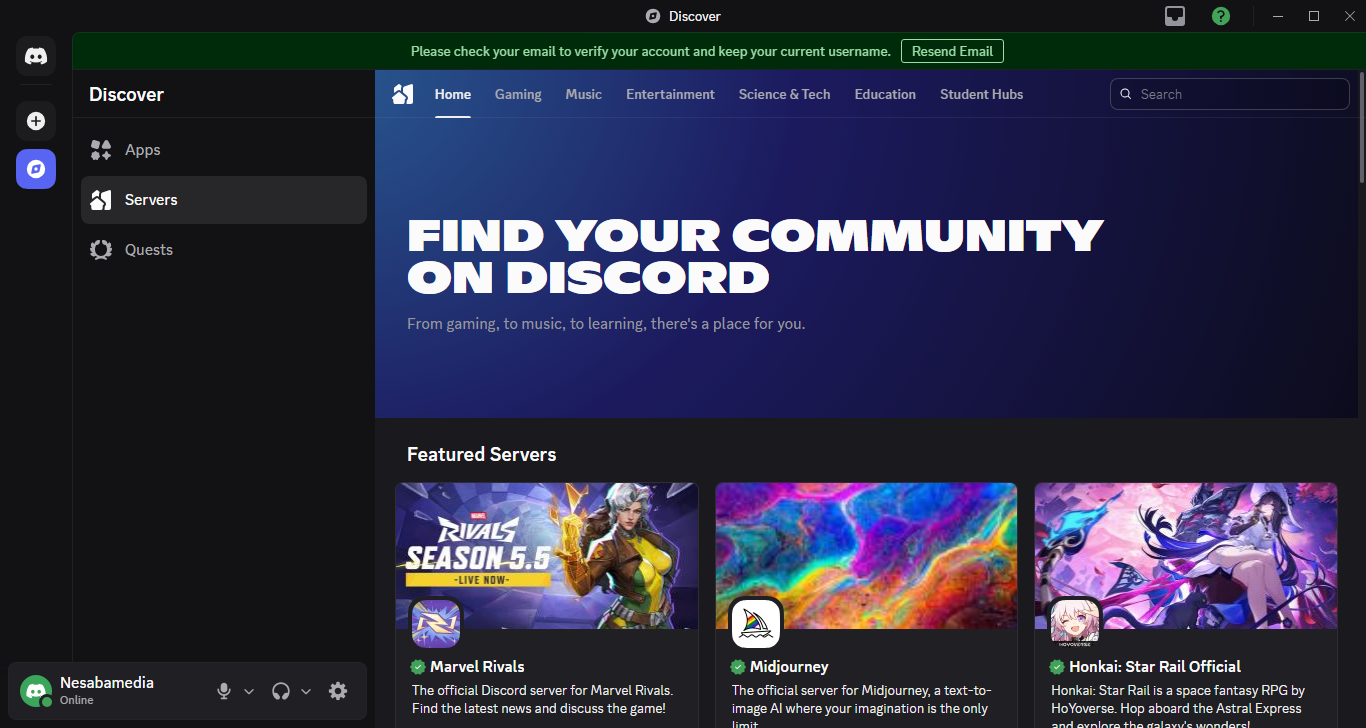
There are many public servers you can join. The featured ones are grouped under several topics that include Gaming, Music, Education, Science and Tech, and Entertainment. If none of them meets your expectations, use the search box to find more servers.
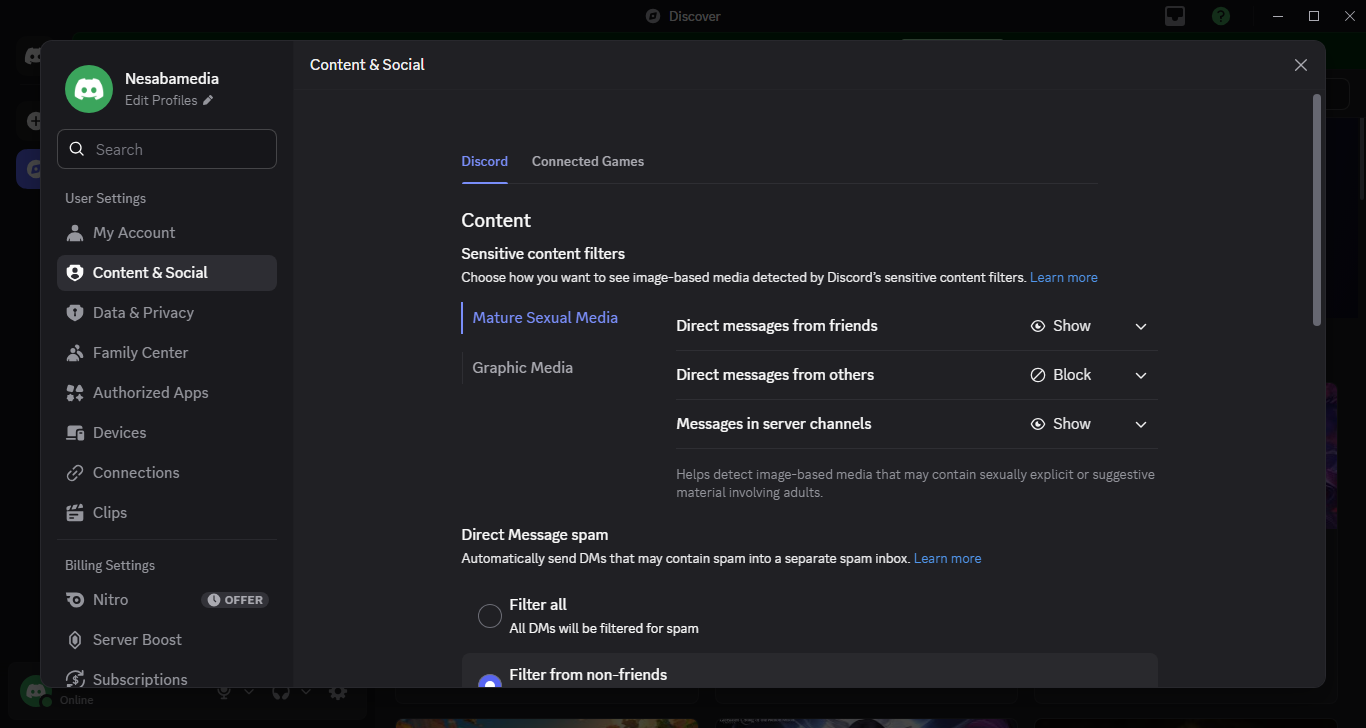
Discord automatically scans direct messages that you receive from other users but your friends, and deletes the ones that contain inappropriate media content. If you want to be safer, you can tell it to scan every message no matter where it comes from. If you care about privacy, an option is available to completely disable the automatic scan.
Discord Free Download for Windows
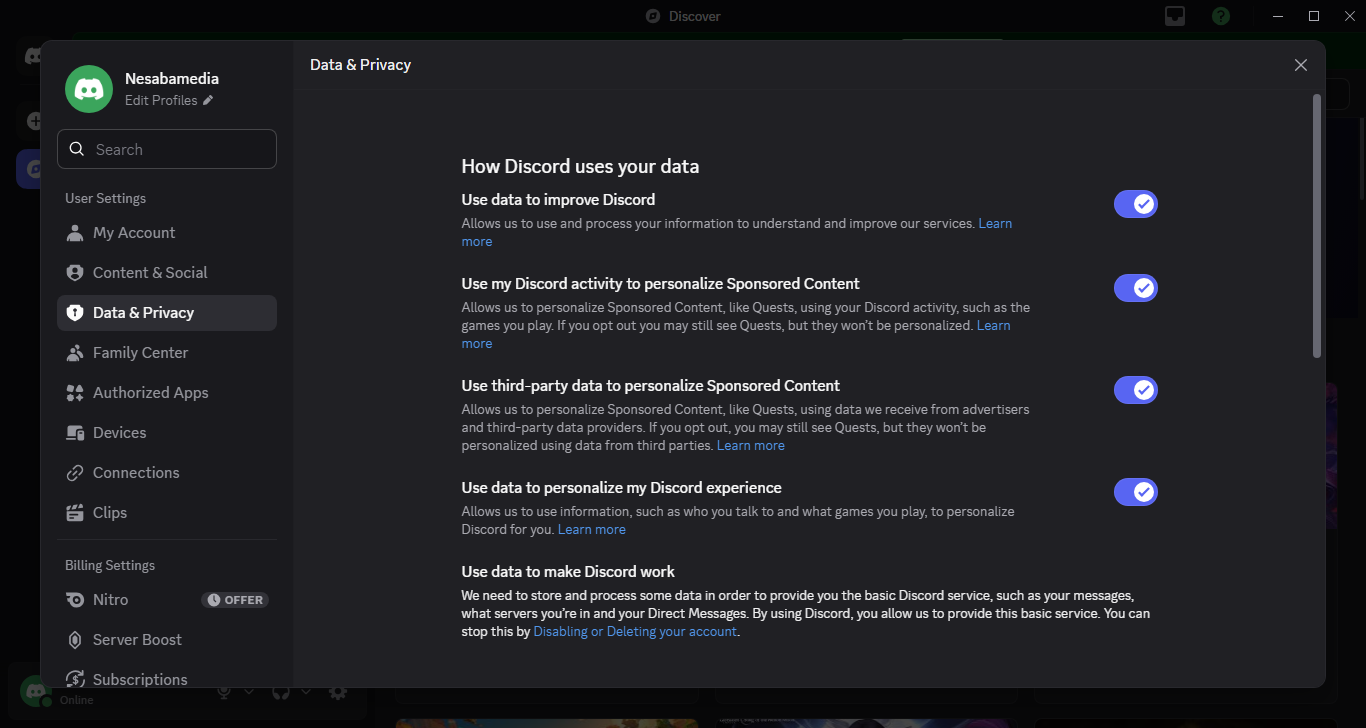
Discord is a great communication tool, but it is also known for collecting user data, which is why there are opinions that you should use the web client instead of installing the desktop client. The solution doesn’t completely solve the privacy issue but at least it can reduce the amount of data collected by Discord.
If you cannot avoid using its desktop client, you can use it in an isolated environment to tackle the privacy issue, but not everyone knows how to do it, unfortunately. In that case, at least dig into the settings and disable anything that potentially violates your privacy. You can click the link below to download Discord for Windows:



- App Name Discord
- License Freeware
- App Name Discord
- Publisher Discord Inc.
- Updated
- Version: 1.0.9218
On our site you can easily download Discord. All without registration and send SMS!