7-Zip

- Windows: 7, 8, 10, 11
- Version: 25.01
- Size: 1.57 MB
-
[Total: 1 Average: 5]
While 7-Zip can be used to compress files to different archive formats, it is mainly focused on creating a 7-Zip archive which offers a high compression ratio, generally higher than ZIP archive format, making it worth a shot if you are looking for any method to compress the size of a file as much as possible.
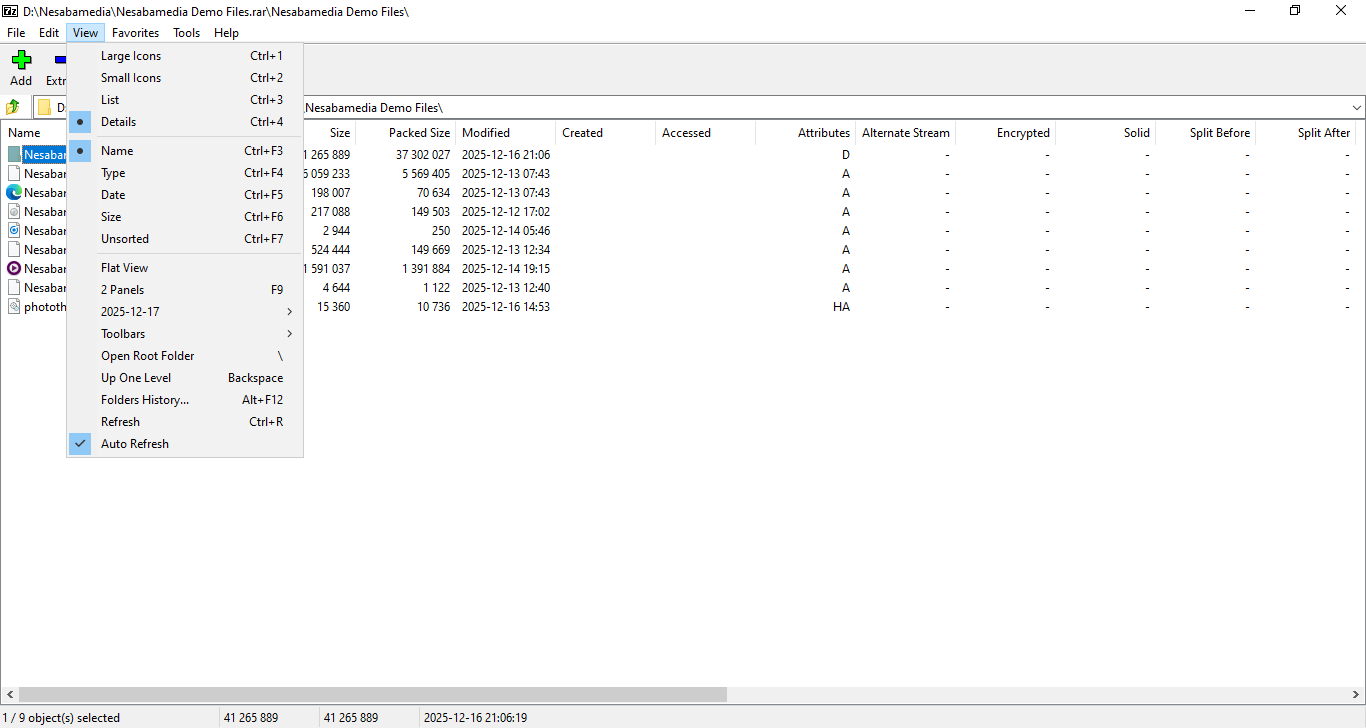
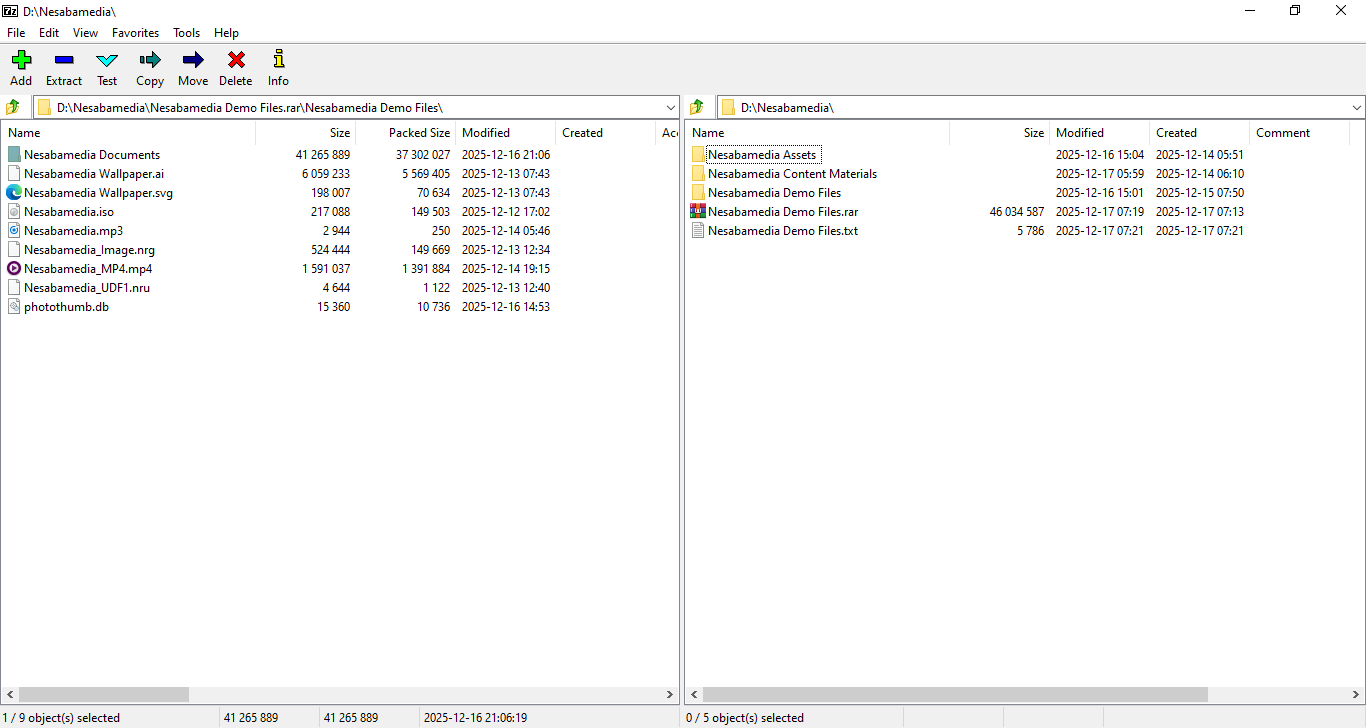
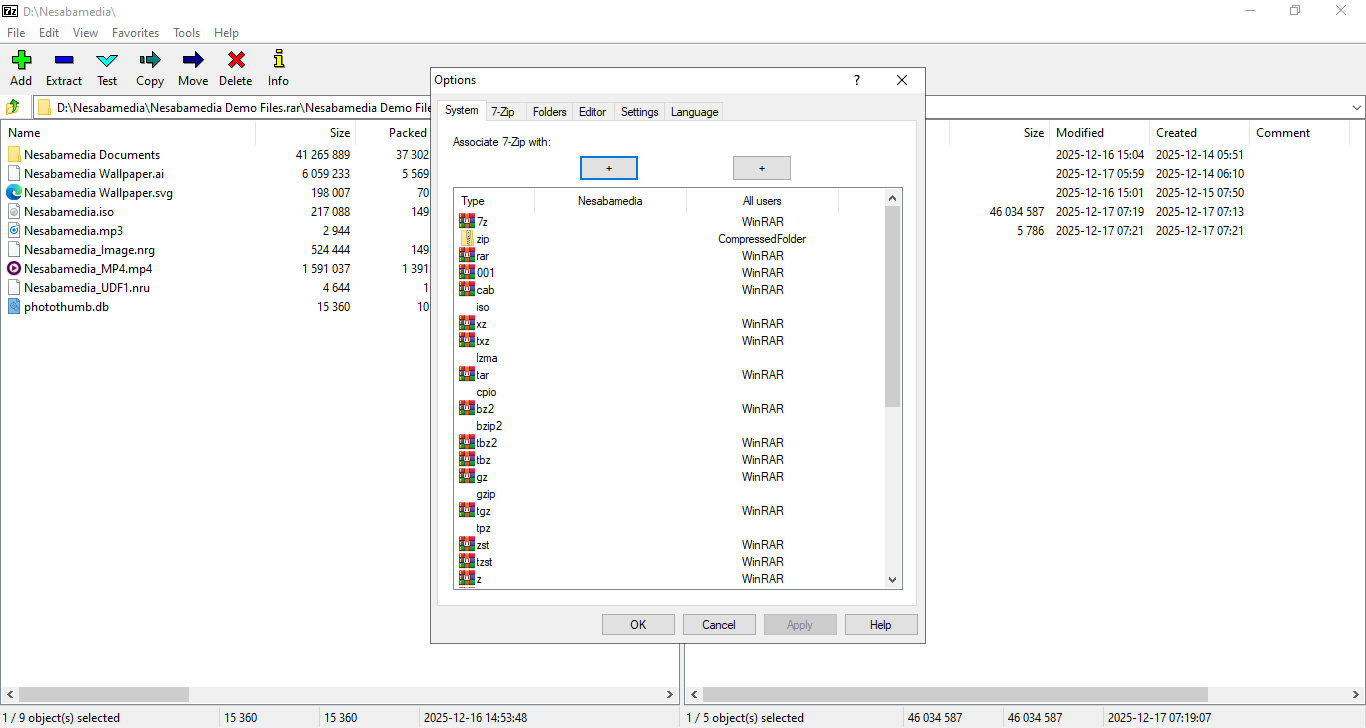
7-Zip can extract a large variety of archive formats such as RAR, CAB, ISO, DMG, etc. It has a file manager to navigate through files without leaving its main interface, and its customizable context menu allows for a quick access to a number of options.
Features and Highlights
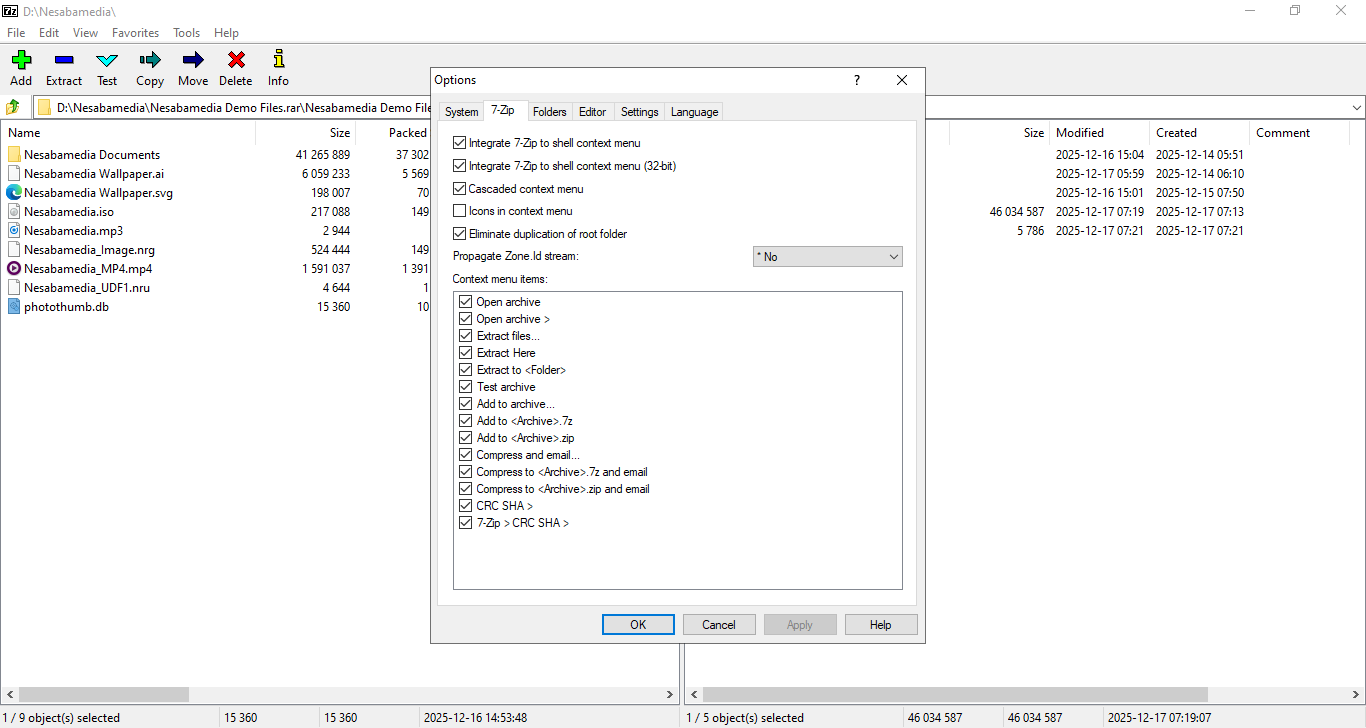
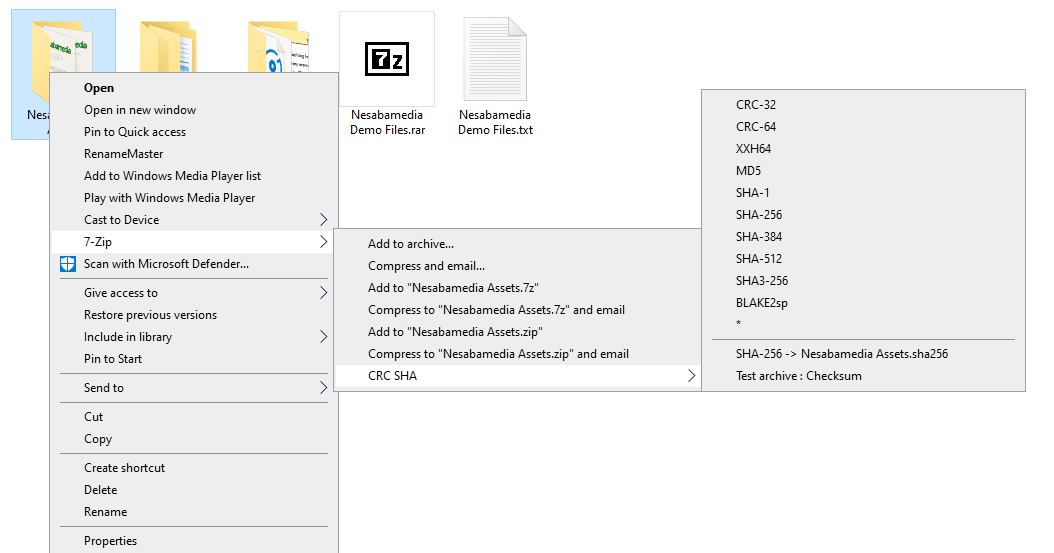
7-Zip integrates into the context menu by default, so you can compress or extract files without having to launch the main interface every single time you’re going to do it. Some commands, such as ‘compress and email’, always bring up a dialog box.
When you right-click on a file, there is a submenu named 7-Zip which contains a number of commands. The content of this submenu can be customized. Any command that you don’t need, you can remove it from the submenu. Any command that you’re going to use frequently, you should keep it.
The submenu is without icon by default, which might make it slightly harder to find in a very long context menu. The solution is either you remove the other items in the context menu or add icons for the submenu and its content, which you can do so simply by enabling ‘icons in context menu’ option.
The benefit of grouping the commands in a submenu is a less cluttered context menu. If you want to access the commands quicker, you have to deactivate the cascade menu so that every command is immediately visible in the context menu when you open it.
Generally, 7-Zip produces smaller file sizes when compressing files, but only if you compress them to zip or 7z format. This is one of the main advantages of using this open source software.
Its installation is one of the most straightforward you’ll ever come across. Change the default destination if necessary, confirm your choice, and let it runs until finish which only takes seconds.
It can create a self-extracting file which extracts the content when you double-click on it, and it can also create an archive secured by AES-256 encryption that rejects access attempts without correct passwords.
It supports a number of compression levels, compression methods, dictionary sizes, word sizes, solid block sizes, 87 languages, command line, and plugins.
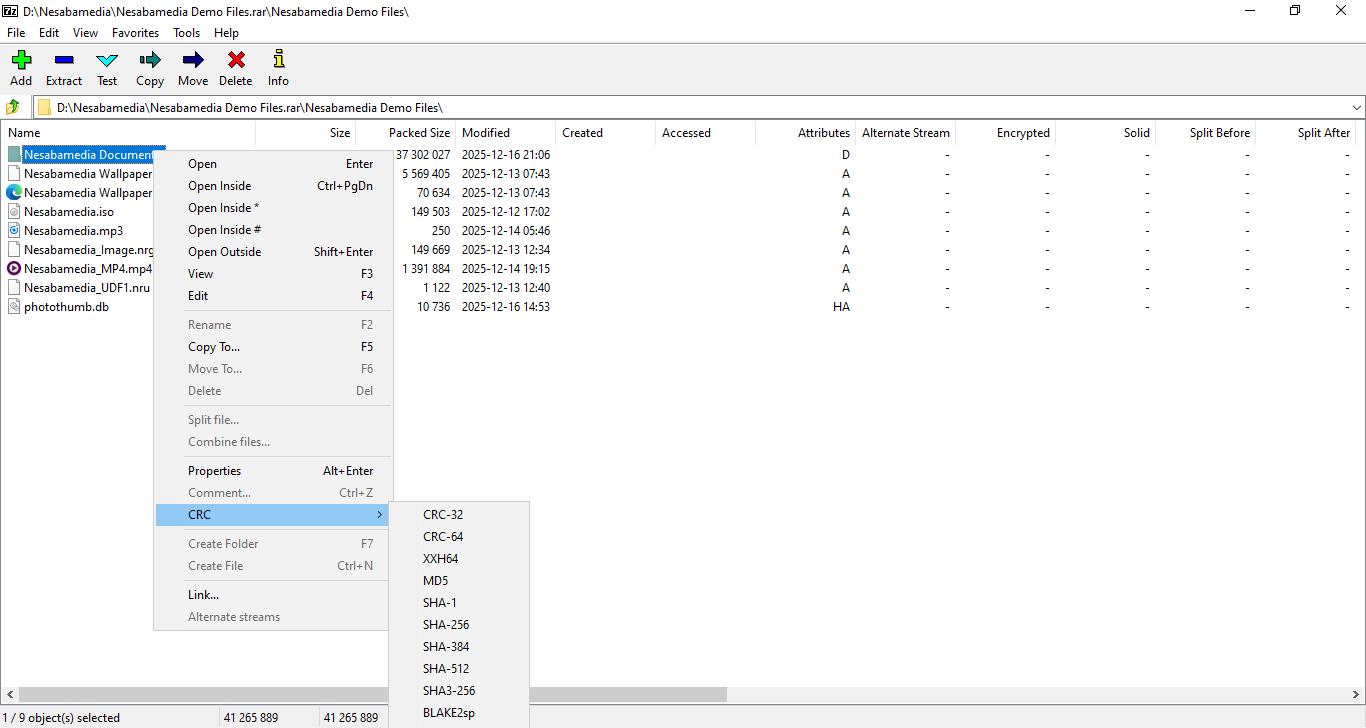
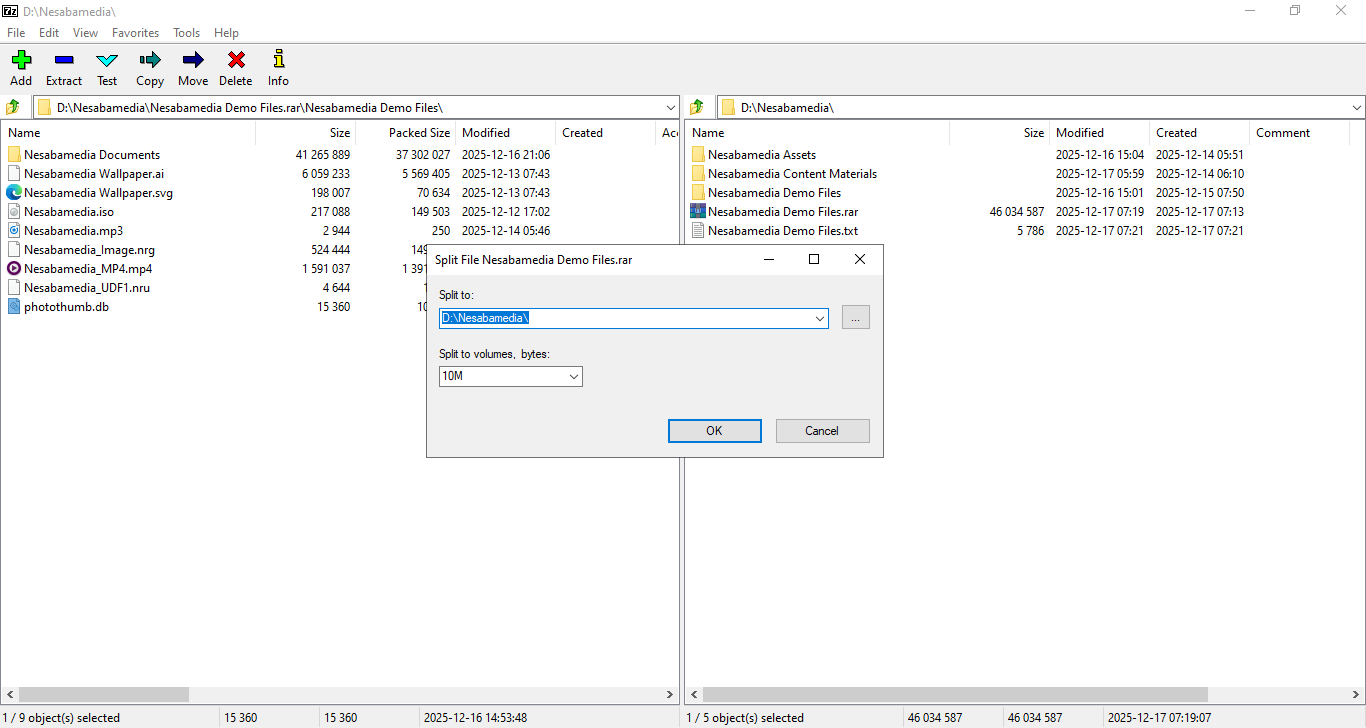
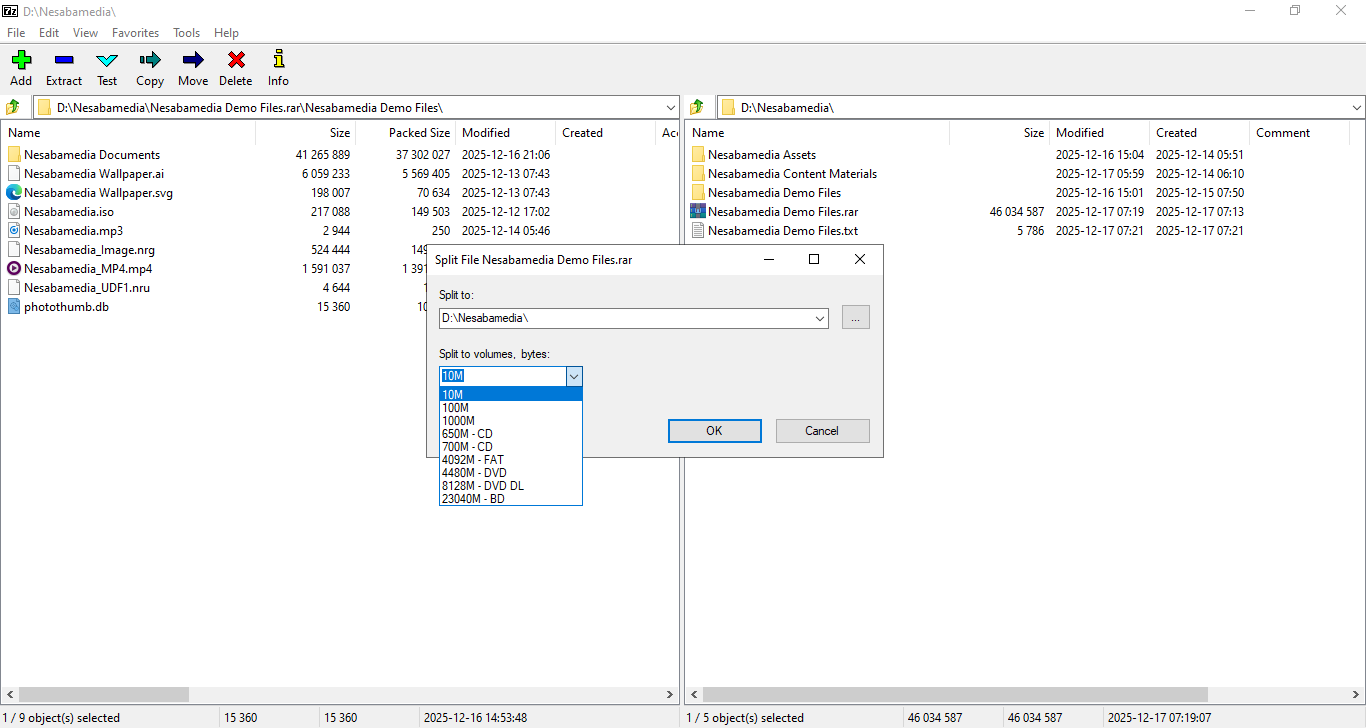
Additionally, it can split the file into several compressed volumes if you desire so, test an archive for errors, and calculate checksum to verify the integrity of your files.
7-Zip Free Download for Windows
7-Zip is obviously not the only archiving and extraction software around. It is often compared with other popular alternatives such as Winrar, Bandizip, Winzip, and Peazip. It has downsides, but they aren’t enough to deter many users from relying on it. Unlike many other similar software, 7-Zip is free without any catch. You can click the link below to download 7-Zip for Windows:
- App Name 7-Zip
- License Freeware
- App Name 7-Zip
- Publisher Igor Pavlov
- Updated
- Version: 25.01
On our site you can easily download 7-Zip. All without registration and send SMS!